EasyManua.ls Logo

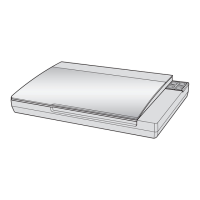
Epson Perfection V200 Photo - User Manual

Epson Perfection V200 Photo
8 pages
Print Icon
To Next Page IconTo Next Page
Loading...
Epson Perfection V200 Photo
6/07 Epson Perfection V200 Photo - 1
Scanner Parts Scanner Specifications
General
Mechanical
Electrical
Note:
Check the label on the AC adapter or on the back of the scanner for
voltage information.
Scanner
a
c
b
b
a
c
e
d
c
a
b
P
Power/
] Start button
a Scan to PDF
button
Status light
{ Copy button
| Scan to E-mail button
Document mat
Document
table
Carriage
DC inlet
USB interface
connector
USB interface
connector
Scanner cover
a
Transparency
unit window
Scanner type Flatbed color
Photoelectric device Color CCD line sensor
Effective pixels 40,800 × 56,160 pixels at 4800 dpi
Document size Documents or photos:
8.5 × 11.7 inches (216 × 297 mm)
US letter or A4 size
Film or slides:
35mm film strips (6 frames at a time);
35mm slides (4 slides at a time)
Scanning resolution 4800 dpi (main scan)
9600 dpi with Micro Step Drive
(sub scan)
Output resolution 50 to 6400, 9600, and 12800 dpi
(50 to 6400 dpi in 1 dpi increments)
Image data 16 bits per pixel per color internal
16 bits per pixel per color external
(maximum)
Interface One USB 2.0 Hi-speed port
Light source White cold cathode fluorescent lamp
Dimensions Width: 16.9 inches (430 mm)
Depth: 11 inches (280 mm)
Height: 2.2 inches (57 mm)
Weight Approx. 5.7 lb (2.6 kg)
Rated voltage DC 13.5 V
Rated current 1.5 A
Power consumption 16.5 W operating
14 W stand-by mode
3.6 W sleep mode
0.5 W power off

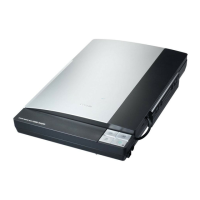
Other manuals for Epson Perfection V200 Photo

Questions and Answers

  • S
    stephen62Jul 26, 2025
    Why is the Carriage Unit not operating on my Epson Scanner?
    • T
      Toni JohnsonJul 26, 2025
      If the Carriage Unit on your Epson Scanner isn't working, it could be due to disconnected connectors on the Main Board. Ensure all connectors are properly connected. Another cause may be a Carriage Movement Mechanism failure, in this case, check the Carriage Movement Mechanism and replace the corresponding part, or disassemble the mechanism to reassemble it. It could also be a CR Motor failure, consider replacing the CR Motor. Finally, a Main Board failure could be the reason; in this case, replace the Main Board.
  • M
    Miguel JohnsonJul 31, 2025
    What to do if the Fluorescent Lamps don't light up on my Epson Perfection V200 Photo Scanner's Main Unit?
    • N
      Nicholas Brown MDJul 31, 2025
      If the Fluorescent Lamps in the Main Unit of your Epson Scanner don't light up, it might be due to the Carriage FFC being disconnected from the Main Board. Ensure the FFC is properly connected. Alternatively, the Carriage Unit itself may have failed, requiring replacement. As a last resort, the Main Board could be faulty and need replacement.
  • H
    hartjacquelineAug 4, 2025
    Why are the films not being fed or ejected on my Epson Scanner (AFL)?
    • J
      Janet SmithAug 4, 2025
      If your Epson Scanner is not feeding or ejecting films (AFL), check the following: First, ensure the connector of the AFL Sensor A is connected to the AFL Main Board. Second, verify that the AFL Motor connector is connected to the AFL Main Board. Third, confirm the connector of the AFL Sensor B is connected to the AFL Main Board. If these connectors are properly connected, the issue might be an AFL Main Board failure, requiring replacement. Finally, the Main Unit Main Board failure may be the cause, in this case, replace the Main Board.
  • W
    Walter IngramAug 10, 2025
    What to do if the Carriage Unit moves but the error is still displayed on my Epson Scanner?
    • S
      Shannon TaylorAug 10, 2025
      If the Carriage Unit of your Epson Scanner moves but an error is still displayed, it could be due to smudges on the Document Glass, which appear as white dots on the scanned image. Remove any extraneous matter from the Document Glass. Alternatively, smudges on the Mirror in the Carriage Unit, which appear as vertical stripes on the scanned image, could be the cause. Remove any extraneous matter from the Mirror. As a last resort, the Main Board might have failed, requiring replacement.
  • C
    Cynthia Morris MDAug 14, 2025
    Why aren't the Fluorescent Lamps lighting up in the AFL of my Epson Scanner?
    • R
      Robert EwingAug 14, 2025
      If the Fluorescent Lamps in the AFL of your Epson Scanner don't light up, ensure the connector of the Fluorescent Lamp is connected to the TPU Inverter Board. If it is, the TPU Inverter Board itself may have failed and need replacement. As a last resort, the Main Unit Main Board could be faulty and need replacement.
  • D
    Dorothy ReyesAug 20, 2025
    What to do if the Main Unit of my Epson Scanner does not operate after powering on?
    • J
      Jason SandersAug 20, 2025
      If the Main Unit of your Epson Scanner doesn't operate after being powered on, it might be because all connectors are disconnected. Ensure all connectors are properly connected. In another case, replace the Main Board with a new one.

Summary

Scanner Parts

Scanner Specifications

General

Provides details on scanner type, photoelectric device, pixels, document size, scanning resolution, output resolution, image data, interface, and light source.

Mechanical

Details the scanner's physical dimensions and weight.

Electrical

Lists the scanner's rated voltage, rated current, and power consumption.

AC Adapter

Specifications for the AC adapter, including input/output voltage, current, and frequency.

Environmental

Details the operating and storage temperature, humidity, and environmental conditions.

USB Interface

Information on the scanner's USB interface type, standard, and connector type.

Standards and Approvals

Lists the scanner's and AC adapter's EMC and safety standards and approvals.

Using the Scanner Buttons

Placing Documents or Photos

Placing Large or Thick Documents

Instructions for scanning large or thick documents, allowing the scanner cover to lie flat.

Placing Film or Slides

Removing the Document Mat

Procedure to remove the document mat to access the transparency unit for film scanning.

Placing Film in the Holder

Steps for correctly loading 35mm film strips into the film holder for scanning.

Placing Slides in the Holder

Instructions for positioning 35mm slides into the film holder for scanning.

Storing the Film Holder

Replacing the Document Mat

Scanning and Restoring Photos

Removing Dust From Photos, Film, or Slides

Fixing Backlit Photos

Transporting the Scanner

Reading the Status Light

Related Documentation

Epson Perfection V200 Photo Specifications

General IconGeneral
Color scanningYes
Input color depth48 bit
Maximum scan size210 x 297 mm
Optical scanning resolution4800 x 9600 DPI
Scanner typeFlatbed scanner
Dimensions (WxDxH)280 x 430 x 57 mm
Power requirementsAC 100 - 240V, 50/60 Hz
Sensor typeCCD
USB version2.0
Standard interfacesUSB 2.0
Power consumption (standby)3.6 W
Power consumption (typical)16.5 W
Pallet width1200 mm
Pallet height1000 mm
Pallet length (UK)2165 mm
Quantity per pallet60 pc(s)
Quantity per pallet (UK)90 pc(s)
Quantity per pallet layer12 pc(s)
Quantity per pallet layer (UK)18 pc(s)
Package depth493 mm
Package width120 mm
Package height403 mm
Package weight3640 g
Quantity per pack1 pc(s)
Country of originIndonesia
Weight and Dimensions IconWeight and Dimensions
Weight2600 g

Related product manuals