Note:
Jobs that are larger than 576 MB are not saved to the
printer. Resend these jobs again.
By using the following procedure to access a saved job,
you can repeatedly print the job just by operating the
printer, without resending the job from the computer.
A
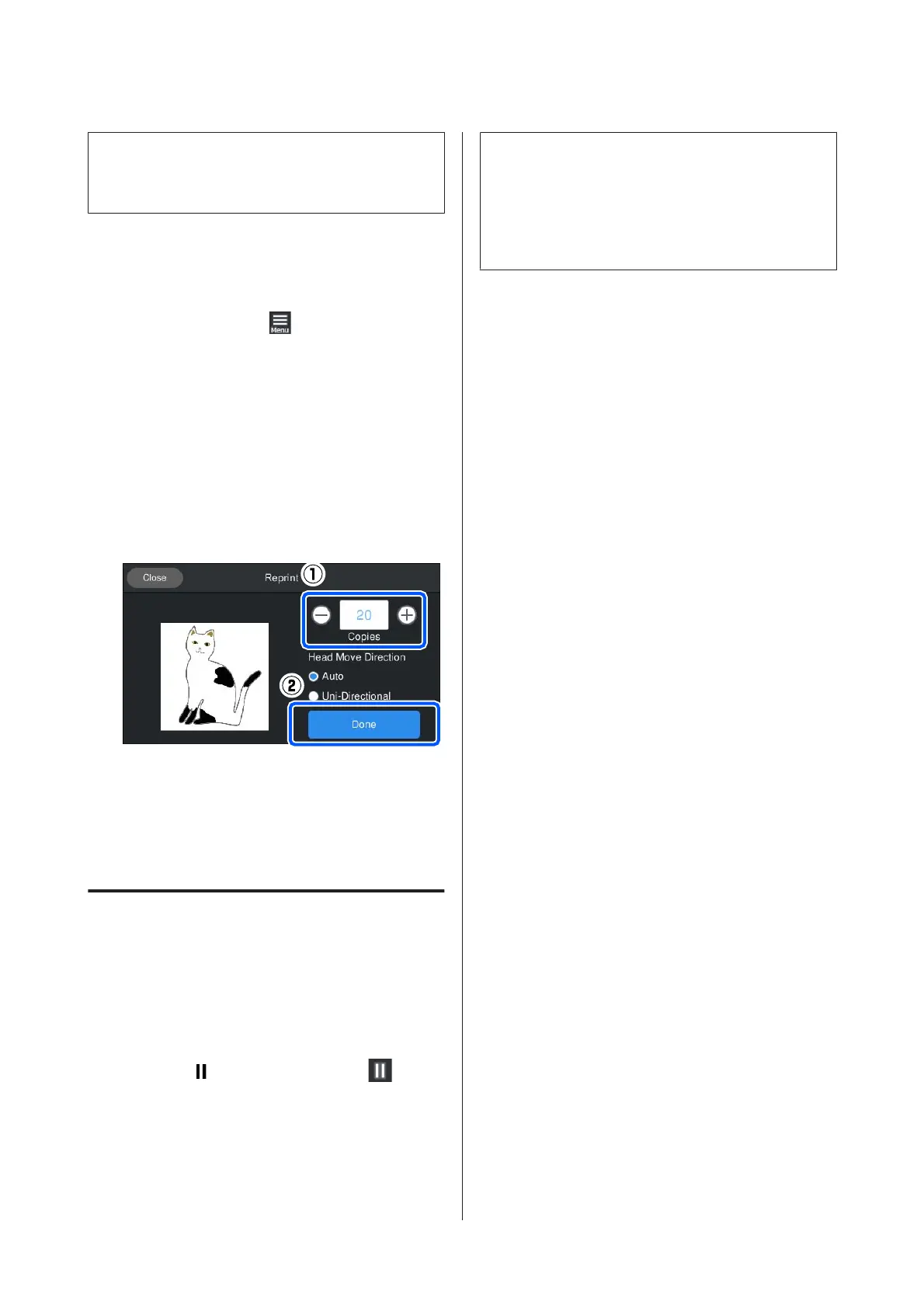
Press in the order of (menu) - Reprint.
B
Input the number of prints, and then press
Done.
You can also change the Head Move Direction
setting here.
❏ Auto: Printing is done according to the settings
of the print job.
❏ Uni-Directional: While moving left and right,
the print head prints only in the first direction.
C
When the preview display opens on the printer’s
screen and the x button lights, load a T-shirt on
the platen, and then press the x button.
U “Load the T-shirt (media)” on page 59
Canceling
Use this when you want to cancel printing, or to cancel a
job that is being received by the printer.
You can use the same procedure to cancel repeat
printing or printing from a USB memory.
A
Press the button on the printer or (pause)
on the right edge of the status display area on the
screen.
B
Select Cancel.
Printing or receiving stops, and the job is deleted.
Note:
You can stop a job by clicking Cancel in the screen that is
displayed while the job is being sent from Garment
Creator for SC-F3000 Series, the software for the printer.
If a job being sent from the computer to the printer has
finished sending, cancel it at the printer.
SC-F3000 Series User's Guide
Basic Printing
71


 To Next Page
 Loading...