37
English
1. Make sure that this product is on and the Error light is off.
Note:
If the Error light is on, you cannot clean the print head. Replace the
appropriate ink cartridge first.
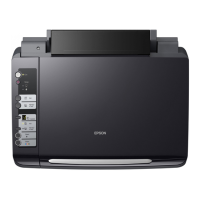
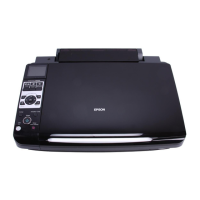
2. Press one of the Menu buttons repeatedly until Head Cleaning
appears on the LCD panel, and then press the x Color Copy
button.
Print head cleaning starts and the On light begins flashing.
c
Caution:
Never turn off this product while the On light is flashing.
Doing so may damage this product.
3. When the On light stops flashing, print a nozzle check pattern
to confirm that the head is clean and to reset the cleaning cycle.
See “Checking the Print Head Nozzles” on page 35.
If the copy quality has not improved after repeating this
procedure four or five times, turn this product off and leave it
alone overnight. Then, perform the nozzle check again and repeat
the head cleaning if necessary.
If the copy quality still has not improved, one or both of your ink
cartridges may be old or damaged and may need to be replaced.
To replace an ink cartridge before it is empty, see “Replacing an
Ink Cartridge” on page 27.
If the copy quality remains a problem after replacing the ink
cartridges, contact your dealer.
Note:
To maintain good copy quality, we recommend copying a few pages at
least once every month.


 To Next Page
 Loading...