Start Here
Note: Make sure the ink pack is fully inserted and level with the
top of the ink pack tray.
6 Insert the ink pack tray into the printer. Repeat steps 2 to 6
for the other ink packs.
Note: The ink packs are keyed to t into the correct color slot.
If you cannot insert the ink pack tray all the way, do not force it.
Make sure the ink pack color matches the color slot on the printer.
7 Close the ink pack tray cover and lock it.
8 Select OK on the LCD screen to start charging the ink.
Ink charging takes approximately 9 minutes. A message
appears when ink charging is complete.
Caution: Do not unplug or turn o the product or open the front
cover while the product is charging or you’ll waste ink.
4
Load paper
See the online User’s Guide for information about loading
capacity, available paper types and sizes, loading envelopes,
and using the rear paper feed slot.
1 Make sure the product is done charging the ink, then pull
out the paper cassette.
IMPORTANT: Before using this product, make sure you read these
instructions and the safety instructions in the online User’s Guide.
Note: This printer is designed for use with Epson
®
ink packs
only, not third-party ink. For important ink information, visit
www.epson.com/epsonink (U.S.) or www.epson.ca/epsonink (Canada)
or see your printer box.
1
Unpack
French control
panel sticker
Warning: The product is heavy and should be lifted and moved by
two people.
1 Remove all protective materials from the product.
Note: Keep the two protective pieces shown after removing them
from inside the product. You will need them if you transport your
product. See your product’s online User’s Guide for transportation
instructions.
2 Lift up the printer cover and remove all protective materials
from inside the product, then close the printer cover.
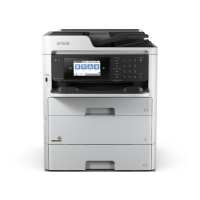
3 If your product has an additional paper cassette unit, place
the product on the included paper cassette unit as shown
and attach the included sticker.
4 Insert the output tray, then set it down gently.
2
Turn on and configure
1 Connect the power cord to the back of the product and to
an electrical outlet.
Caution: Do not connect to your computer yet.
2 Turn on the product.
Note: If an error code appears, turn o the product and check that
no protective material has been left inside the product.
3 Select your language and time on the LCD screen.
Note: You can change these settings later using the product’s
control panel. For more information, see the online User’s Guide.
3
Install ink supply units
(ink packs)
Note: The included initial ink packs are designed for reliable printer setup
and cannot be used as replacement ink packs or resold. After setup, the
remaining ink is available for printing.
Caution: Keep the ink packs out of the reach of children and do not
drink the ink.
1 Unlock and open the ink pack tray cover.
2 Press an ink pack tray to release it, then pull the tray out.
3 Remove and discard the protective piece from the ink pack
tray.
4 Shake an ink pack 10 times, then remove it from the
packaging.
Note: Do not touch the green chip on the ink pack.
5 Move the handle forward, place the ink pack into the ink
pack tray, then move the handle back to its original position.
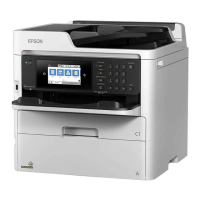
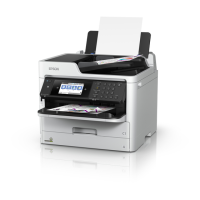
WF-C529R

 Need help?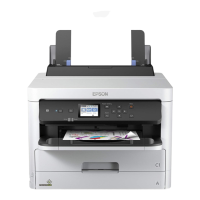






 To Next Page
 General