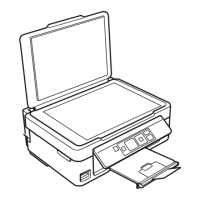
If you see an error screen telling you an ink cartridge is installed incorrectly, lift up the scanner unit
and press the ink cartridge down until it clicks into place. When you're finished, press the OK button.
If you remove a low or expended ink cartridge, you cannot re-install and use the cartridge.
Caution: If you remove an ink cartridge for later use, protect the ink supply area from dirt and dust and
store it in the same environment as the printer. The valve in the ink supply port is designed to contain
any excess ink, but do not touch the ink supply port or surrounding area. Always store ink cartridges with
the label facing up; do not store cartridges upside-down.
Parent topic: Replacing Ink Cartridges
Related concepts
Purchase Epson Ink Cartridges
Replacing Ink Cartridges Using a Computer Utility
You can use the Ink Cartridge Replacement utility to view on-screen instructions for replacing an ink
cartridge. This method allows you to replace a cartridge before it is low or expended (if it is too old, for
example).
1. Do one of the following:
• Windows: Access the Windows Desktop, right-click the product icon in the Windows taskbar, and
select Printer Settings. Then click the Maintenance tab.
• OS X 10.6/10.7/10.8/10.9: In the Apple menu or the Dock, select System Preferences. Select
Print & Fax, Print & Scan, or Printers & Scanners, select your product, and select Options &
Supplies. Select Utility and select Open Printer Utility.
• OS X 10.5: In the Apple menu or the Dock, select System Preferences. Select Print & Fax,
select your product, and select Open Print Queue. Select Utility.
159



 To Next Page