Selecting Wireless Network Settings From the Control Panel
You can select or change wireless network settings using your product control panel.
To install your product on a wireless network, follow the instructions on the Start Here sheet and install
the necessary software from the product CD. The installer program guides you through network setup.
Note: Breakdown or repair of this product may cause loss of network data and settings. Epson is not
responsible for backing up or recovering data and settings during or after the warranty period. We
recommend that you make your own backup or print out your network data and settings.
1. Press the home button, if necessary.
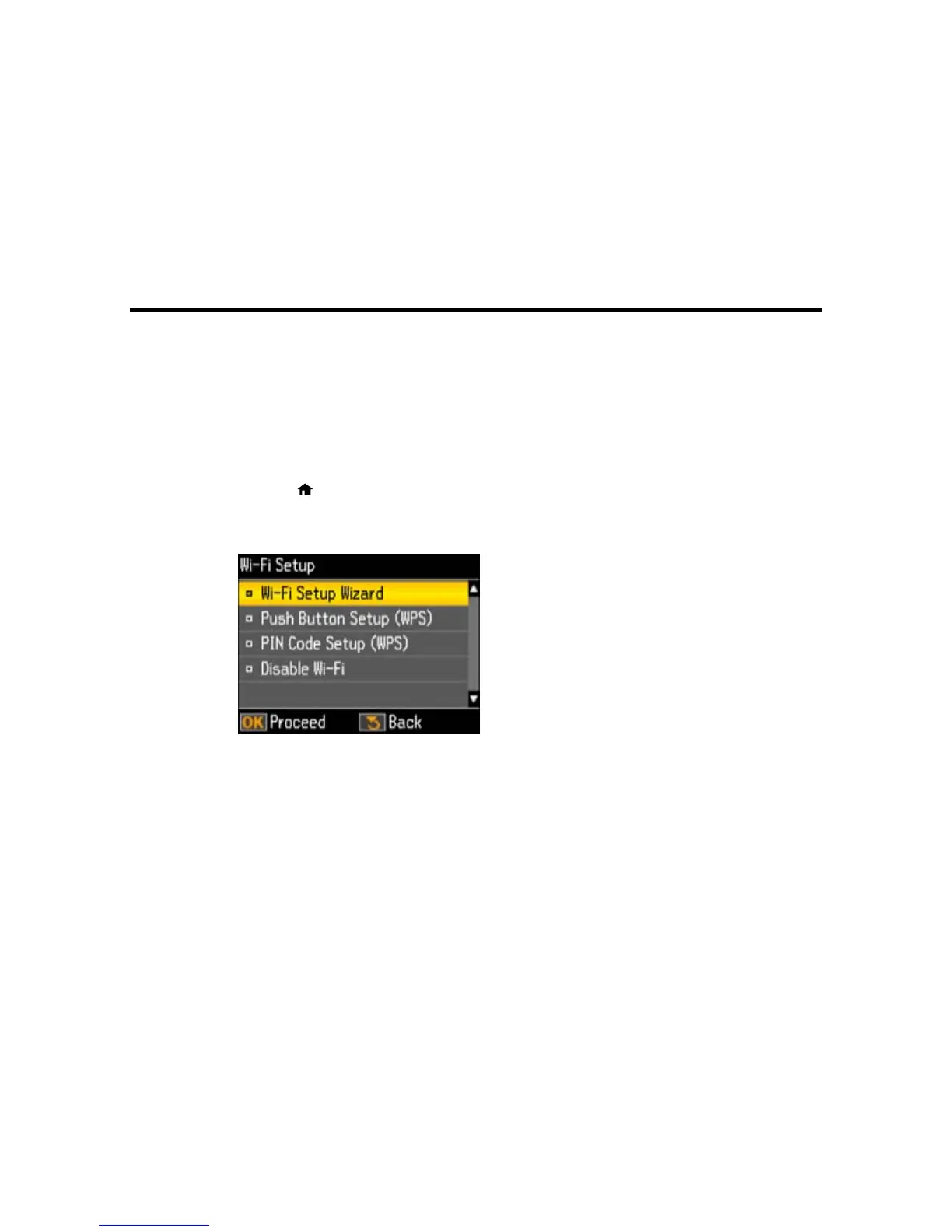
2. Press the left or right arrow buttons to select Wi-Fi Setup and press the OK button.
You see this screen:
3. Press the OK button to select Wi-Fi Setup Wizard.
4. Press the up or down arrow buttons to select the name of your wireless network and press the OK
button. If you do not see your wireless network's name, you can enter it manually.
Note: To enter the wireless network name manually, select Other SSIDs and press the OK button.
Enter your network name as described in the next step.
26








 To Next Page