
 Need help?
Do you have a question about the ERS POS80 and is the answer not in the manual?
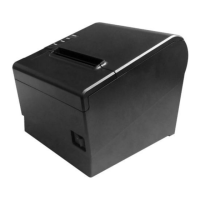
Provides an overview of the POS80 thermal printer, its applications, and supported operating systems.
Lists the key features and capabilities of the POS80 thermal printer, such as auto-cutter and low noise.
Details the printer's technical specifications including printing method, resolution, speed, interfaces, storage, and character sets.
Specifies the required dimensions, type, and diameter for thermal receipt paper and black mark paper.
Outlines the reflectivity and positioning requirements for black marks on specialized printing paper.
Offers crucial advice on paper quality, handling, and environmental factors to ensure optimal printing performance.
Defines the paper storehouse width, effective printing width, and margins for print layout.
Illustrates the location where the paper is cut relative to the first line of printing.
Provides detailed diagrams identifying the external parts and physical features of the POS80 printer.
Explains the function of the power, error, and paper indicators, and the meaning of buzzer alerts.
Instructions for unpacking the printer and verifying that all components are present and undamaged.
Guidelines for selecting a stable, safe, and suitable environment for printer installation.
Step-by-step guide for safely connecting the printer to its power adapter and a wall outlet.
Instructions on how to connect the printer to a host device using various communication cables.
Details on connecting a cash drawer to the printer's dedicated port, including voltage warnings.
Reminds users to confirm the correct paper type before loading it into the printer.
Provides a comprehensive guide with illustrations for loading and changing the paper roll in the printer.
Explains the function of each DIP switch and how to configure the printer's settings accordingly.
Details the procedure for printing a self-test page to verify printer functionality and settings.
Guides users on setting the printer's IP address through its web configuration interface for network connectivity.
Lists the pin assignments and functions for the printer's DB25M parallel interface connector.
Details the pinout and typical wire colors for the standard USB Type-B interface.
Specifies the pin configuration for the printer's power input connector, including voltage and ground.
Outlines the pin assignments and electrical specifications for the RJ11 cash drawer interface.
Provides the pinout and definitions for the DB9 female serial port, including default settings.
Details the pin configuration for the RJ45 Ethernet port, indicating transmit and receive signals.
Addresses common issues where the printer fails to operate, providing probable causes and solutions.
Explains the meaning of indicator lights and buzzer alerts, helping diagnose error conditions.
Covers common printing problems such as color strips, unclear prints, and paper output issues with solutions.
Provides troubleshooting steps for issues related to the paper cutter, including blockages and poor cutting quality.
Offers detailed procedures for clearing paper jams and resolving cutter retraction problems safely.

 To Next Page
 General