ESCAM IP Camera User Guide
website: www.escam.cn Email:support@escam.cn
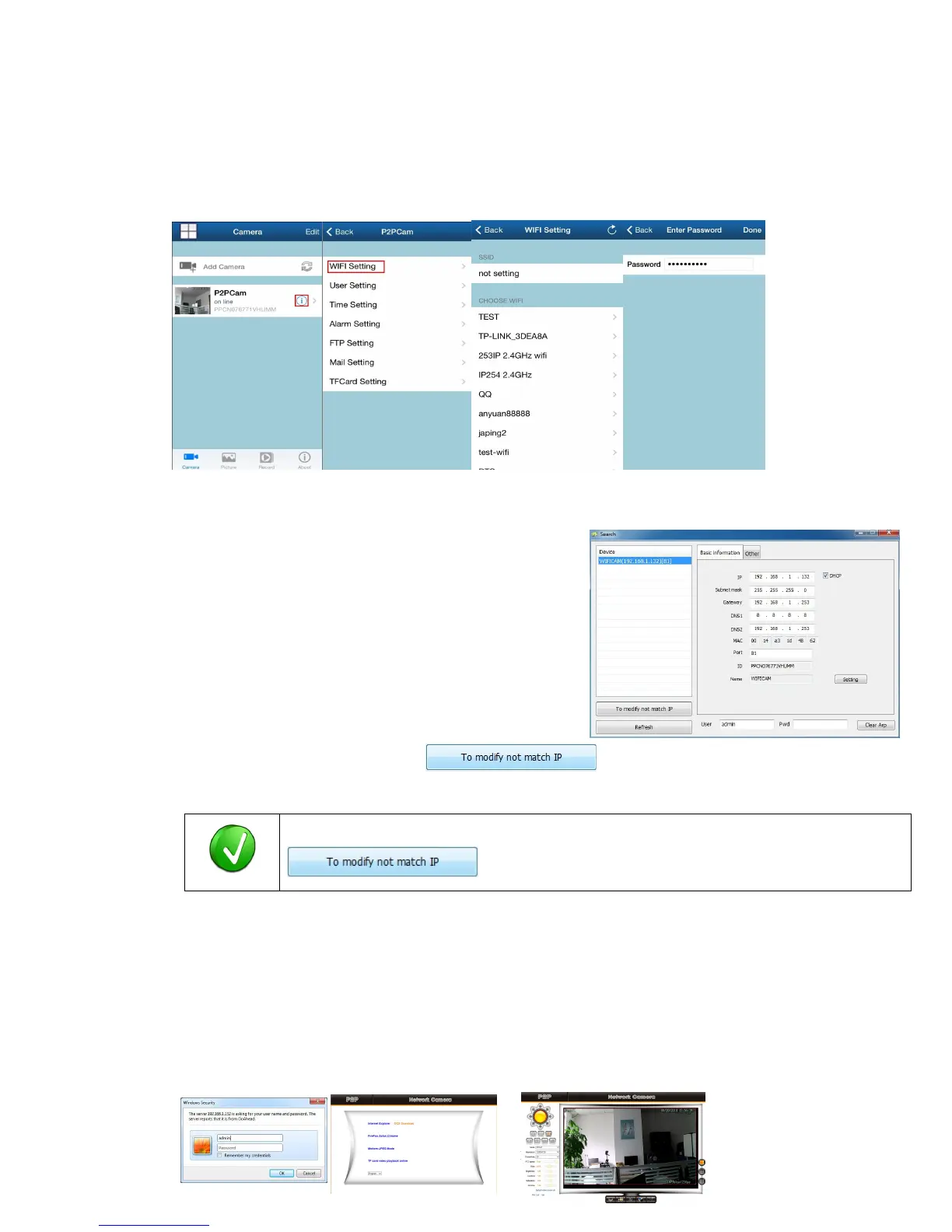
4.2 Select“WIFI Settings”
4.3 Select one WiFi
4.4 Input WiFi Password
4.5 Unplug the camera's network cable, the camera will restart and connect the WIFI automatically.
5. View IP Camera by PC
5.1 Search IP Camera address
When connected IP camera, it will auto get one IP address in LAN.
Default info:
User name: admin;Password: null; Http Port:81
For example: http://192.168.1.132:81
Step1: Search IP Address by“IP camera Finder”
Step2: Modify IP address or One Key Set
5.2 IE Preview
5.2.1 Search IP address and double click the list or input it in IE,
For Example: http://192.168.1.132:81 (It must input with http port 81)
User name: admin; Password:null http port:81
5.2.2 After login, you need install the player (ActiveX controller)
to display the camera image as shown below:
Tips:If you find your PC and IP camera are not in one same gateway, you can click
to setup or manually modify the IP address.


 To Next Page