3
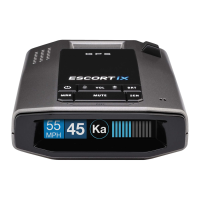
Before downloading ESCORT Live, you must rst
register your ESCORT iXc device. Be sure to have
your ESCORT iXc unit nearby, as you will need its
serial number.
1 Visit www.EscortRadar.com and click Product
Registration.
2 Click the “Registration for all devices” link.
3 Follow the onscreen instructions to register
your device.
Be sure to write down the username and password
you create, as you will need this information to
access and download ESCORT Live. (You will also
receive an e-mail with this information, once you
have registered your device.)
For iPhone:
1 Ensure ESCORT iXc power is ON
2 Open the App Store on your iPhone
and search for ESCORT Live Radar.
3 Follow the onscreen instructions to download
ESCORT Live Radar and then open the app.
4 When prompted, enter the username and
password you created when registering your
product at EscortRadar.com.
5 Press the Settings button then select
Devices.
6 You should see iXc listed with Not Connected
underneath. Press the
iXc device entry and
when prompted select Pair.
7 The Bluetooth icon on the ESCORT iXc display
will appear to conrm that it is paired to your
iPhone.
For Android based smartphones:
1 Ensure ESCORT iXc power is ON.
2 On your smartphone go to Bluetooth® Settings
and make sure that Bluetooth® is ON.
3 Open Google Play on your smartphone
and search for Escort Live Radar.
4 Follow the onscreen instructions to download
Escort Live Radar and then open the app.
5 When prompted, enter the username and
password you created when registering your
product at EscortRadar.com.
6
In the Escort Live app, press the red Bluetooth®
button and select iXc from the popup menu.
Using Wi-Fi Connect:
Connecting ESCORT iXc to a Wi-Fi network is as
easy as 1, 2, 3:
1 Register your ESCORT iXc. Remember the
email and password that you used.
2
Install the ESCORT Live app on your smartphone
and pair ESCORT iXc to your smartphone’s
Bluetooth (see previous section for directions).
Login to ESCORT Live using the email and
password used when you registered your
ESCORT iXc.
3 Connect your smartphone to the Wi-Fi network
and go to ESCORT Live’s Wi-Fi Settings menu to
enter the network’s password.
After successfully connecting to a Wi-Fi network,
the speed limit indicator on your ESCORT iXc will
change to white indicating that is receiving data
from Wi-Fi (see page 6). Software updates, speed
limit data, and ESCORT Live alerts are provided
when connected to a Wi-Fi network.
Note: ESCORT iXc only supports 2.4 GHz Wi-Fi
(802.11 b/g/n).
Registration, ESCORT Live, Wi-Fi Connect


 To Next Page