MEMORY CARD STORAGE
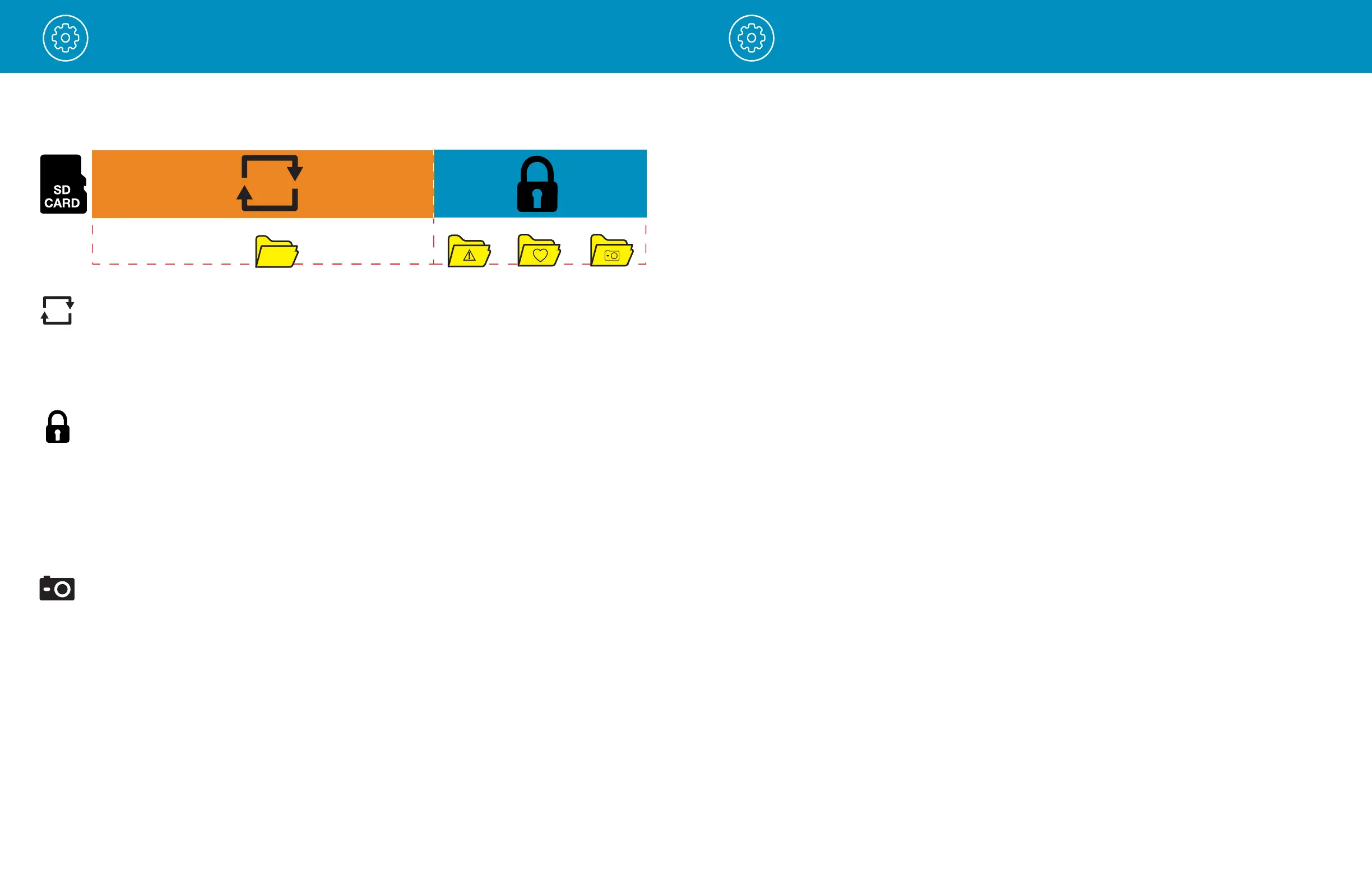
Loop Recordings:
Once the SD card is full, the camera will continuously overwrite the oldest footage recorded with recent
recordings. To protect a clip so that it will not be overwritten, press the Multifunction button while
recording so that the clip is moved into the locked content partition.
Emeregency Recordings:
An Emergency Recording is triggered when the Multifunction button is pressed or when the G-Sensor
registers a significant impact (hard braking or collision). Emergency Recordings create locked files
that are not overwritten by Continuous Loop Recording. To ensure that important footage is not lost
surrounding an incident, the adjacent video clip is locked if the incident happens within 30 seconds of
the beginning or end of a clip.
Photos:
Photos are automatically saved in the Locked partition of the SD card.
Once your Locked Content partition is full of Events, Favorites, and/or Photos you will be asked to
“Format the SD Card” by the camera. You can do this by formatting the SD card on your PC or by using
the Drive Smarter App. This will delete your Locked content and make space for new content. Please save
all important footage by downloading via the Drive Smarter app or by manually uploading to your PC.
NORMAL
EVENTS
FAVORITES
PHOTOS
66% Loop Recording 34% Locked Content
Operation
SAFETY FEATURES
The M2 Dash Cam comes with several safety features designed to protect you and your vehicle. You can
adjust the level of protection that fits you via Drive Smarter App settings.
G-Sensor Impact Detection:
The M2 Dash Cam includes a built in G-Sensor which allows the device to determine when the car has
been in a collision. If it detects a collision, it automatically locks the recording being made at the time of
the accident. Additionally, if the event occurs within 30 seconds of the start or end of a clip, the adjacent
recording will also be locked so you always have at least 30 seconds saved from before and after the
event. You can use this setting to set the sensitivity of the G-Sensor from 1-3 or turn it off. Level 1 is
the easiest to activate the G-sensor. Level 3 will only lock videos when the most severe impacts are
detected. Locked videos created as a result of a G-sensor impact detection are stored in the Events
folder on the SD card.
Parking Mode & Motion Detection:
Enable by connecting to the Drive Smarter app and enabling Parking Mode and/or Motion Detection.
Parking Mode uses the Motion Sensor and G-Sensor to monitor while your vehicle is parked. When
you are parked, the dash cam will be “sleeping”, but it will monitor surroundings for motion along with
G-Sensor impacts. If it detects motion or if it detects an impact, then the unit will wake up and start
recording.
The camera will enter parking mode after 5 minutes. If there is no motion is during this period, the
recording will stop (the camera monitors for g-sensor impacts or motion). If motion is detected or if a
G-sensor impact above Level 1 is triggered, the unit will wake up and start saving 1 minute clips for as
long as activity is being detected.
Notes:
• Parking Mode only works properly if the dash cam is powered. Either the Cigarette Lighter Socket
must remain on with the ignition off, or the dash cam must be hardwired to a constant power
source (use optional hardwire cord 0010058-1).
• If you park where there is lots of activity which keeps triggering the motion sensor, then the
unit might never time out and enter the sleep state. For this you can use the “Auto Surveillance
Shutoff” setting to prevent unnecessary recording.
If leaving your vehicle off for more than 48 hours (or less if your battery is old) please use the “Auto
Surveillance Shutoff” setting to set a time-limit on Parking Mode and prevent your battery from
being drained.
• You can choose to have your camera monitor for impacts and/or motion by controlling the
‘Parking Mode’ and ‘Motion Detection’ settings separately.
Operation
13 14


 To Next Page