Need help?
Do you have a question about the Escort M2 and is the answer not in the manual?
Identifies and explains the various ports, buttons, and LEDs on the M2 Dash Cam.
Step-by-step instructions for attaching the M2 Dash Cam to the EZ Mag Mount.
Details on connecting the power cable for the dash cam and radar detector.
Instructions for connecting the smart cord to power and mounting the device.
Explains how to power the M2 Dash Cam on and how it continuously records footage.
Steps for initial setup and connecting the M2 to the Drive Smarter app.
Details G-Sensor impact detection and Parking Mode for vehicle monitoring.
Instructions for updating firmware using the Drive Smarter app or a computer.
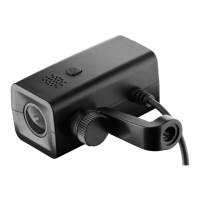
The Escort M2 is a radar-mounted smart dash cam designed to provide peace of mind by continuously recording the road in beautiful HD video. It integrates cutting-edge features, phenomenal video quality, and a user-friendly experience to offer a comprehensive solution for recording your journeys.
The primary function of the Escort M2 is to record video footage of the road ahead in 1080P Full HD quality with a 140° field of view. It features dual-band Wi-Fi for flawless connectivity, allowing for seamless interaction with its companion mobile application. An embedded GPS module provides location and speed information, which can be stamped onto the video footage.
The dash cam supports loop recordings, meaning that once the included 16GB SD card is full, the camera will continuously overwrite the oldest footage with recent recordings. To protect important clips from being overwritten, users can press the Multifunction button to move a clip into a locked content partition.
Emergency recordings are a crucial safety feature. These are triggered either by pressing the Multifunction button or when the G-Sensor detects a significant impact, such as hard braking or a collision. Emergency recordings create locked files that are not overwritten by continuous loop recording. To ensure no critical footage is lost, the video clip immediately preceding an incident is also locked if the event occurs within 30 seconds of the beginning or end of that clip.
The M2 also includes a Parking Mode and Motion Detection feature, which can be enabled via the Drive Smarter app. When the vehicle is parked, the dash cam enters a "sleeping" state but continues to monitor its surroundings for motion and G-Sensor impacts. If motion or an impact is detected, the unit wakes up and begins recording. This feature requires the dash cam to be connected to a constant power source, either through the cigarette lighter socket (if it remains on with the ignition off) or by hardwiring it to the fuse box using an optional Direct Wire SmartCord. The "Auto Surveillance Shutoff" setting can be used to prevent unnecessary recording in areas with high activity or to conserve battery if the vehicle is off for an extended period.
The Escort M2 is designed for easy installation and operation. It attaches to an EZ Mag Mount, which typically holds a radar/laser detector. The installation process involves removing the detector from the sticky mount, attaching the M2 to the mount using a longer carriage bolt, washers, and a sticky cup mount thumb screw, and then reattaching the radar/laser detector to the EZ Mag Mount with the M2 installed. Finally, the M2 power cable connects to the radar/laser detector. It is crucial to tighten the thumb screw firmly to ensure stable video recordings.
The device powers on automatically when plugged in, but can also be manually powered on by pressing and holding the Multifunction button until the LEDs activate.
Smartphone integration is a core aspect of the M2's usability, facilitated by a Bluetooth connection to the Drive Smarter app. This app offers several key functionalities:
The M2 also provides voice announcements to inform users about important camera system information, such as a full SD card or detected impacts. Volume adjustment for notifications and voice announcements can be done through the Drive Smarter Mobile App.
Regular maintenance is crucial for optimal performance of the Escort M2.
Micro SD Memory Card Management: The device comes with a Micro SD card. To remove the card, press it firmly until it clicks and pops out. When inserting a new card, push it until it locks in place. The camera is compatible with Micro SD cards up to 128GB. It is recommended to format the card in-camera before use, and Class 10 high-endurance cards from reputable brands are recommended for continuous video recording.
The memory card storage is divided into two partitions: Loop Recording (66%) and Locked Content (34%). Photos are automatically saved in the Locked partition. When the Locked Content partition is full of Events, Favorites, and/or Photos, the camera will prompt the user to "Format the SD Card." This can be done on a PC or using the Drive Smarter App, which will delete locked content and free up space. Important footage should be saved by downloading it via the app or manually uploading it to a PC.
Firmware Updates: Ensuring the camera's firmware is up to date is vital for optimal performance and access to the latest features. Firmware updates can be performed using the Drive Smarter App or by connecting the dash cam to a computer (Mac or PC).
Troubleshooting steps include ensuring proper power cord connection, clean cigarette lighter socket, and updated firmware. For GPS lock issues, it's noted that GPS works best on the road, not in garages or indoors. If cabin recordings appear black and white, it's normal operation for the Infrared LED night-vision camera, which can be turned off in settings.
 General
| GPS | Yes |
|---|---|
| Wi-Fi | Yes |
| G-Sensor | Yes |
| Loop Recording | Yes |
| Resolution | 1920x1080 (Full HD) |
| Viewing Angle | 140 degrees |
| Storage | MicroSD card (up to 128GB) |

 To Next Page