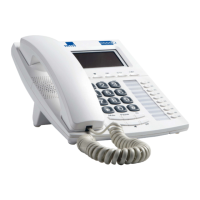
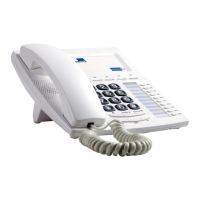
DESCRIPTION 75
Putting a call on hold when connected to the
trunk line
When FlView is connected directly to the trunk line (not to a PABX) you have
to press the HOLD key in order to put a call on hold.
In Speakerphone mode
If HOLD button is pressed the base microphone will turn off, the outside
line will still be retained just listening to music, so the other party cannot
hear your side of conversation.
Press HOLD button or SPEAKER button to go back to normal
conversation.
Or
Pick up handset to take the outside line and start conversation.
In Handset mode
If HOLD button is pressed handset microphone will turn off and the
outside line will still be retained just listening to music.
Press HOLD button or pick up the handset to go back to normal
conversation.
Or
Press SPEAKER button on the base unit to take the outside line and start
conversation.
Putting a call on hold when connected to a PABX
When FlyView is connected to a PABX, you have to press the FLASH key in
order to put a call on hold.
Press the FLASH key during conversation. The call has now been put on
hold and you can access all the PABX services.


 To Next Page