ETC Setup Guide
Congo
™
Radio Remote Focus Unit (cRRFU)
cRRFU Setup Guide Page 5 of 5 Electronic Theatre Controls, Inc.
On a receiver with USB connector only
USB receiver encoding is performed by downloading a software utility, connecting the receiver to your
PC using a USB cable, and running the utility on your PC.
To download and install the Channel Setup utility:
Step 1: Using your web browser, navigate to the ETC web site www.etcconnect.com
.
Step 2: Click “Downloads” at the top of the home page.
Step 3: Fill in the search fields as follows:
• Product Line: Accessories
• Product: Radio Remote Focus Units (RRFU and cRRFU)
• Download Type: Software
Step 4: Click “Search”
Step 5: In the search results, double-click on
the appropriate file (named in step 3).
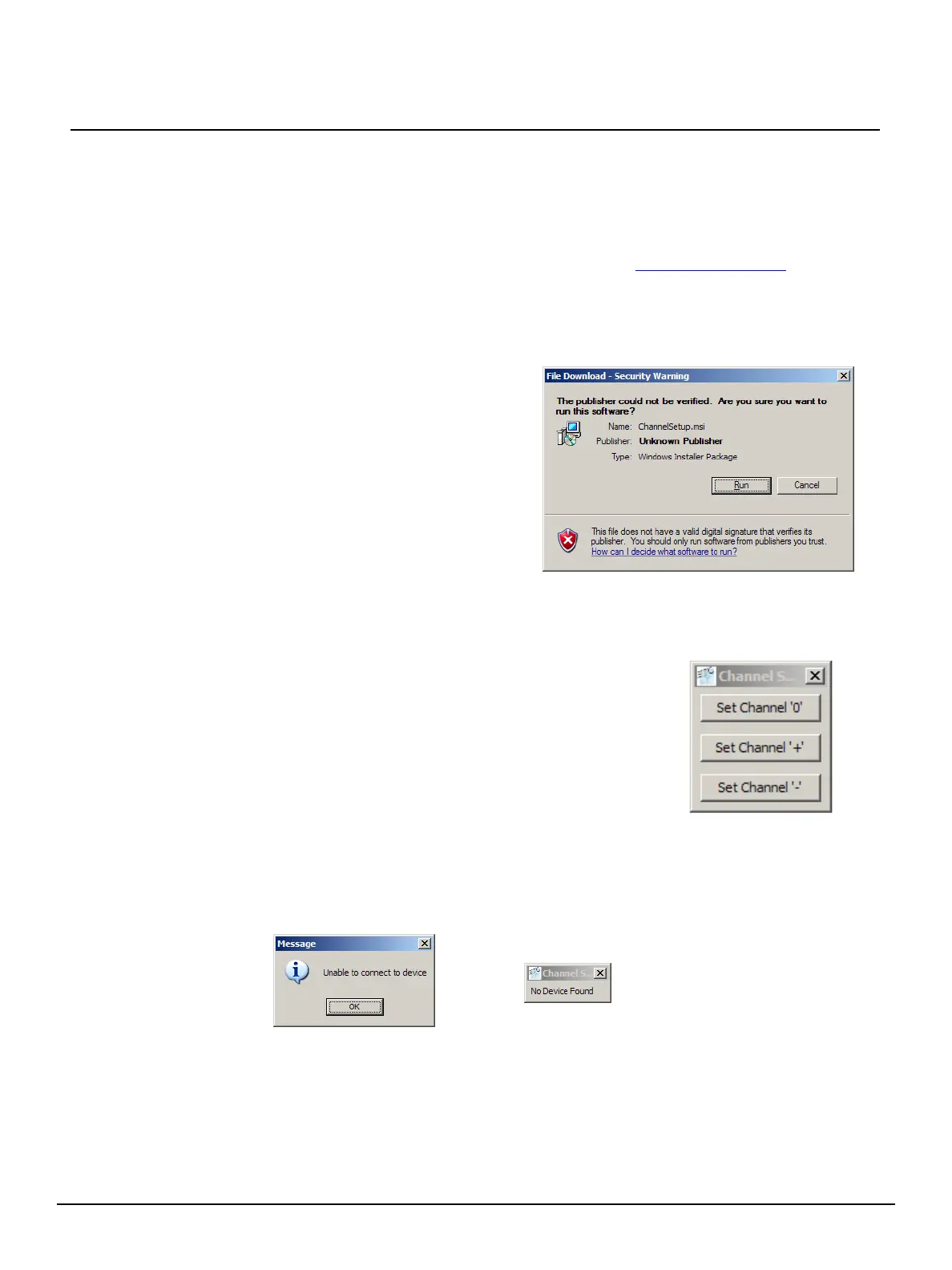
Windows will display the prompt at
right.
Step 6: Click “Run” to allow windows to install
the software.
Step 7: Follow the prompts in the setup wizard
to complete the install process.
To run the Channel Setup utility:
Step 1: Connect your receiver unit to one of your PC’s USB ports using a USB cable.
Step 2: Run the utility by clicking Start Menu>Programs>Channel Setup.
Step 3: If successful, the utility will open a small window with the
three encoding settings (0, +, -) displayed (shown at right).
Step 4: Click the setting that matches your transmitter unit (see To
change the transmitter encoding on page 4).
Step 5: Your receiver encoding will be updated. You may
disconnect the unit from your PC and close the Channel
Setup utility.
If you receive the error prompts shown below, instead of the Channel Setup Window, the
receiver may not be fully connected. Check the USB connection between the receiver and your
computer. Then try to re-run the utility. If you still have difficulty, contact ETC Technical Services
at the appropriate number listed at the bottom of page 1.



 To Previous Page