EasyManua.ls Logo

EUFY eufyCam 2 - User Manual

EUFY eufyCam 2
3 pages
Print Icon
To Next Page IconTo Next Page
Loading...
*HomeKit is only available on eufyCam 2 and 2C connected to eufy HomeBase 2.
The instruction will help you set up and control your eufy devices with HomeKit. If you have any
questions during setup and usage of HomeKit, please scroll down for HomeKit FAQs or contact
us at support@eufylife.com.
How to Setup HomeKit on eufyCam 2C/2
Step 1. Power on your eufy HomeBase 2 and connect to the internet.
Step 2. Enable HomeKit on HomeBase 2.
(1) Find the QR Code at the bottom of your HomeBase 2.
(2) For HomeBase Logo #1 (The QR code includes a house-like logo), open the iOS
Home app directly and add accessory by scanning the QR code under the HomeBase 2.
(3) For HomeBase Logo #2 (no house-like logo), open eufy Security app to add
HomeBase 2 and eufyCam 2C/2 first. Then follow the steps on HomeBase settings →
HomeKit setup to activate HomeKit. You are all set.
Step 3. Add eufyCam 2C/2 to HomeBase 2.
(1) Place eufyCam 2C/2 camera close to the HomeBase 2. Press the SYNC button on
eufyCam 2C/2for 2 seconds until you hear a beep sound. The eufyCam 2C/2 will be
waiting for a sound wave message sent by HomeBase 2.
Question and Answer IconNeed help?

Do you have a question about the EUFY eufyCam 2 and is the answer not in the manual?

Summary

How to Setup HomeKit on eufyCam 2 C;2

Step 1: Power on and Connect HomeBase 2

Power on your eufy HomeBase 2 and connect it to the internet to begin the setup process.

Step 2: Enable HomeKit via QR Code (Logo #1)

Use the QR code with a house-like logo on the HomeBase 2 with the iOS Home app to add the accessory.

Step 2: Enable HomeKit via eufy Security App (Logo #2)

Use the eufy Security app to add HomeBase 2 and eufyCam 2C/2, then follow HomeBase settings to activate HomeKit.

Step 3: Add eufyCam 2 C;2 to HomeBase 2

Bring the eufyCam 2C/2 camera close to HomeBase 2 and press the SYNC button.

HomeKit FAQs

Available HomeKit Features

Lists key HomeKit features for eufyCam 2/2C: live stream, snapshot, motion alerts, Siri control, and automation.

Required iOS Version for HomeKit

Recommends the latest version of iOS or iPadOS for controlling HomeKit-enabled accessories.

Remote HomeKit Control

Explains how to control HomeKit accessories remotely using Apple TV, iPad, or HomePod.

Using eufy and HomeKit Simultaneously (iOS)

Instructions on how to use both the eufy Security App and the iOS Home App together.

Using eufy (Android) and HomeKit (iOS) Together

Guides on using the eufy Security App on Android and the iOS Home App simultaneously.

Timestamp and Watermark Disappearance

Explains that timestamp and watermark are disabled by default when HomeKit is enabled and how to re-enable them.

Overview

This document outlines the setup and features of the eufyCam 2 and 2C when integrated with Apple HomeKit, providing users with a comprehensive guide to leveraging smart home capabilities for their security cameras.

Function Description

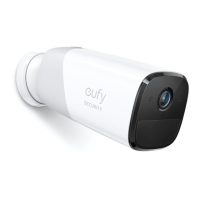
The eufyCam 2 and 2C are security cameras designed to provide surveillance and monitoring, with enhanced functionality when connected to Apple HomeKit via a eufy HomeBase 2. The primary function is to offer real-time video streaming and event-triggered recording, ensuring users can keep an eye on their property. When HomeKit is enabled, the cameras integrate seamlessly into the Apple ecosystem, allowing for centralized control and automation alongside other HomeKit-enabled devices. This integration extends the utility of the eufyCams beyond basic security, transforming them into integral components of a smart home system.

The core security function involves capturing video footage, which can be viewed live or as snapshots. Motion detection is a key feature, triggering alerts and recording events when movement is detected within the camera's field of view. This proactive approach to security ensures that users are promptly informed of any unusual activity. The system is designed for ease of use, with straightforward setup processes that cater to both new and experienced smart home users. The HomeBase 2 acts as the central hub, managing communication between the cameras and the network, as well as facilitating the HomeKit connection.

Usage Features

The eufyCam 2 and 2C offer a rich set of usage features, particularly when integrated with Apple HomeKit.

  • Live Stream: Users can watch live streaming video from any eufyCam 2 or 2C directly through the iOS Home App. This provides immediate visual access to monitored areas, allowing for real-time observation from anywhere with an internet connection.
  • Snapshots: The system provides in-app snapshot updates every 10 seconds or whenever motion is detected. This feature offers quick visual summaries of activity without requiring continuous live streaming, conserving bandwidth and making it easier to review events.
  • Motion Alerts: When motion is detected, users receive immediate notifications on their iOS devices, often accompanied by a snapshot of the event. This ensures timely awareness of potential security incidents, allowing users to take appropriate action.
  • Siri Integration: With HomeKit, users can control their eufyCam 2/2C using voice commands through Siri on their iPhone, iPad, Apple Watch, HomePod, or Mac. This hands-free control enhances convenience, allowing users to check camera feeds or arm/disarm the system with simple voice prompts.
  • Automation: The motion sensor on the eufyCam 2/2C can be used to create smart home automations. For example, detecting motion could trigger other HomeKit devices, such as turning on lights or activating an alarm, creating a more responsive and integrated security system.
  • Remote Access: For users with an Apple TV (4th generation or later), an iPad with iOS 10 or later, or a HomePod, HomeKit-enabled accessories, including the eufyCams, can be controlled remotely. This means users can monitor and manage their security system even when away from home, with automations triggered by time of day, location, sensor detection, or accessory actions.
  • Dual App Control (iOS): If users have already set up their HomeBase 2 and eufyCam 2C/2 using the eufy Security App, they can enable HomeKit through the HomeBase settings. Conversely, if they've added the devices via the iOS Home App, opening the eufy Security app on the same iOS device will automatically import all paired devices, allowing for control through both applications.
  • Dual App Control (Android & iOS): For households with both Android and iOS users, the iOS eufy Security App can be used to add HomeBase 2 and eufyCam 2C/2. The system can then be shared with family members or a second account via the "Family & Guests" option in the Side Menu. HomeKit can then be enabled through HomeBase settings, allowing Android users to use the eufy Security App and iOS users to use the Home App simultaneously.
  • Setup Flexibility: The setup process caters to different HomeBase 2 models. For HomeBase Logo #1 (with a house-like logo on the QR code), users can directly open the iOS Home app and scan the QR code to add the accessory. For HomeBase Logo #2 (without a house-like logo), users first add the devices via the eufy Security app and then activate HomeKit through the HomeBase settings. This ensures compatibility across different hardware revisions.
  • Camera Pairing: Adding eufyCam 2C/2 cameras to the HomeBase 2 involves placing the camera close to the HomeBase 2, pressing the SYNC button on the camera for 2 seconds until a beep is heard, and then pressing the SYNC/ALARM OFF button on the HomeBase 2 for 2 seconds. The HomeBase 2 sends a sound wave message to pair the camera, followed by a voice confirmation "Device was added successfully" after about 30 seconds.

Maintenance Features

While the document primarily focuses on setup and usage, it touches upon aspects that relate to the ongoing maintenance and customization of the system.

  • Software Updates: Although not explicitly detailed as a maintenance feature, the requirement for the "latest version of iOS or iPadOS" implies that keeping the operating system updated is crucial for optimal HomeKit functionality. This ensures compatibility and access to the newest features and security enhancements.
  • Watermark and Timestamp Control: When HomeKit is enabled, the timestamp and eufy watermark are disabled by default in the video feed. Users have the option to re-enable these features through the eufy app under "camera settings > Logo Watermark." This allows for customization of the video overlay based on user preference or specific monitoring requirements. This feature can be considered a maintenance aspect as it allows users to control how their video data is presented, which might be important for legal or archival purposes.
  • Troubleshooting Support: The document directs users to "HomeKit FAQs" for questions during setup and usage, or to contact "support@eufylife.com." This indicates that there is an established support system for addressing issues, which is a critical component of device maintenance and user satisfaction.
  • System Sharing: The ability to share the system with family members or a second account via "Family & Guests" in the eufy Security App can be seen as a maintenance feature for managing access and control within a household. This ensures that multiple users can monitor and manage the security system, distributing the responsibility for its upkeep and operation.

EUFY eufyCam 2 Specifications

General IconGeneral
TypeIP security camera
Remote viewingYes
Virtual assistantAmazon Alexa & Google Assistant
Placement supportedIndoor & outdoor
Connectivity technologyWireless
Form factorBullet
Mounting typeCeiling/wall
Product colorWhite
International Protection (IP) codeIP67
Power source typeBattery
Cables includedLAN (RJ-45), Micro-USB
Number of cameras2
Ethernet LANNo
Total megapixels- MP
Maximum resolution1920 x 1080 pixels
Supported video modes1080p
Night vision distance7.5 m
Digital zoom8 x
Number of lenses-
Number of sensors1
Optical sensor size1/2.8 \
Field of view (FOV) angle140 °
Audio system2-way
Operating temperature (T-T)-20 - 50 °C
Harmonized System (HS) code85258900
Weight and Dimensions IconWeight and Dimensions
Height57 mm
Length106.7 mm
Weight362 g

Related product manuals