Need help?
Do you have a question about the EUFY C220 and is the answer not in the manual?
Component that captures images and video.
Slot for inserting microSD cards to store recordings (Class 10, max 128GB).
Captures audio for the camera's functions like two-way talk.
Visual indicator of the camera's operational status.
Outputs sound for alerts or two-way communication.
Get the eufy Security app, sign up, or create an account to begin setup.
Connect the camera to a power source and wait for the status LED to turn solid blue.
Tap '+' in the app and follow in-app instructions to add your camera.
Indicates the system is initializing.
Signifies the system is working normally or ready for setup.
Indicates the camera is not connected to the internet.
Shows that recording or the live stream is being viewed.
Indicates firmware upgrade in progress; keep camera powered.
Select a placement for optimal view and power outlet access.
Illustrates coverage on a table, wall, or ceiling.
Use the positioning sticker to mark screw locations and drill a pilot hole.
Attach the mounting plate, ensuring the 'UP' arrow points correctly.
Connect the USB-C cable to the camera with the other end disconnected from power.
For wall mounting, route the cable into the mounting plate's channel.
Slide the camera onto the mounting plate and ensure it is securely attached.
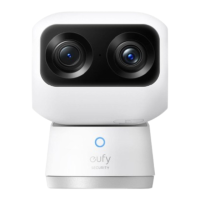
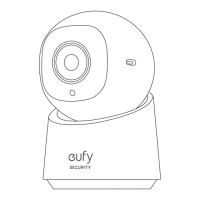
The Eufy Security Indoor Cam C220 (T8W11) is a versatile indoor security camera designed to provide comprehensive surveillance and peace of mind for your home. This device is engineered for ease of use, from its initial setup to its daily operation, offering a range of features that cater to modern security needs.
At its core, the Eufy Security Indoor Cam C220 functions as a smart indoor surveillance camera, capable of capturing video recordings and providing live streams of your home environment. It is designed to monitor activity within a designated area, offering visual and auditory feedback to the user. The camera integrates with the Eufy Security app, which serves as the central hub for controlling and managing the device. Through the app, users can access live footage, review recorded events, and configure various settings. The camera is equipped with a lens that captures the visual feed, a microphone for audio input, and a speaker for two-way communication. An LED indicator provides visual cues about the camera's status, making it easy to understand its current operational mode. The device supports local storage via a microSD card, allowing for recordings to be saved directly on the camera without the need for a subscription service. This feature ensures that your footage remains private and accessible even if internet connectivity is lost. The camera also includes a SYNC button, which is typically used for pairing the device with the Eufy Security system and for resetting purposes. Power is supplied via a USB-C input, ensuring a reliable and widely compatible power connection.
The Eufy Security Indoor Cam C220 offers a user-friendly experience, starting with its straightforward setup process. To begin, users download and install the Eufy Security app on their smartphone or tablet, then create an account. The camera is then connected to a power source using the provided USB-C charging cable and power adapter. Once powered on, the camera's status LED will turn solid blue, indicating it is ready for setup. The app guides the user through the process of adding the camera, which typically involves tapping a '+' icon and following on-screen instructions.
The camera's placement is flexible, allowing it to be positioned on a table, shelf, wall, or ceiling. When choosing a location, it's important to consider the desired field of view and ensure the camera is within reach of a power outlet. For optimal night vision performance, it is recommended to keep the camera at least 0.7 ft (0.2 m) away from any objects or walls to prevent infrared reflections. The manual provides visual examples of camera placement on a table/shelf, wall, and ceiling, illustrating the approximate coverage areas and recommended heights (e.g., 2.6 ft on a table, 8 ft on a wall, 10 ft on a ceiling).
The camera's LED indicator provides crucial status information:
For local storage, the camera features a microSD card slot. Users can insert a microSD card (not included) to store recordings. It is recommended to use at least a Class 10 microSD card with a maximum capacity of 128GB to ensure reliable performance and sufficient storage space.
Maintaining the Eufy Security Indoor Cam C220 primarily involves ensuring its power supply and proper placement. When mounting the camera on a wall or ceiling, it is crucial to disconnect the camera from the power outlet before starting the installation process for safety. The installation involves marking screw positions using a positioning sticker, drilling pilot holes, and then securing the mounting plate with screws. The manual emphasizes ensuring the "UP" arrow on the mounting plate is pointing correctly. For wall mounting, the USB-C cable should be placed into the cable channel of the mounting plate. For ceiling installation, this step is skipped. After the mounting plate is secured, the camera slides onto it, ensuring it is securely attached. Once mounted, the USB-C cable can be reconnected to the camera, with the other end connected to a power source.
Regular checks of the LED indicator can help diagnose connectivity issues or firmware updates. If the LED is blinking red, it indicates a loss of internet connection, prompting the user to check their network. If the LED is flashing blue and red, it signals a firmware upgrade, and it's important to keep the camera powered during this process to avoid interruptions.
The use of a microSD card for storage requires occasional management. While the manual does not detail specific maintenance for the microSD card, it is generally good practice to periodically check its health and ensure it has sufficient free space, or to format it if issues arise, though this is typically managed through the Eufy Security app. The camera's design, with its internal components protected, suggests minimal physical maintenance beyond ensuring it is clean and free from obstructions that might block the lens or microphone.
 General
| Connectivity | 2.4GHz Wi-Fi |
|---|---|
| Smart Detection | Human Detection |
| Two-Way Audio | Yes |
| Night Vision | Yes |
| Local Storage | MicroSD card (up to 128GB) |
| Optional Cloud Storage | Yes, with subscription |
| Operating Temperature | -20°C to 50°C (-4°F to 122°F) |

 To Next Page