Quick Tips
H90 Control
H90 Control provides remote control access and
Program list management for the H90. Manage
Program and Preset settings, perform system
updates, and import/export User Lists with an
easy-to-use interface.
1. Download H90 Control for Mac or Windows
at eventideaudio.com.
2. Power on the H90 with the provided power
supply and connect it to your computer with
the provided USB-C cable.
3. Open H90 Control, and click “Connect.”
13
Connection Instructions
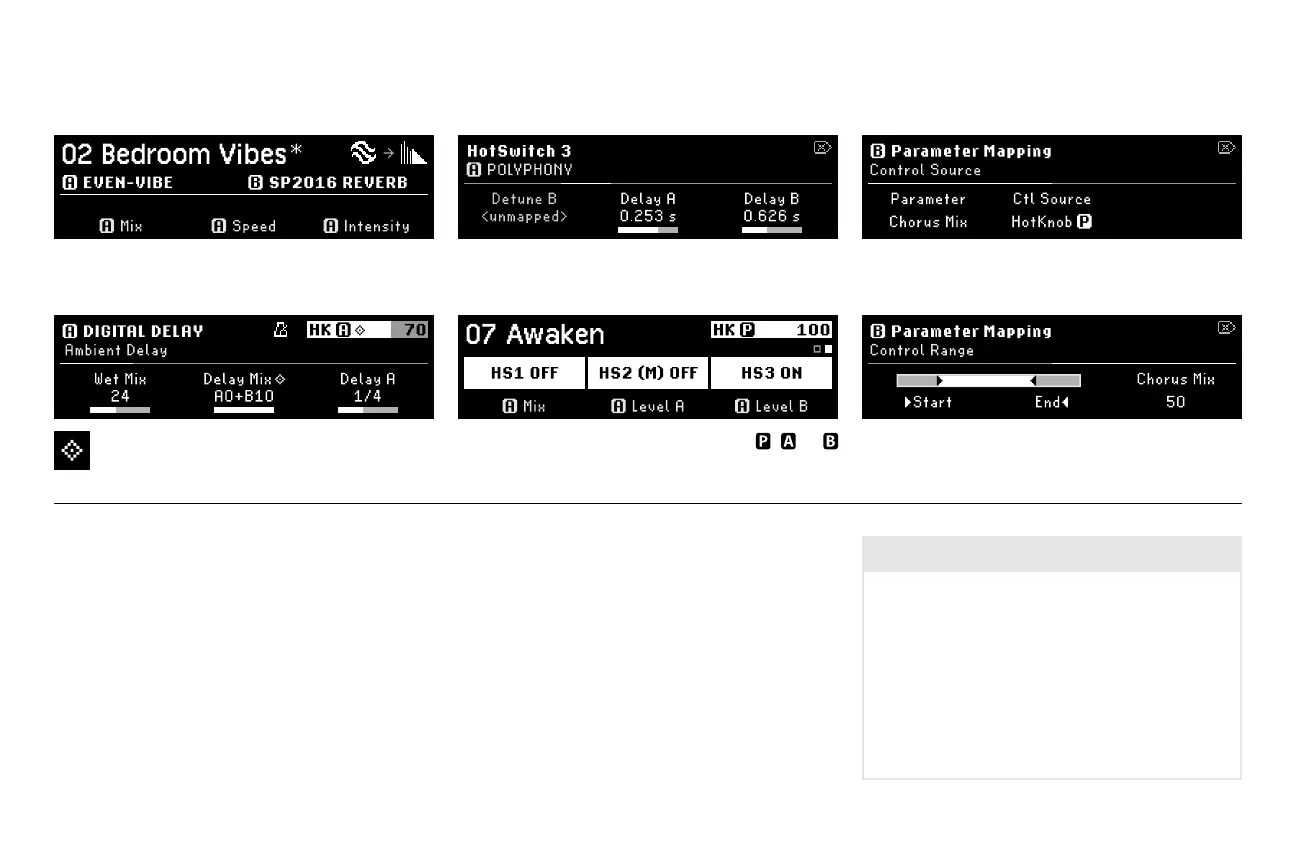
Diamond icon indicates that a parameter is
mapped to a HotKnob or Exp/Ctl.
Perform Mode: Assign a HotSwitch to
, or
Footswitches. Only one HS can be on at a time.
An asterisk denotes that the current Program has
been modied and is unsaved.
Parameters Mode: Press and hold a Quick Knob to
enter parameter mapping, and select control source.
Parameters Mode: Turn QK1 and 2 to adjust the
start and end points for the exp pedal control range.
Parameters Mode: Hold a FS LED Button to assign
parameters to HotSwitch 1, 2, or 3. Press a QK to map.
HotSwitch: Each of the three HotSwitches change
any number of parameters with a single Footswitch.
Flexible Mapping: Map any parameter to an external
controller, or gang parameters under one HotKnob.
Reset H90 Settings
Factory Reset: Press and hold all three Quick Knobs
while powering on the H90, and continue holding
until the on-screen message appears.
NOTE: A factory reset deletes all user data (Lists,
Programs, Presets, System and Tempo settings)
Reset System Settings: Press and hold Quick Knob 1
while powering on the H90, and continue holding
until the on-screen message appears.



 To Next Page