Customer Service 1-888-707-1880
or email customerservice@dyaco.ca
18 Dyaco Canada Inc.©2021
3. Zwift APP Connection Steps
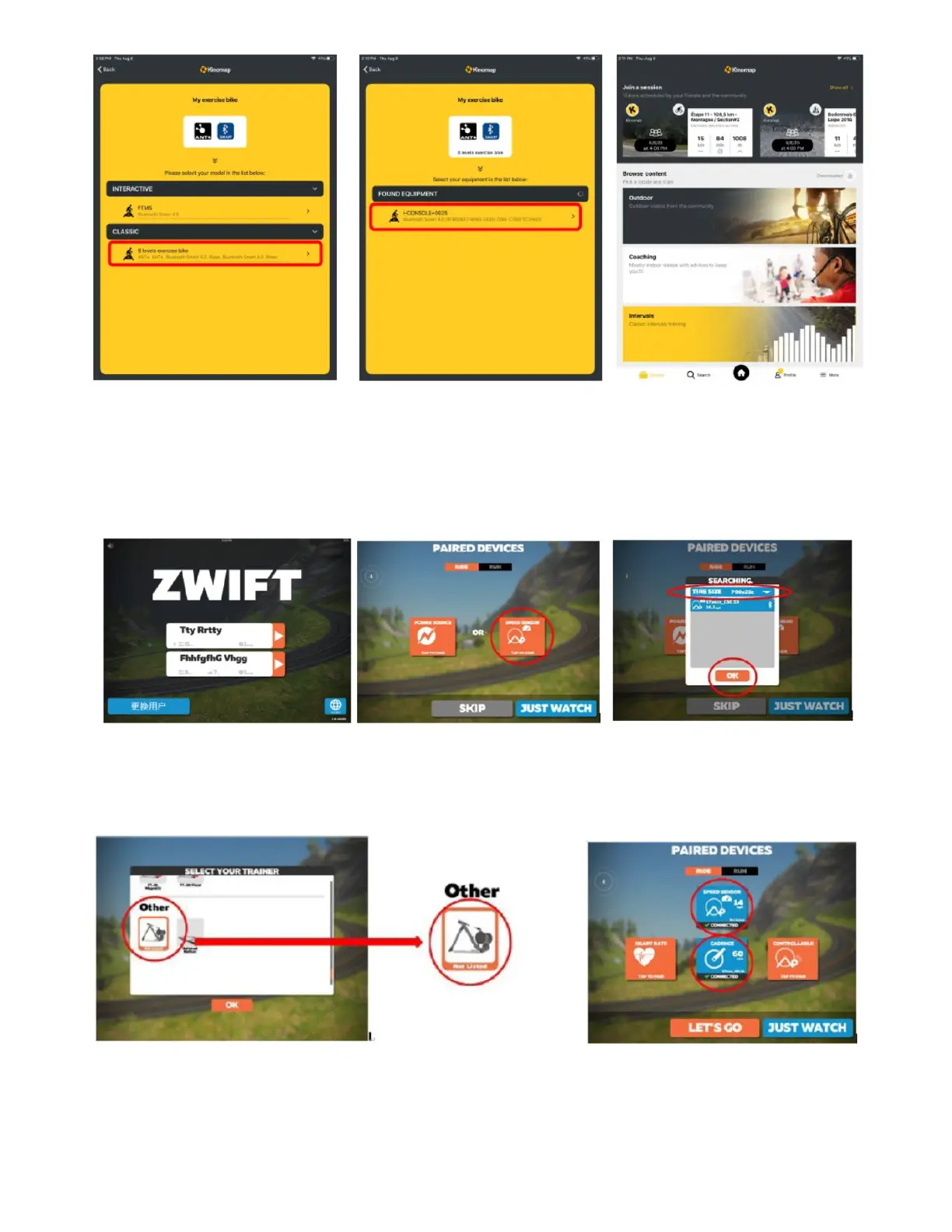
3.1. Open Zwift App and select user.
3.2. Zwift will ask you to pair your equipment. Select SPEED SENSOR.
3.3. Zwift will ask you to select a wheel size. Select 700X23c. Then press “OK”. Zwift will use
cadence with wheel size to calculate workout metrics.
3.4. Zwift will ask to select a trainer. Scroll down to the bottom and select ‘Other – Not Listed’.
3.5. Make sure SPEED SENSOR and CADENCE are both connected with green check marks.
3.6. Start Zwift
3.7. Note: users can join Zwift for free but with limited accessibility.
Disclaimer: iConsole+, Kinomap and Zwift are not owned or operated by Dyaco Canada Inc.
and as such, Dyaco is not responsible for application maintenance. Please contact these
companies with any questions. Setup instructions as of July 2021 and subject to change.


 To Next Page