3. Using the Evoko Minto
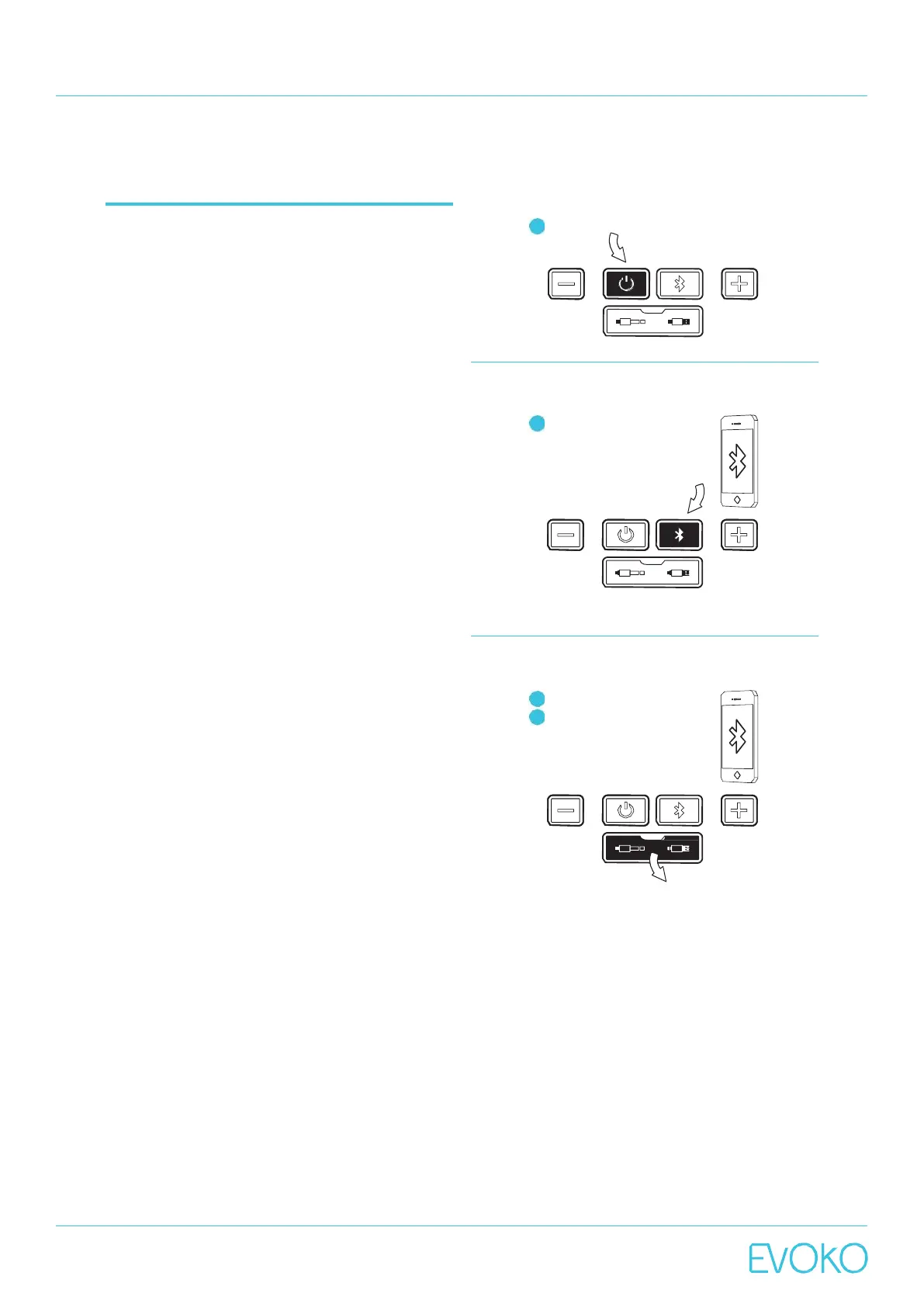
1. Turn on by pressing the power button.
2. Connect the Evoko Minto to the device you would
like to use for your call, e.g. mobile phone,
tablet or laptop. Evoko Minto can be connected
using either Bluetooth, USB cable or audio
cable and it can also be used with normal phone
calls or VoIP services such as Skype or Micro
soft Lync.
a. Bluetooth.
i. Press the Bluetooth button to initiate pairing
mode.
ii. The device ID is now visible and ready for
connection.
iii.Make sure that Bluetooth is activated on the
device you would like to connect to the Evoko
Minto and choose the Evoko Minto from the
list of available Bluetooth devices.
iv.When pairing is completed this is confirmed
by sound and the halo light turns blue.
v. Toremove the Bluetooth connection, press
and hold the Bluetooth button.
NOTE: The default device ID is “Evoko Minto” followed by the
last four digits of the serial number of the unit (which can be
found on the bottom of the unit).
NOTE: To change device the Bluetooth connection needs to
be removed.
b. USB cable.
i. Open the cover on the front of the EvokoMinto.
ii. Plug in the micro USB connector to the Evoko
Minto and the standard USB connector to the
device you would like to connect.
c. Audio cable.
i. Open the cover on the front of the EvokoMinto.
ii. Plug in one end of the audio cable to the
Evoko Minto and the other end to the device
you would like to connect.
NOTE: When using the audio cable, the halo light turns
green immediately once the cable is plugged in.



 To Next Page