Prd ID: PRD/A001 IMPRESS
Evolute Systems Pvt. Ltd.
Evolute Systems Pvt. Ltd.Evolute Systems Pvt. Ltd.
Evolute Systems Pvt. Ltd.
Proprietary & Confidential
Proprietary & ConfidentialProprietary & Confidential
Proprietary & Confidential
IMPRESS
IMPRESS IMPRESS
IMPRESS
User Manual
User ManualUser Manual
User Manual
1.1
1.11.1
1.1 Impress Power On
Impress Power OnImpress Power On
Impress Power On
Slide the SPST Switch to Power On the Impress. Switch On is indicated by
glowing Green in the status LED. If there are any errors like Platen open, Paper
not present it is indicated by glowing Red in the status LED. Bluetooth LED starts
to blink as soon as the Impress is powered on indicating that it is ready to get
paired.
Note: Bluetooth is turned off if the USB cable is plugged in.
1.2
1.21.2
1.2 Pairing with Impress Bluetooth
Pairing with Impress BluetoothPairing with Impress Bluetooth
Pairing with Impress Bluetooth
Search and connect the Impress Bluetooth through the external Master Bluetooth
Module and once the connection is established, Bluetooth LED glows
continuously. Now communicate with Impress using the commands and
protocols provided.
1.3
1.31.3
1.3 USB Communication
USB CommunicationUSB Communication
USB Communication
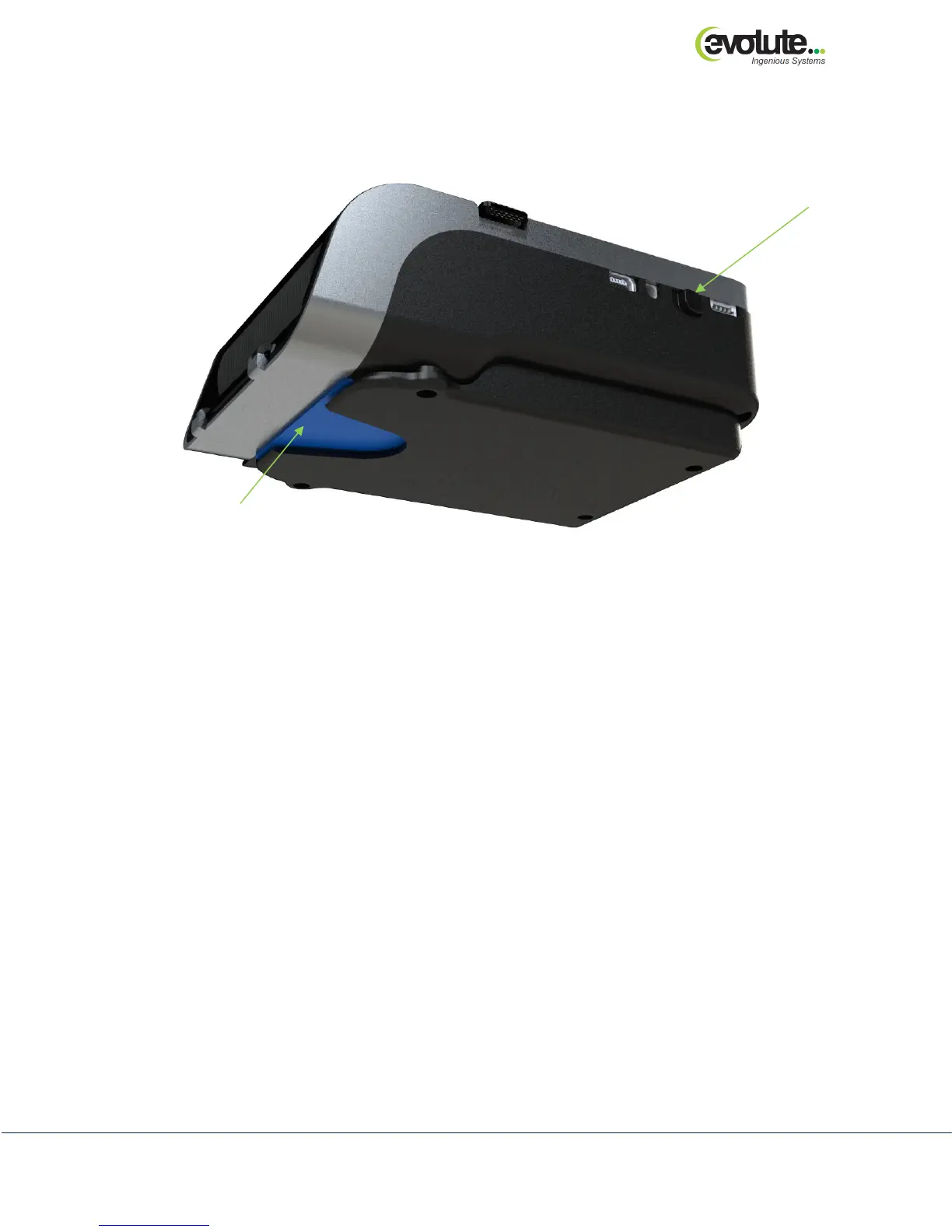
Insert the USB cable into the connector shown in the figure1. Now communicate
with Impress using the commands and protocols provided. When USB cable is
plugged in Bluetooth switches off and communication can be done using USB
only. USB driver has to be installed prior to the usage.
1.4
1.41.4
1.4 Magnetic Card Swipe
Magnetic Card SwipeMagnetic Card Swipe
Magnetic Card Swipe
While Magnetic card swipe the Mag Card strip has to face IMPRESS & swipe can
be done in both forward & backward directions.
Figure 5: Impress with Secondary Smart Card
Card
(Card is inserted in
the picture)
Impress Power On



 To Next Page
 Loading...