- DHCP IP (AUTO) Select to obtain IP address automatically.
- FIX IP (MANUAL) Select to manually input the IP Address, Subnet Mask, Default Gateway, and DNS Server IP
- There are detail introductions following this form.
- Please refer to ‘2.13 BT download ’ for more details.
- Please refer to ‘2.14 NAS ’ for more details.
- Select to turn on / off password protect for the Web server (Neighbor Web) and Samba server. The default user
name is ‘admin’, and the default password is ‘123’.
Wireless Setup
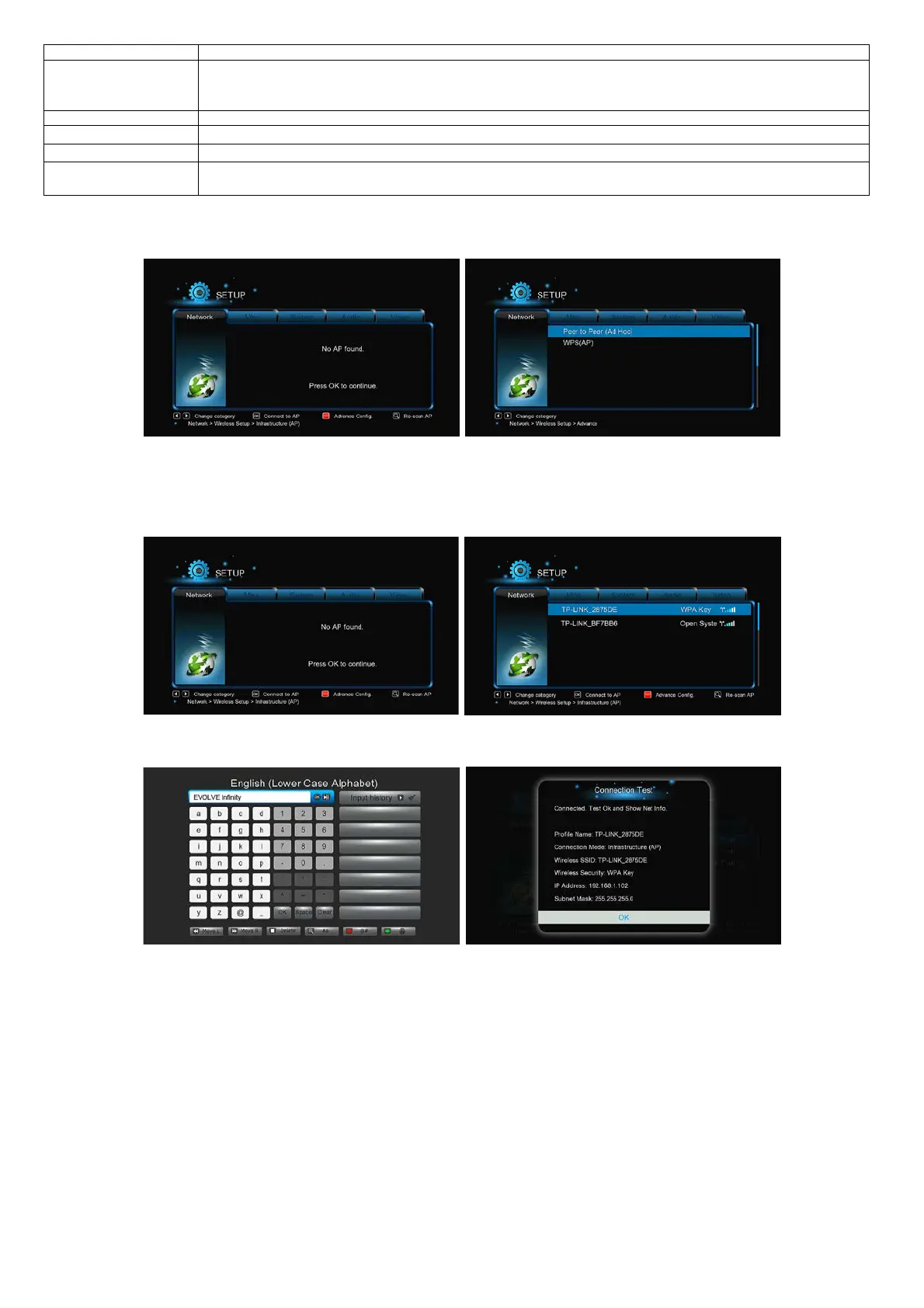
There are 3 mode for you to select, Infrastructure (AP) and Peer to Peer (Ad Hoc) and WPS (AP) mode. Follow the prompting message on the screen
and press Red button to choose Peer to Peer (Ad Hoc) or WPS (AP) mode.
Infrastructure (AP)
Infrastructure mode is used to connect computers with wireless network adapters, also known as wireless clients, to an existing wired network
with the help from wireless router or access point. Please follow following steps to configure your wireless network.
Step 1, Scanning AP(Access Point)in your network
Follow the on-screen information and press the Zoom button to select Infrastructure (AP) mode and update the access points list, and all SSID
will be displayed on the screen.
Step 2, Input WEP/WPA key.
Press OK to input encryption keys via the virtual keyboard, OK to confirm and to start testing the connection.
The testing process will take for a while, please be patient to wait. If the test is ok, the network information (Profile Name, IP address, Subnet
Mask, Gateway, etc.) will be displayed on the screen.
Peer to Peer (Ad Hoc)
Peer to Peer mode, which is also called Ad Hoc mode or computer-to-computer mode, is used to connect wireless clients directly together,
without the need for a wireless router or access point.
WPS (AP)
WPS, Wi-Fi Protected Setup, is used to connect a wireless router directly, without searching SSID and inputting password. In this mode, you just
need to configure the parameters of your router which support WPS function. There are two modes for you to select, PBC mode and PIN mode.
PBC: Press WPS button or select the button mode on your router Select the PBC mode on EVOLVE Infinity to start testing, the connection process will
take for a while.
PIN: Input the pin code in the configuration menu of your routerSelect the PIN mode on EVOLVE Infinity to start testing, the connection process will
take for a while.



 To Next Page