Use event log settings to restrict the logging of personal data in event log entries according
to data protection legislation. You specify the type of personal data in event logs saved for
locking components you add to the access control system in the Default event log value
settings or in the locking component details of each locking component.
Regularly update locking components to ensure all event log entries have
been transferred from locking components to the AirKey Online Adminis-
tration. The recommended update intervals depend on the frequency the
locking components are used. Observe the Values and limits of locking
components.
Events where the access is denied are saved only if the medium has an authorisation for the
locking component, but the authorisation was not valid at the time of the access attempt
(e.g. the authorisation has expired or is valid in the future).
The battery status shown in the "Details" column does not always correspond to the locking
component’s (cylinder) actual battery status and the smartphone’s battery status.
If event logs for locking components are restricted to a certain period, access events conti-
nue to be recorded after said period. In this case, the personal data is rendered anonymous.
5.7.2 Media event log
If the four-eyes principle for the event log viewing is not activated, follow the steps
below to view the media event log:
> On the Home screen, select the Media event log tile.
> Alternatively select Event log → Media.
If the four-eyes principle for the event log viewing is activated, follow the steps below
in addition to view the media event log:
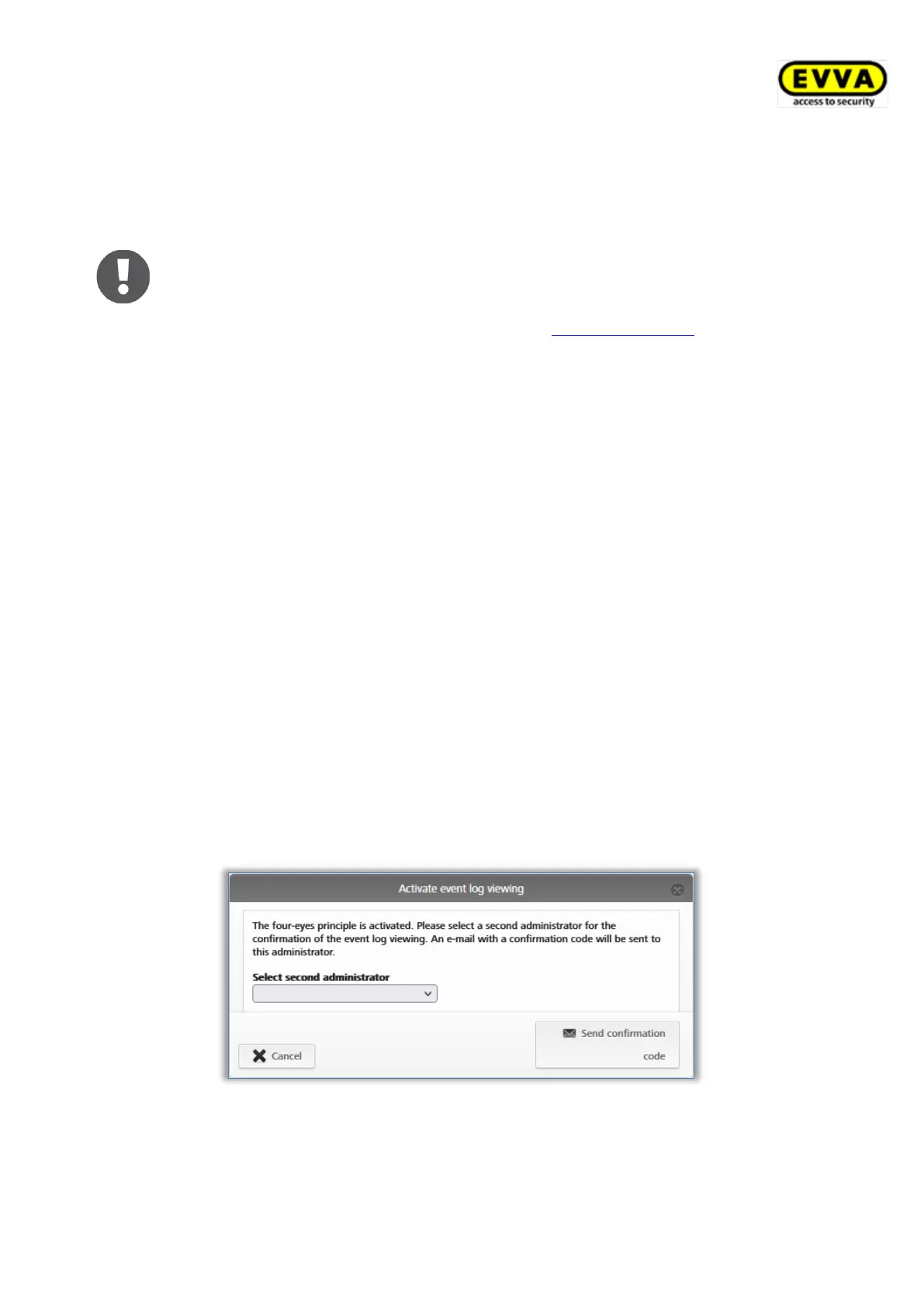
> Select a second system administrator from the list to whom a confirmation code
should be sent by e-mail and click Send confirmation code.
Figure 207: Activate event log viewing – select second administrator
> An e-mail with a confirmation code will then be sent to the selected system
administrator.


 To Next Page
 Loading...