6.9 AirKey app settings
6.9.1 AirKey app settings on Android smartphones
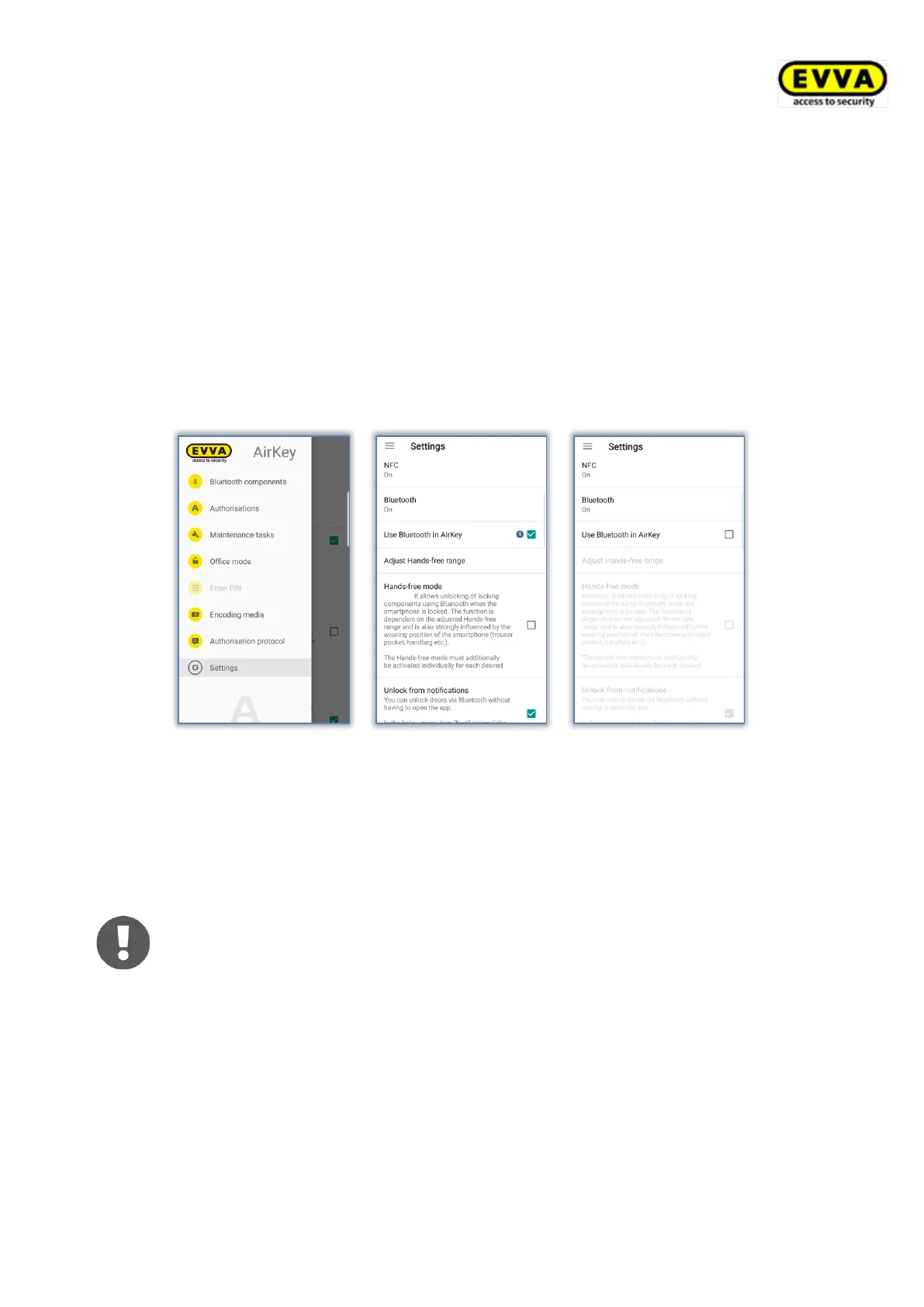
The Settings menu item in the AirKey app shows basic information about your Android
smartphone. For instance, this section shows whether NFC or Bluetooth have been activated.
Tap one of the two entries to open the device settings of your smartphones. In the continue
step, specify whether you would like to activate Bluetooth for AirKey. Simply activate the
corresponding "Use Bluetooth" option.
In this case, you can also configure the associated settings ("Adjust the Hands-free range",
"Hands-free mode" and "Unlocking from notifications"). In this case, the home screen when
you open the AirKey app is "Bluetooth components".
Figure 227: Android smartphone with Bluetooth – main menu / "Use Bluetooth" option activated / Option deactivated.
If you deactivate the "Use Bluetooth" option, the three aforementioned associated functions
are automatically deactivated and all other Bluetooth-based functions from the main menu
("Bluetooth components", "Office mode" and "Encode media") include the "Bluetooth
deactivated" note. With this configuration the smartphone can exclusively communicate with
locking components using NFC.
If the Android smartphone is older and features NFC, but not Bluetooth
functionalities, all Bluetooth-based functions and settings are greyed out.
6.9.2 AirKey app settings on iPhones
The Settings menu item in the AirKey app shows basic information about your iPhone. For
instance, this section shows whether Bluetooth has been activated. In this case, you can
also configure the associated settings ("Adjust the Hands-free range", "Hands-free mode"
and "Unlocking from notifications").


 To Next Page
 Loading...