8.4 Updating locking component firmware
If new firmware becomes available for a locking component, a notification is shown in the
locking component details of the particular locking component, in the maintenance tasks and
upon updating locking components.
Please check the battery status of the locking component (cylinder) prior to
firmware updates. If the "Battery low" warning is already active, replace all
batteries first to ensure a smooth update process.
The current locking component firmware version is shown in the locking
component details section.
You can use smartphones or optionally available coding stations to update locking compo-
nent firmware.
Activate the special authorisation "maintenance authorisation" on the smartphone to enable
firmware updates using the smartphone. Proceed as follows to update firmware using smart-
phones:
> Establishing a connection using NFC (for Android smartphones):
Tap the Connect to component icon.
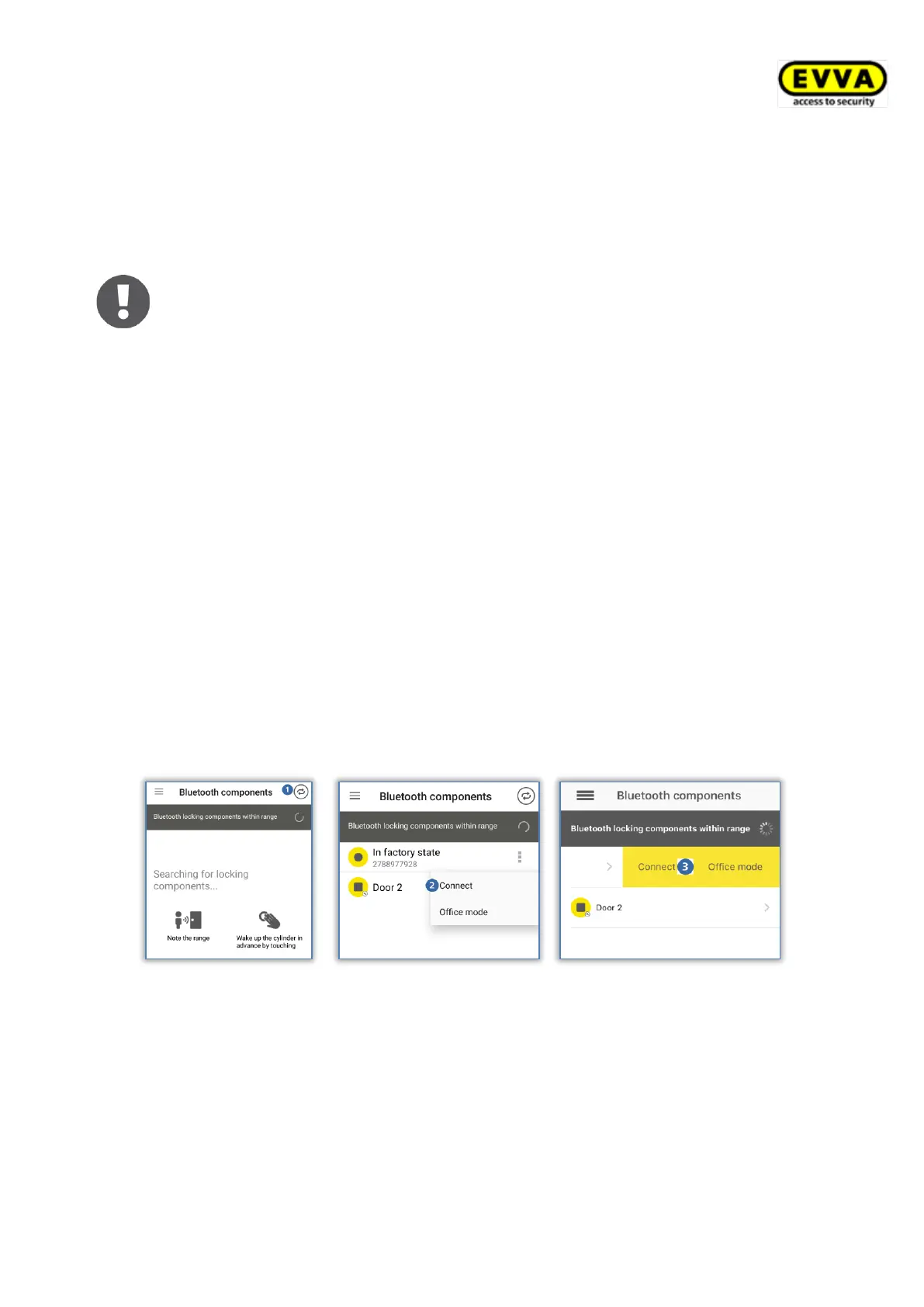
> Establishing a connection using Bluetooth (for Android smartphones): Tap the
context menu of the locking component to which you would like to establish a
connection (⋮) and then select Connect .
> Establishing a connection using Bluetooth (for iPhones): Swipe the component
designation of the the locking component to which you would like to establish a
connection and then select Connect .
Figure 268: AirKey app – connecting to component (Android NFC / Android Bluetooth / iPhone)
> Follow the instructions.


 To Next Page
 Loading...