AirKey system manual version 2.7 |
06/03/2024 | Subject to technical changes and misprints
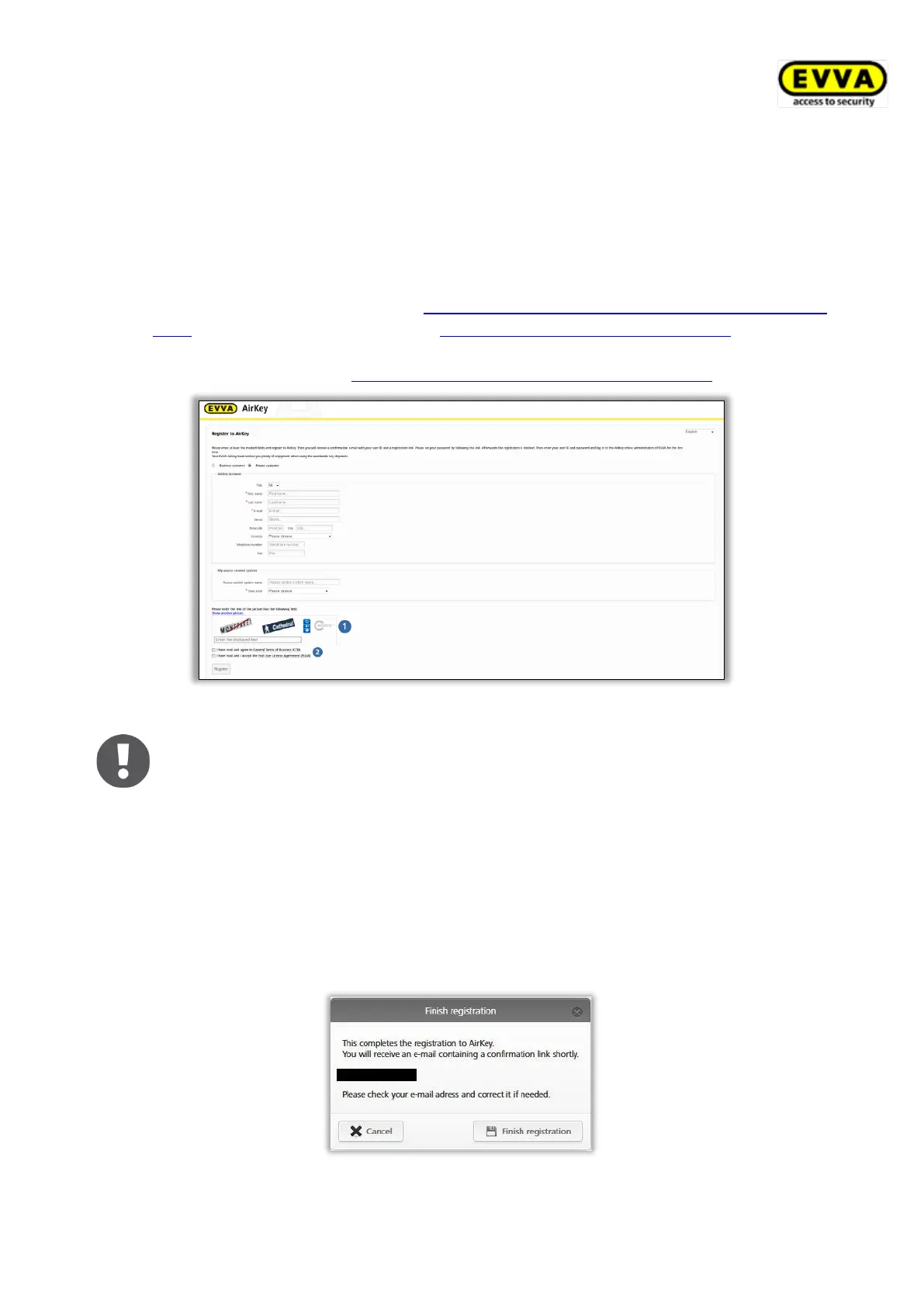
Complete the fields in the registration screen and register to AirKey.
> Select Business customer or Private customer.
> Complete the fields in the form.
Fields highlighted by * are mandatory fields.
> Solve the Captcha .
> Activate the checkbox using the General Terms and Conditions of Business (EVVA
GTC) link and the checkbox at the General Licensing Conditions (EULA) link. The
system automatically opens the two corresponding PDF documents. You can also
access the documents at https://www.evva.com/en/airkey/impressum/.
Figure 4: Registering to AirKey
If necessary, you can retrospectively change your customer data at any
time. For this purpose, click Access control system → Customer data in
the main menu of the AirKey Online Administration.
> Click Register. The "Finish registration" application window opens.
> Once again check the e-mail address you entered as we will send a confirmation
containing a registration link to this address.
> Click Cancel to cancel the process and correct your input if the e-mail address shown
was incorrect.
> Click Finish registration if the e-mail address is correct and complete the process.
Figure 5: Finishing registration


 To Next Page
 Loading...