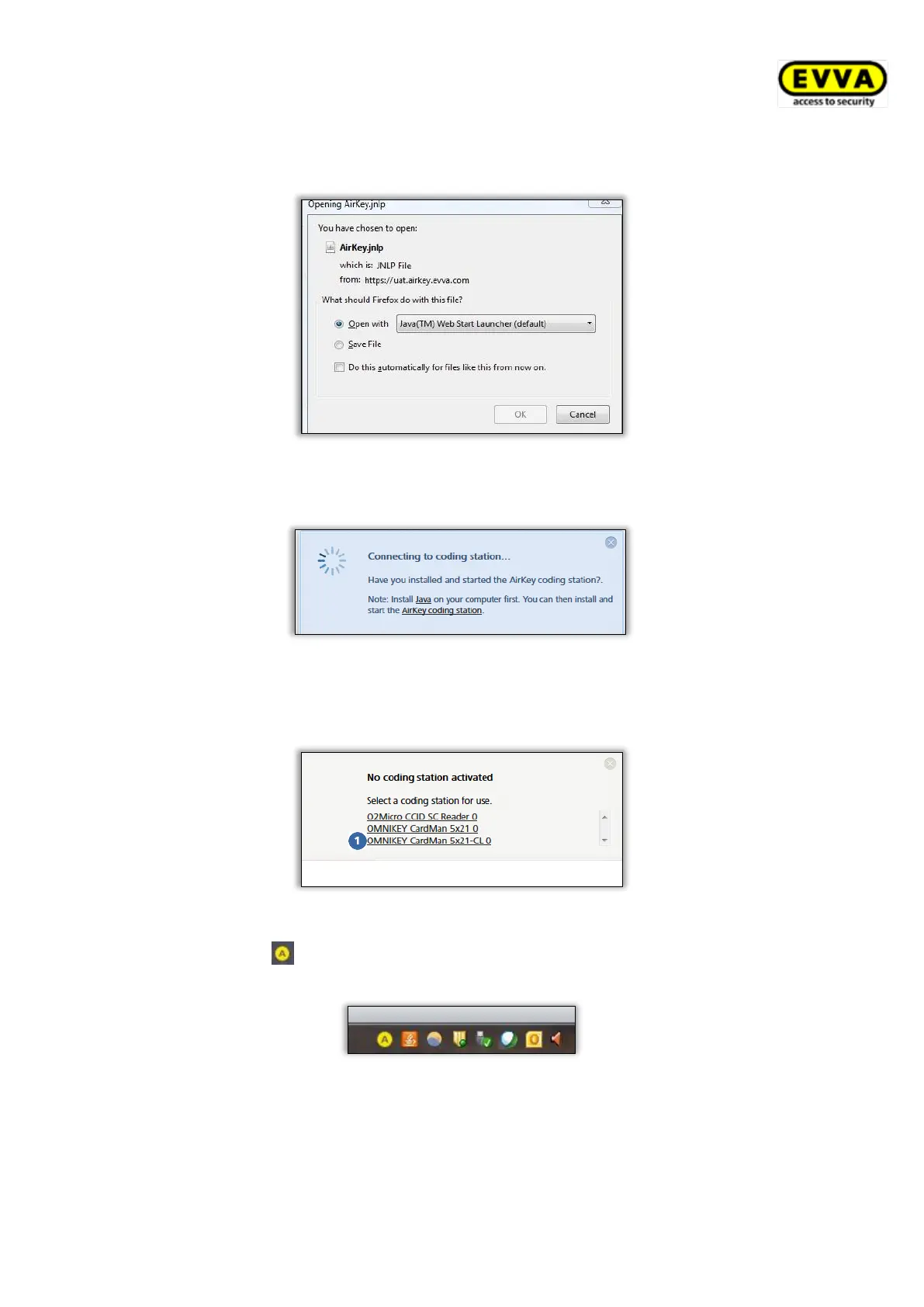
> The AirKey.jnlp file download dialogue appears. Open the file using the "Java(TM)
Web Start Launcher".
Figure 13: Opening the AirKey.jnlp file
> A connection to the coding station is established after having opened the file.
Figure 14: Establishing a connection to the coding station
> Select the available coding station (e.g. "OMNIKEY CardMan 5x21-CL 0" ) from the
list.
Figure 15: Selecting coding stations
> An AirKey icon appears in the taskbar in the bottom left – the coding station has
been installed successfully and is active.
Figure 16: AirKey icon in the taskbar
4.5.2 Using the coding station via the command line
The coding station application can also be installed and configured without AirKey Online
Administration, for example via the command line. (This option requires advanced IT know-
ledge, especially working via the command line.)


 To Next Page
 Loading...