4.5.1 Using the coding station via the AirKey Online Administration
The coding station application brings the advantage that it is compatible with current
browsers and the coding station remains available for updates of locking components and
media after the browser has been closed or users have logged off from the AirKey Online
Administration.
Adding and removing locking components to an access control system as well as the
firmware update of locking components or the Keyring update of access media is only
possible after logging in to the AirKey Online Administration. Updates of media and locking
components are also possible after logging out of the AirKey Online Administration or when
the browser has been closed.
The following browsers support communication between the AirKey Online Administration
and the coding station application: Chrome, Firefox, and Edge.
Downloading and running the coding station application is browser / operating system
specific. The illustration in your browser may differ from the depiction herein (Firefox).
Register and log in to the AirKey Online Administration (see chapter Registering to the
AirKey Online Administration).
> Connect the coding station to a USB port on your computer.
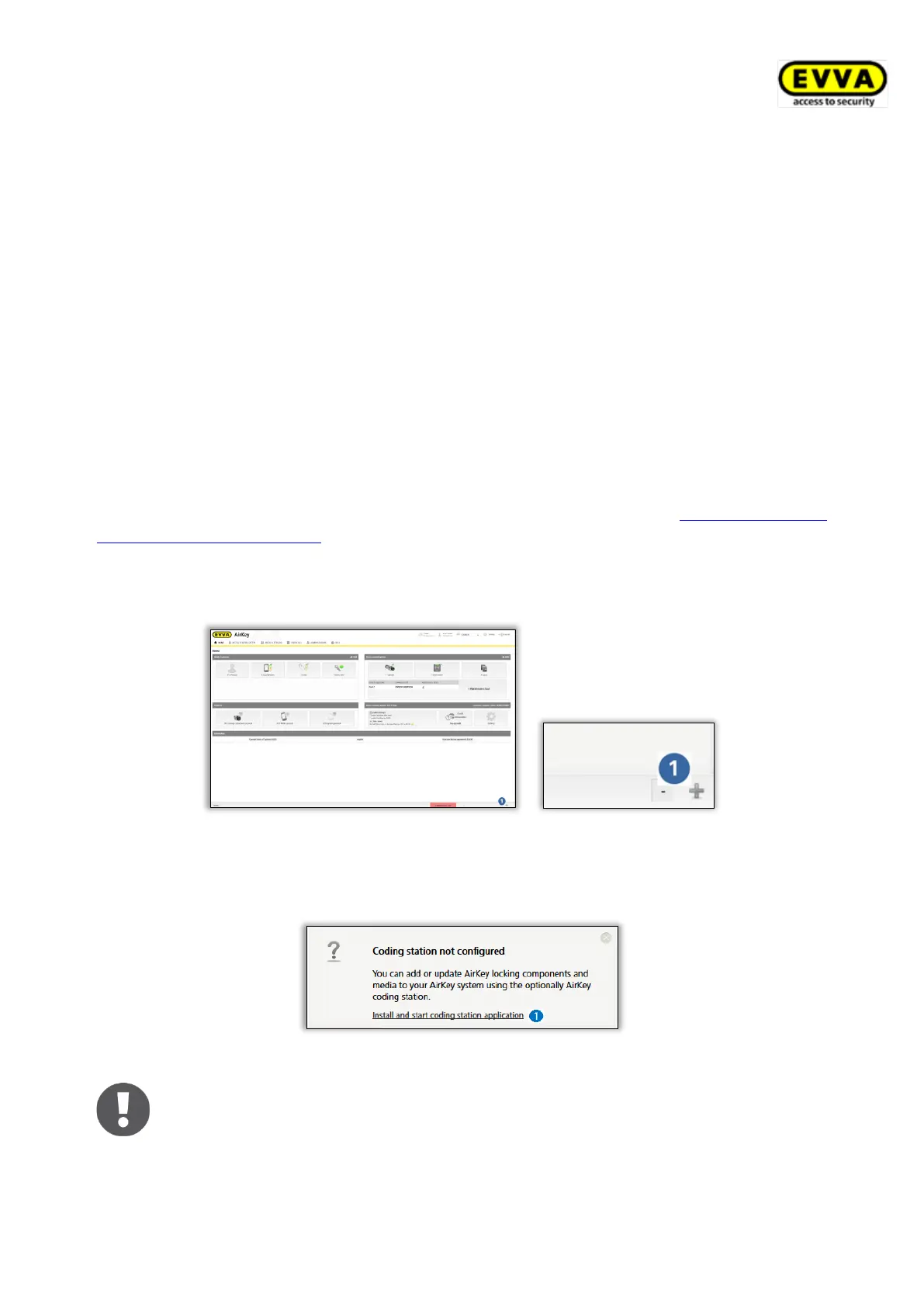
> Click the + icon in the bottom right of the AirKey Online Administration.
Figure 11: Coding station – installing the application
> Subsequently click the "Install and start AirKey coding station application" link to
install the coding station application.
Figure 12: Installing and starting coding station application
After having clicked the link, you have 60 seconds to open the AirKey.jnlp
file (see continue step). If the system times out, you must repeat the
installation from this step. Alternatively, you can also save the AirKey.jnlp
file and manually open it.


 To Next Page
 Loading...