AirKey system manual version 2.7 |
06/03/2024 | Subject to technical changes and misprints
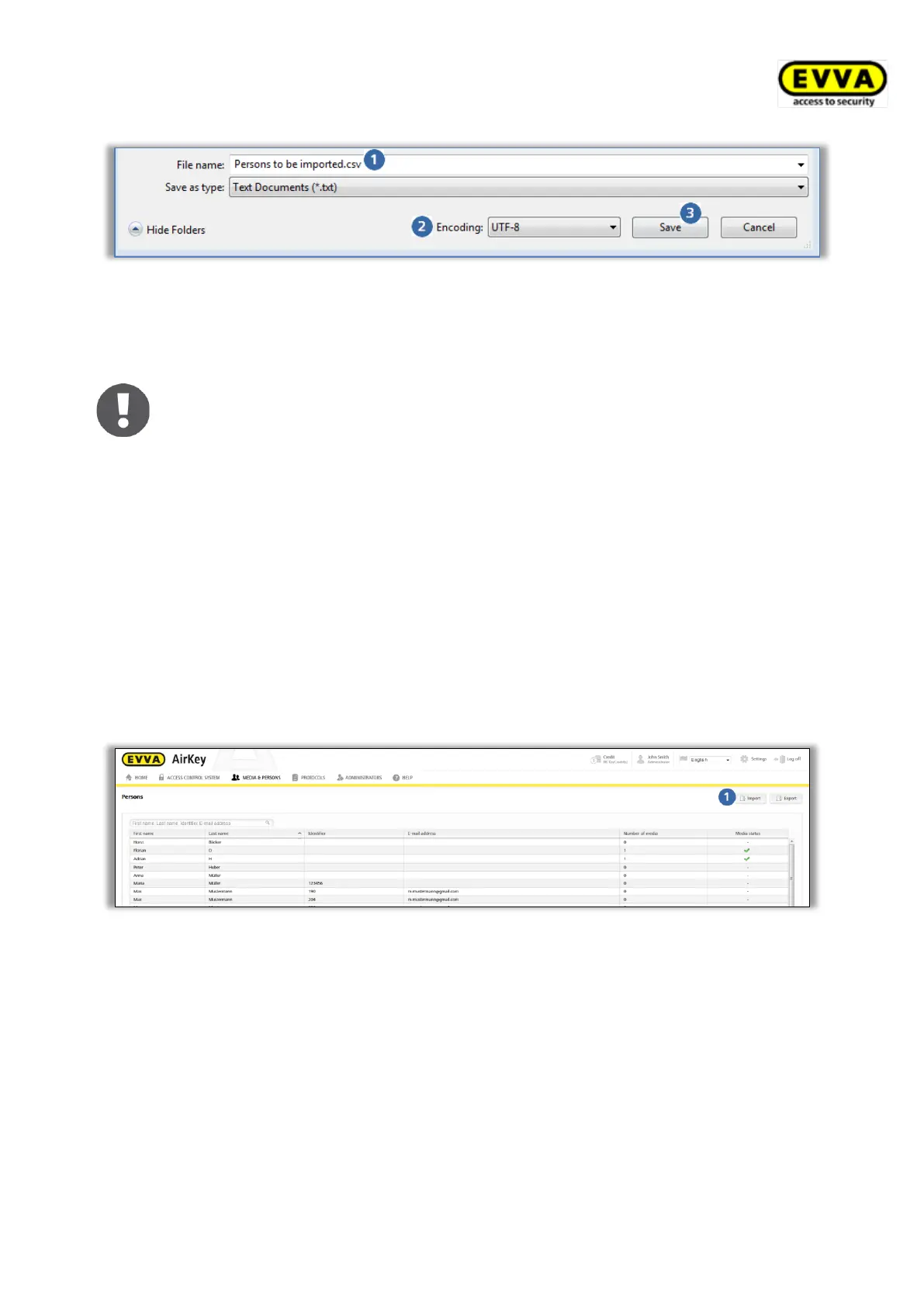
Figure 36: "Editor" – Save as – Manually enter .csv file suffix and select UTF-8 encoding
> This process creates a CSV file that can then be imported to AirKey Online
Administration.
You can directly open the CSV file using Excel. Do NOT make any changes to the
CSV file in Excel as the file would then not be saved in UTF-8 format!
For instance, open the file in the Editor and subsequently save it there after
having executed any minor, retrospective changes to the personal data.
If there are comprehensive changes to the personal data we recommend to make
these in the original Excel file before repeating the entire process to create a CSV
file in UTF-8 format.
Importing the CSV file to the AirKey Online Administration in UTF-8 format
Proceed as follows to import a CSV file with personal data:
> On the Home screen, select the Persons tile.
> Alternatively select Media & persons → Persons in the main menu.
> Click Import on the right.
Figure 37: Importing persons
> Click Select file.
> Select the corresponding CSV file you would like to import.
> You are provided with an overview of the persons to import.
> Click Start import .


 To Next Page
 Loading...