AirKey system manual version 2.7 |
06/03/2024 | Subject to technical changes and misprints
door and secure it against accidentally slamming shut during assem-
bly and disassembly of the locking components.
4.11 Adding locking components
Add locking components to the access control system using smartphones featuring
maintenance authorisation or an optionally available coding station. Locking components
must be in factory state.
You must meet the following requirements to add locking components using
your smartphone:
> The AirKey app has been installed.
> An active Internet connection is available.
> The smartphone has been registered within the access control
system.
> The smartphone has been assigned to a person.
> The maintenance authorisation has been assigned to the
smartphone.
4.11.1 Adding locking components using a smartphone
> Start the AirKey app.
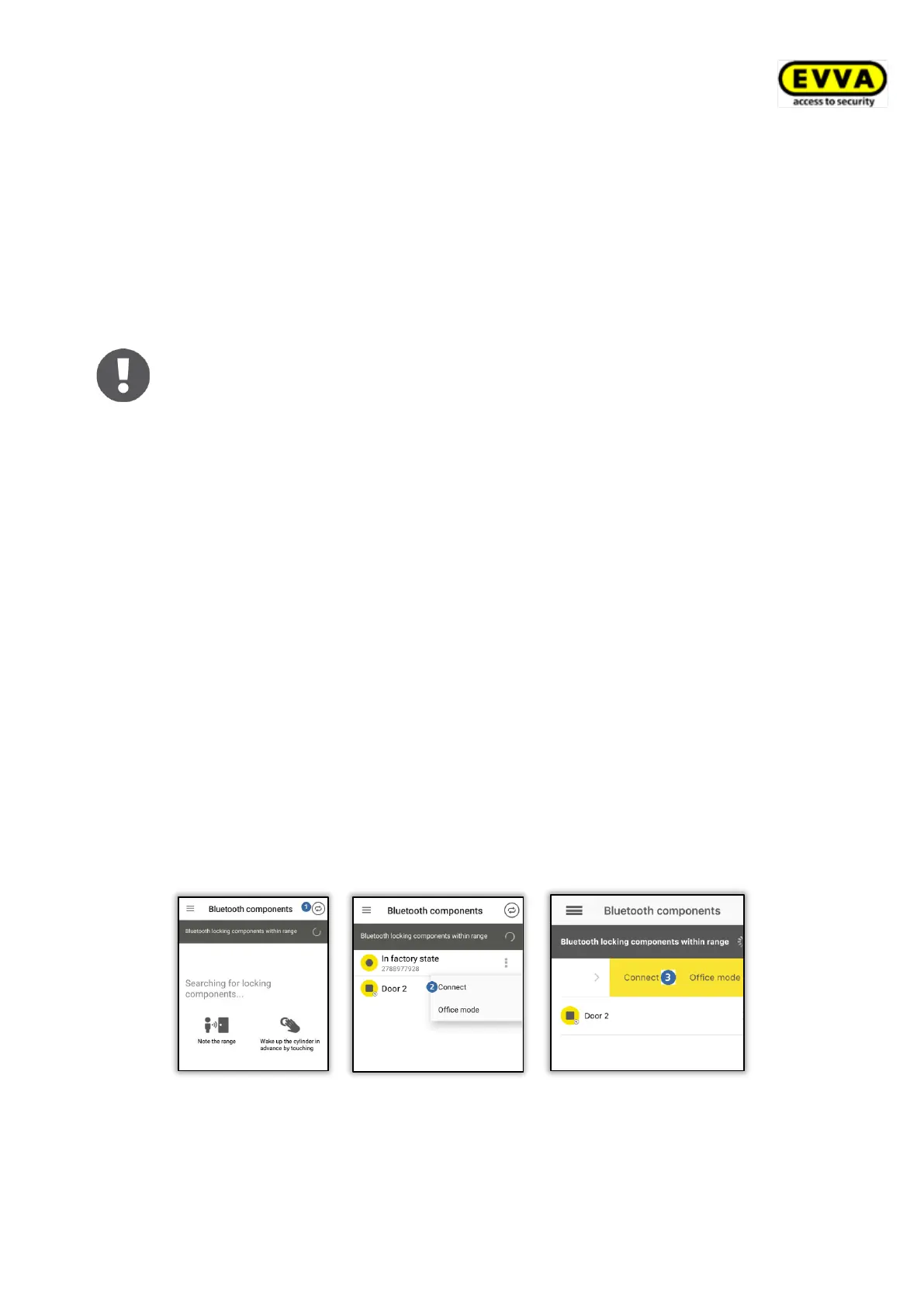
> Establishing a connection using NFC (for Android smartphones): Tap the Connect to
component icon.
> Establishing a connection using Bluetooth (for Android smartphones): open the
context menu of the locking component in factory state which you would like to add
to the access control system (⋮) and then select Connect .
> Establishing a connection using Bluetooth (for iPhones): swipe the "In factory
state" designation of the locking component in factory state which you would like to
add to your access control system towards the left and then select Connect .
Figure 55: AirKey app – connecting to component (using NFC for Android smartphones / using Bluetooth for Android smartphones / using Bluetooth for
iPhones)


 To Next Page
 Loading...