AirKey system manual version 2.7 |
06/03/2024 | Subject to technical changes and misprints
The locking component appears in the locking components overview list in the AirKey Online
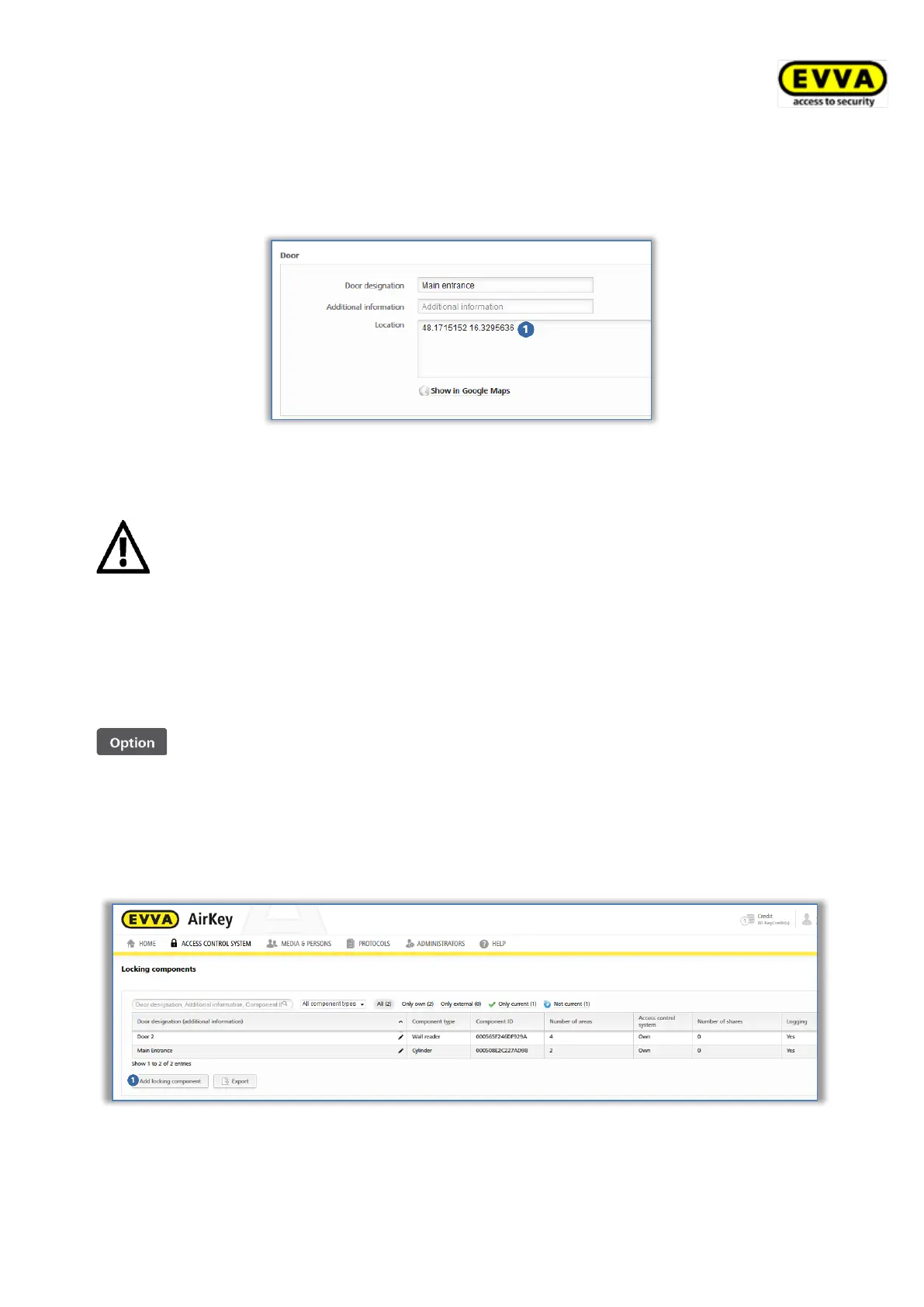
Administration. If the GPS coordinates were determined when the locking component was
added, they are available in the locking component’s section of the AirKey Online
Administration in the Details tab in the "Door" section.
Figure 61: GPS coordinates in the locking component details
Alternatively enter the address in the "Location" field where the locking component is
located.
The locking component is now no longer in factory state. Media in factory
state or smartphones in maintenance authorisation are consequently no
longer authorised. The smartphone that added the locking component is
automatically authorised for a period of four hours. Please change the
corresponding authorisation or assign additional media with a valid
authorisation to continue to have access to this locking component.
4.11.2 Adding locking components using coding stations
Proceed as follows to add locking components using coding stations:
> On the Home screen, select the Cylinders or Wall readers tile.
> Click the Add locking component button .
> Alternatively, select Access control system → Add locking components in the main
menu.
Figure 62: Adding locking components
> Connect the coding station to the computer otherwise the system notice appears.


 To Next Page
 Loading...