> Alternatively, select Access control system → Locking components in the main
menu.
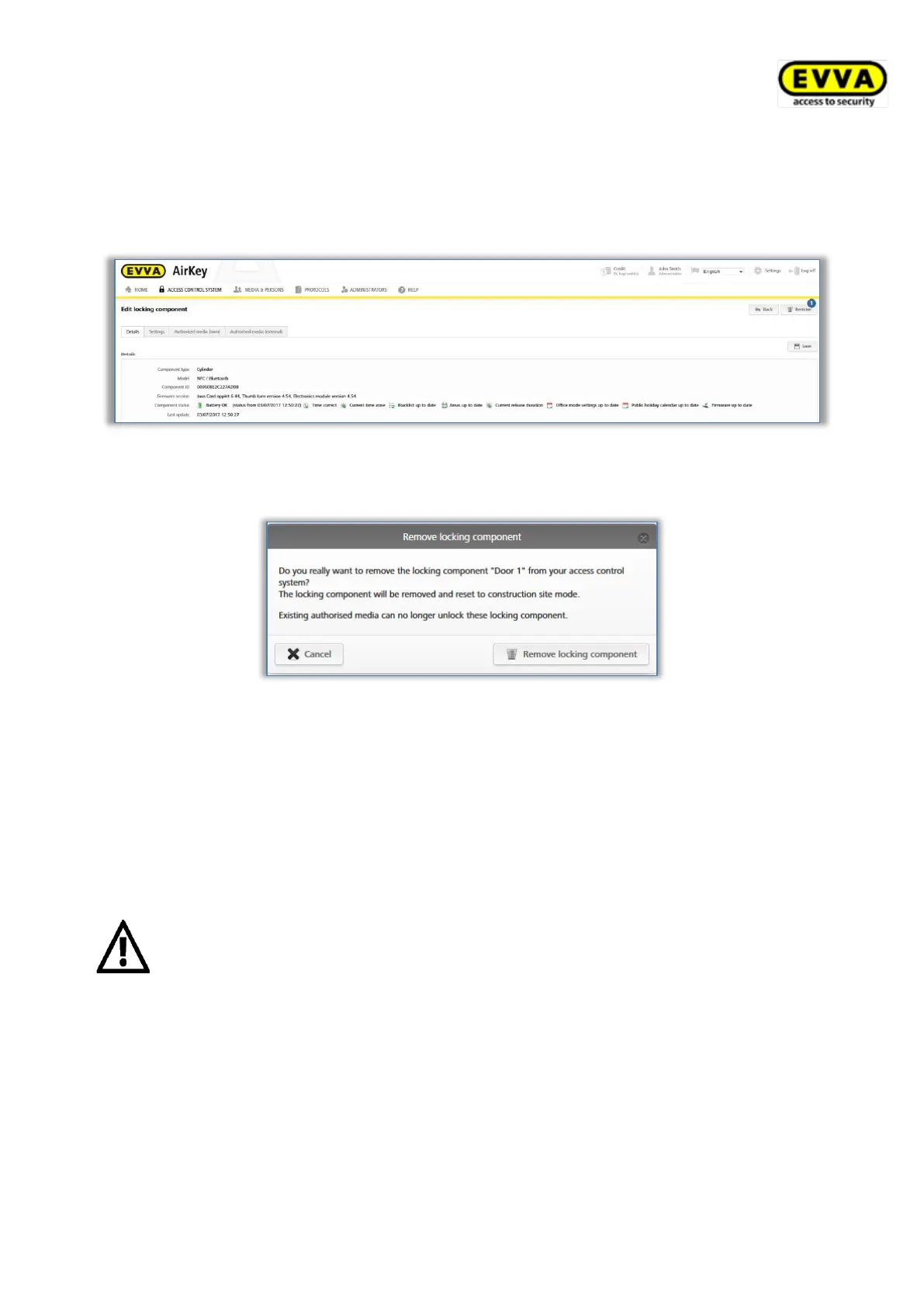
> Click the listed locking component you would like to delete from your AirKey system.
> Click Remove at the top right.
Figure 146: Removing locking components
> Click Remove locking component to confirm the security prompt.
Figure 147: Security prompt
> A confirmation prompt and a maintenance task appear, indicating the locking
component must be removed from the access control system.
The process has only been completed once the locking component has been updated using a
smartphone with maintenance authorisation or an optionally available coding station. As
soon as the locking component has been updated it has been successfully removed from the
access control system.
This process is irrevocable.
The locking component is reset to factory state after having removed it.
Any previously authorised access media are no longer valid to unlock
locking components. Corresponding authorisations are automatically deleted
and no longer shown.
5.5.5 Areas
You can merge several locking components to areas to make it easier to manage authori-
sations in your access control system.


 To Next Page
 Loading...