Werner Schnorrenberg - DC4KU www.dc4ku.darc.de 06.11.2021
2
Installation
At first, download the software "ExpertSDR2_SunSDR2DX" from https://eesdr.com/en/software-
en/expertsdr3-en and install it on a PC (Windows 10 32/64bit, Linux und macOS) and then connect
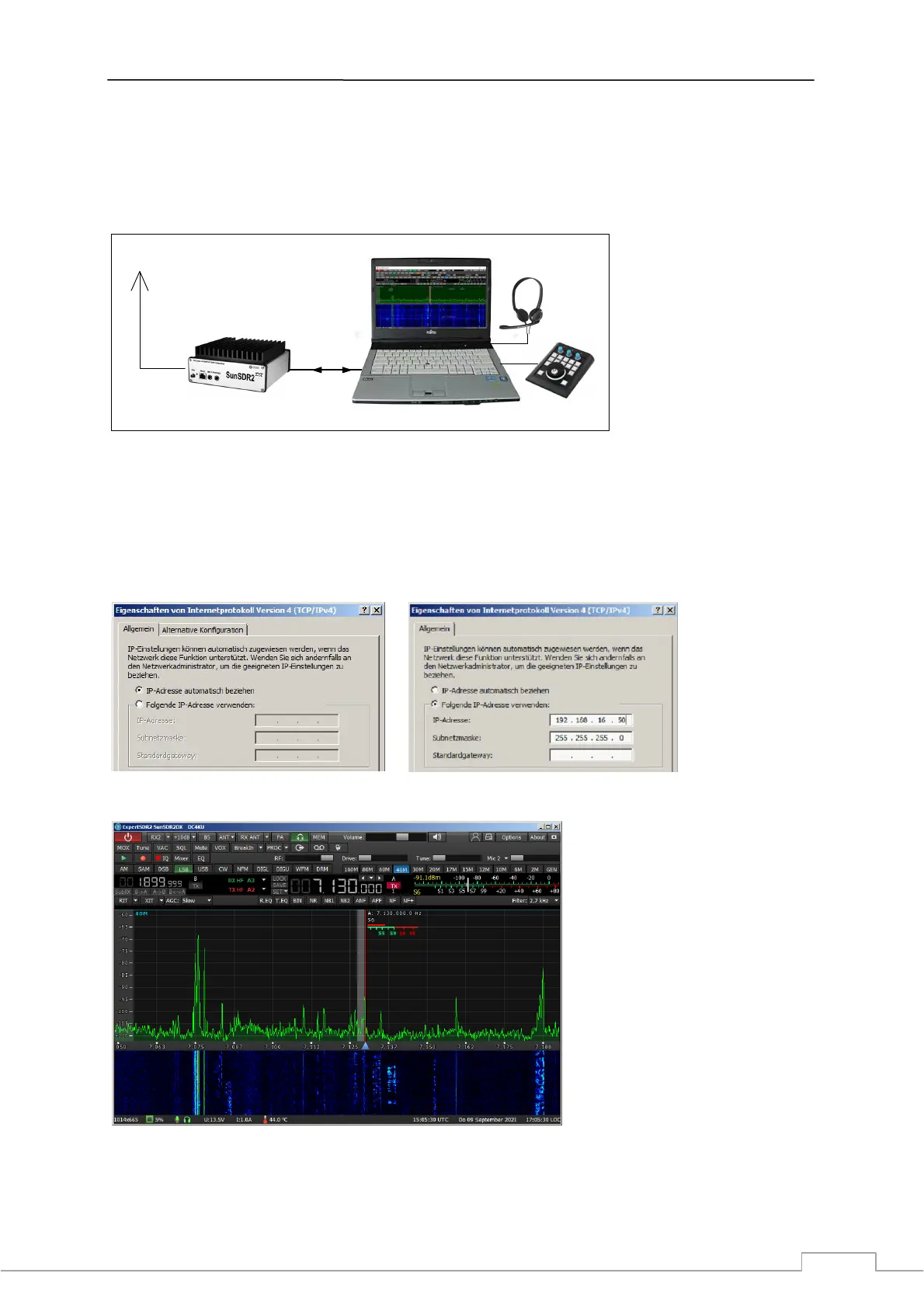
the SunSDR2 DX to the PC via an Ethernet cable (Fig. 1). For the PC to recognize the transceiver its IP
address must be changed.
USB
Audio
E-Coder
Ethernet
Cable
LAN
DC4KU
Figure 1: SunSDR-DX in direct connection with a PC
To do this, go to Network and Sharing Centre -> Change Adapter Settings -> Ethernet -> Internet
Protocol, Version 4 (TCP/IPv4) and set the IPv4 address of the PC from "Obtain IP address
automatically" to e.g. 192.168.16.50 (1...199) and save it (Fig. 2). After changing the address, the
SunSDR2 DX is recognized by the PC and the software can be started. The connection to a single PC is
now complete (Fig. 3).
Figure 2: Setting the IP-Address in the PC
Figure 3: Display of the SunSDR2 DX under ExpertSDR2_SunSDR2DX
To enable remote control of the SunSDR2 DX from other PCs in the home network, it must be
connected to the home DSL router (Fig. 4). To do this, enter a free IP address of the router in the


 To Next Page