Werner Schnorrenberg - DC4KU www.dc4ku.darc.de 06.11.2021
6
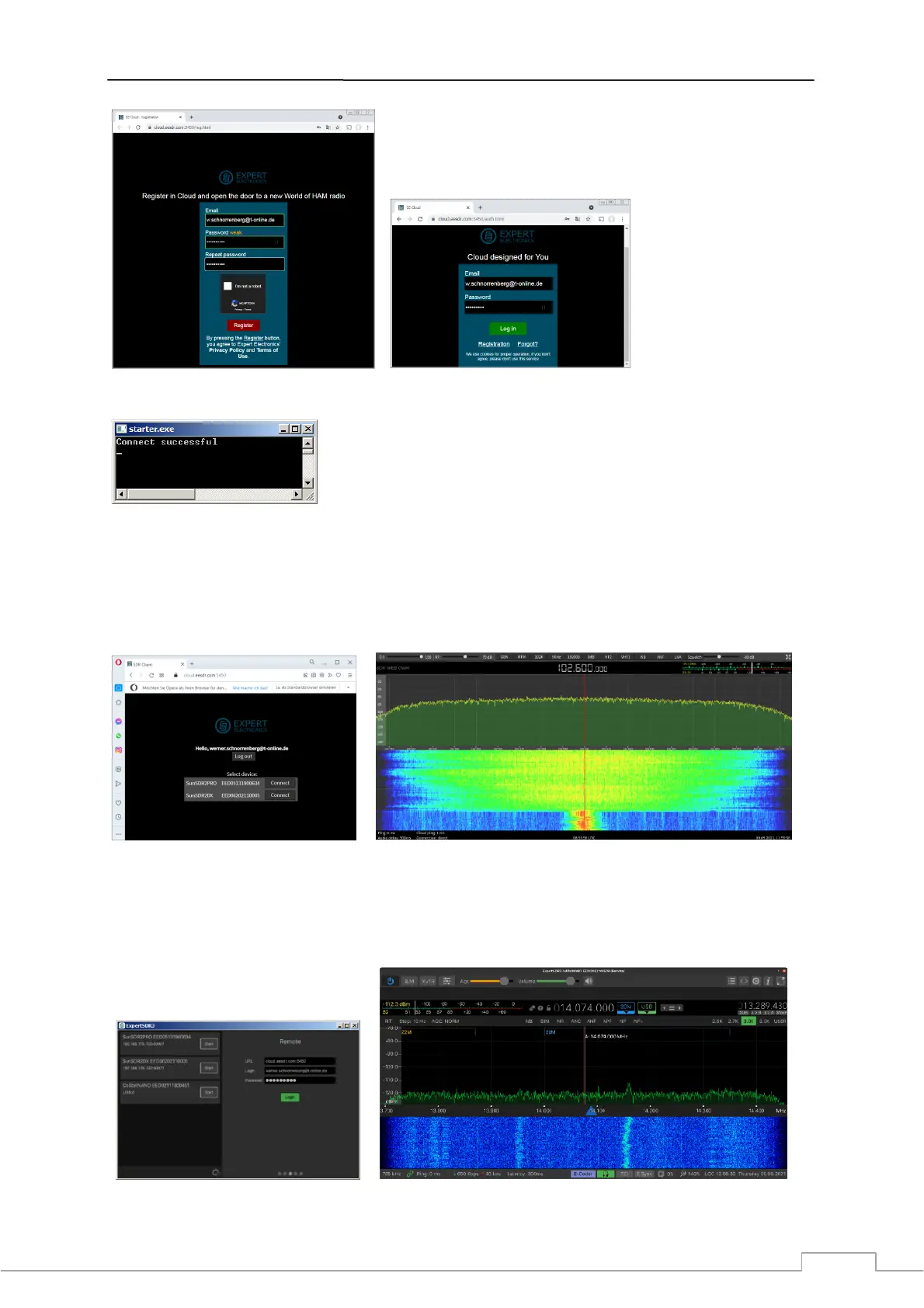
Figure 11: Registering at the EE-Cloud by email and password (left) and Log In (right).
Figure 12: Successful connection
Now there are two ways to connect server with client: Either via Web-Browser or via ExpertSDR3.
a) After entering the URL https://cloud.eesdr.com:5450.auth.html in a browser (Opera), all radios
connected to the cloud are displayed in a menu and can be started via "Connect" (Fig. 13, left). Since
the connection works via the WEB, Smartphones or Tablets can also be used as clients.
Figure 13: Radio opened via a Web-Browser on PC or Smartphone/Tablet
b) After starting the software ExpertSDR3 on the client PC, a menu also opens in which the URL, e-
mail address and password of the cloud are entered (Fig. 14, left). After clicking on "Login", all
available radios appear again, which can be started after clicking on "Start".
Figure 14: Radio opened via the Software ExperSDR3_x64


 To Next Page