Werner Schnorrenberg - DC4KU www.dc4ku.darc.de 06.11.2021
5
ExpertSDR3
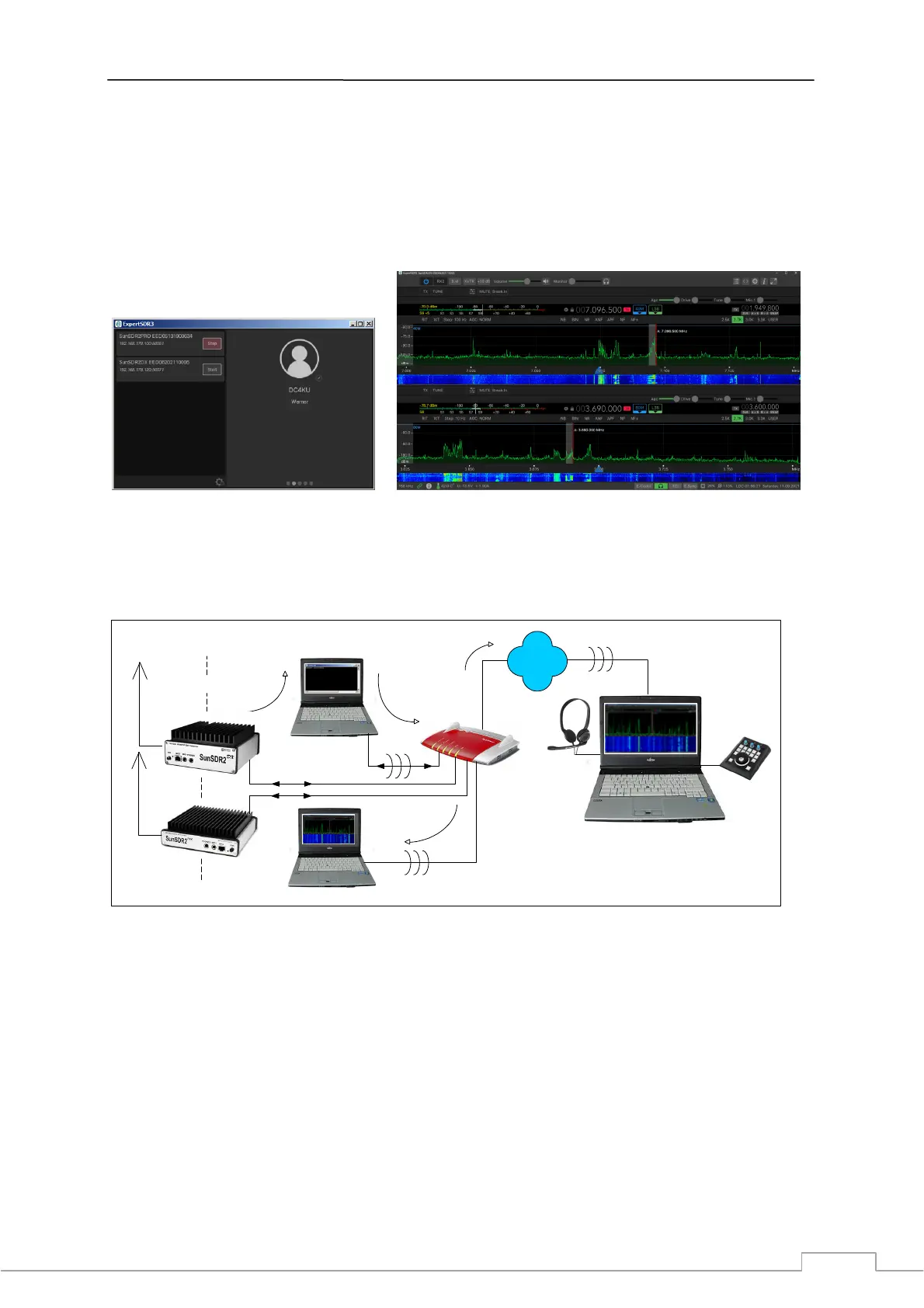
Shortly ago, Expert Electronics introduced a new software under the name ExpertSDR3, which works
according to a completely new concept (https://eesdr.com/en/software-en/expertsdr3-en). After
installing and starting the software, a menu opens in which all radios within the home network are
listed, in the example a SunSDR2 Pro and SunSDR2DX (Fig. 9, left). After selecting one of the radios
via "Start", it opens and can be operated (Fig. 9, right). If necessary, all radios can be opened and
remote-controlled on different frequencies at the same time.
Figure 9: List of available radios (left) and Start of the SunSDR2 DX (right).
A special feature - which is not offered by any other manufacturer - is the remote control of the
radios via a "cloud", which Expert Electronics provides free of charge. Here, server and client PCs are
connected via a cloud-server (Fig. 10). Port-Forwarding and DynDNS are no longer necessary!
E-Coder
Audio
USB
Cloud
server
Router
LAN
LAN
WLAN
Server-PC
Client-PC
DSL
Home
PC
ExpertSDR3 x64
ExpertSDR3 x64
Starter.exe
Heimnetz Internet
Radios
DC4KU
Figure 10: Remote control of all radios and via a cloud
First, register with the EE Cloud (Fig. 11). To do this, open the URL https://cloud.eesdr.com:5450/
reg.html and enter an email address and password in the Cloud menu. The successful registration is
then confirmed by Expert Electronics by email, which must be reconfirmed for security reasons.
Then download the file "Starter_Win64" from https://eesdr.com/en/software-en/expertsdr3-en on
to the Server-PC and open it. Under Starter_Win64 -> 20210702 you will find the file config.json.
Open it with a text editor and enter the email address and the password of your cloud under "email"
and "Secret" and save it. After double-clicking on "starter.exe", the message "Connect Successful"
appears on the screen (Fig. 12), which means that all radios in the home network are connected to
the Cloud. That's all!


 To Next Page
 Loading...