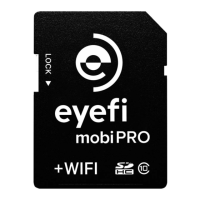
Eyefi Mobi Card & Eyefi Cloud User Manual 8
Set Up Eyefi Mobi Desktop Transfer for Windows or Mac
1. Uninstall any previous versions of Eyefi software
2. Next, download and install Eyefi Mobi Desktop Transfer for Windows or Mac
3. When the installer finishes, run Eyefi Mobi Desktop Transfer
4. Enter your Eyefi Mobi card's ten-digit activation code and click Next
5. The next screen shows which directories Eyefi Mobi Desktop Transfer uses to store your
photos; if desired, click Browse to choose different storage folders, then click Next
6. Insert your Eyefi Mobi card into your camera and take some pictures
7. Click the Done button after Eyefi Mobi Desktop Transfer finishes transferring your photos (on
Windows, click Next, then click Done)
Your Eyefi Mobi card will now transfer photos to your computer when both the card and computer are
on the same wireless network at the same time.
Copyright © 2015 Eye-Fi, Inc. | Version 1.6 | 4/1/2015 English [EN]


 To Next Page
 Loading...