EZ-Guide
®
500 Lightbar Guidance System
Quick Reference Card
www.EZ-Guide.com
EZ-Guide
®
500 Lightbar Guidance System
Quick Reference Card
www.EZ-Guide.com
EZ-Guide
®
500 Lightbar Guidance System
Quick Reference Card
www.EZ-Guide.com
MAP SCREENS
The lightbar has a built in help system. To view it, press the button.
INFORMATION TABS
To display field, GPS, or other system information on a transparent tab, press the button on the left of the lightbar.
Press the button again to cycle to the next tab. For an example of an information tab displayed on the map guidance screen,
see below.
BUILT-IN HELP
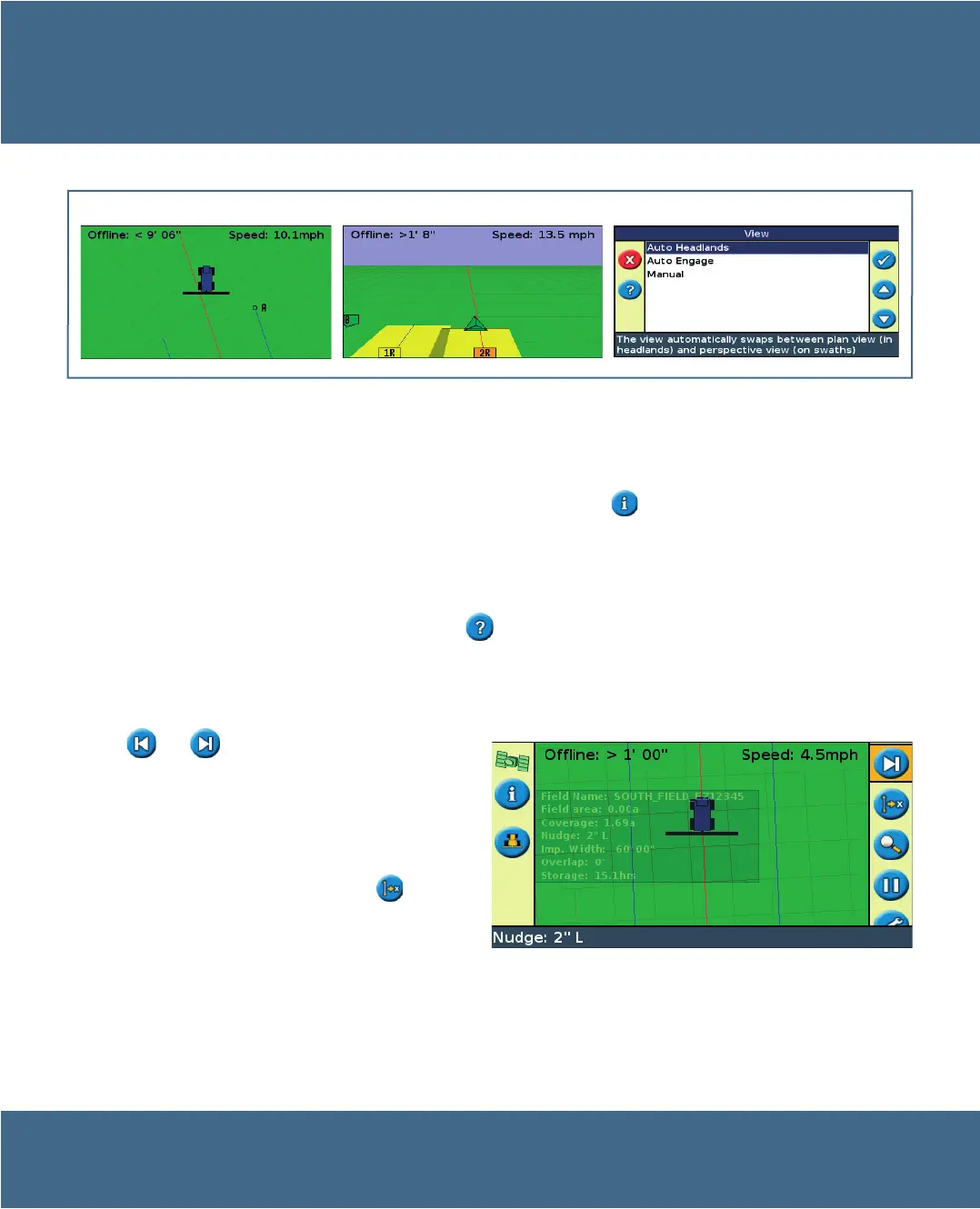
By default, the view automatically switches to the perspective view when you enter a field. To set the view so it switches when you
engage an autosteering system or for manual view control, in Advanced mode select Configuration / System / Display / View.
Use the and nudge buttons to correct for position
drift caused by GPS satellite constellation changes while
driving in the field. Nudge is always applied to the guidance
line relative to the vehicle heading. The total current nudge
distance appears on the tip bar at the bottom of the screen.
To configure the nudge options, in Advanced mode select
Configuration / System / Guidance.
In Advanced mode, you can use Shift to Here to:
correct for GPS position drift when returning to the
field for guidance, for example after pausing
offset all swaths for applications in subsequent years
You can save the shifted swaths, which nudge does not allow.
•
•
NUDGE / SHIFT TO HERE
Plan view
Perspective view


 To Next Page