7
Add to EZVIZ App
- Log in the EZVIZ app.
- On the Home screen, tap “+” on the upper-right corner to go
to the scan QR code page.
- Scan the QR code.
If you failed to get the QR code or want to reconfigure Wi-Fi,
please tap Settings -> Firmware on the touch screen to see QR
code.
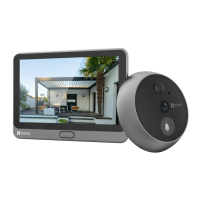
Charge the Panel
Power Outlet
Power Adapter
Connect the panel with the power outlet via power adapter (5V
2A, sold separately).
• Do not charge through the interface at the bottom.
• You can also charge the panel via portable charger and hang
it on the hook.
• Please do not charge the device when the temperature
exceeds 45 degrees or below 0 degrees.
Restore to Factory Settings
Tap Settings -> Firmware -> Default and cofirm to restore the device to factory settings.
All configuration will be restored to factory
settings. Continue?
Cancel Confirm


 To Next Page
 Loading...