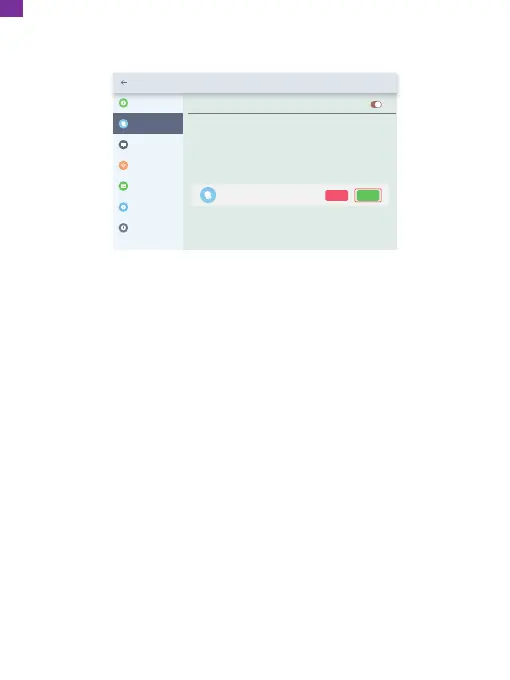
⑨ If the binding succeeds, this account will appear under the Users, and it will be
the main account of your frame.
Settings
Device Info
Accept new users
Users
User Management
PC Control
Wi-Fi
Album Settings
System Settings
About
Pending User Requests
User 1
Refuse Accept
2. Inviting Others to Bind Your Frame via the App
The following instructions are only applicable to the non-frame owner to bind the
frame. And binding requires the frame owner to operate and confirm on the frame.
Here is what your friends should do:
① Download and install the OurPhoto app.
② Create a new OurPhoto account and log in. Go to Devices → Bound Devices,
and then click "+".
③ Enter the frame ID number of your frame.
Note: Frame ID is a 6-digit series number which can be found on your frame.
Go to Settings → Device Info. Please send this Frame ID to your friends.
④ Create a device name for the frame.
Note: We recommend your friends to name the frame after the Frame ID for
easy identification, for example, if your Frame ID is 123456, please name the
frame Frame123456.
⑤ Then click Bind.
Note: The above screenshot is for reference, please update to the latest firmware
version.
08
EN


 To Next Page