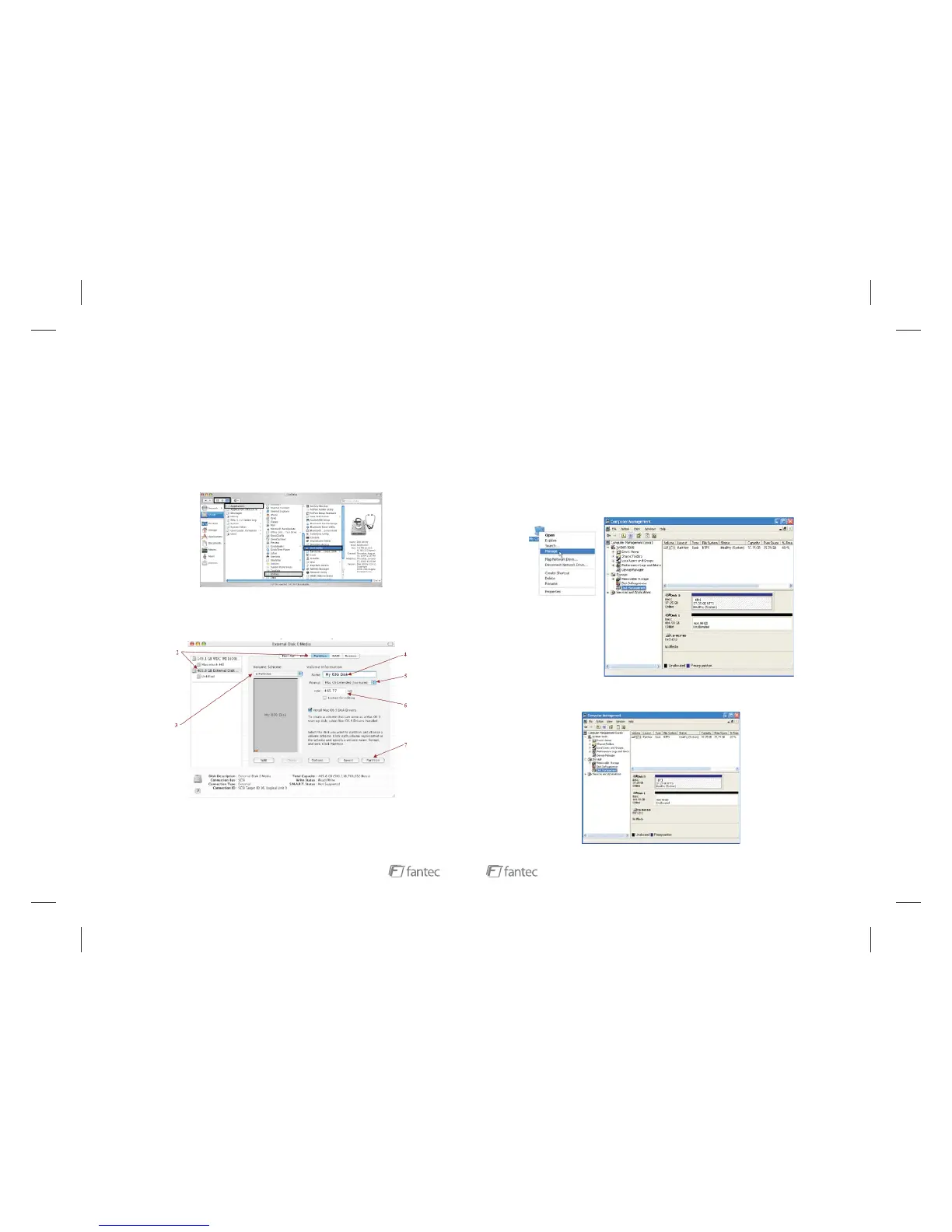
8. Name and format the partition and click .
9. Review the file system settings and click to create the logical partition.
Important: Before reconfiguring a volume, back up your data and drag the old
drive to the trash to un-mount previously defined partition. If no hard drives are
connected to the Storage Appliance, the disk (8.0 GB Config Disk Media) will
appear. Do not remove or modify that partition. After you configure and partition
the new volumes, restore the backed-up data to the new configuration.
1. Launch from the > folder.
Next
Finish
MacOSX
Disk Utility Application Utilities
2. Select a configured disk and click the Partition tab. This procedure illustrates
the Storage Policy configuration, which concatenates the capacity of all hard
drives connected to the unit.
BIG
3. Select 1 from the drop-down list.
4. Enter a name for the volume in the field (such as “My BIG disk”.)
Partition Volume Scheme
Name
13
2.1.5 Partitioning Volumes
Partition a Volume
MS Windows
Important
Not
Initialized
My Computer Manage
This section explains how to partition volumes after configuring them in the GUI.
You must partition volumes for the host computer's operating system before you
can store data on the volumes. Refer to the operating system's documentation for
further guidance.
: Before reconfiguring a volume, back up your data and delete
previously defined partitions. If no hard disk drives are connected to the
SteelVine Storage Processor, the SteelVine Processor device (the "
" disk with no capacity allocated to it) will appear. Do not initialize or
modify that device.
1. Right-click the icon on your desktop and select from the
pop-up window.
2. Select under to open the Windows Disk Manager.Disk Management Storage
10



 To Next Page