EasyManua.ls Logo

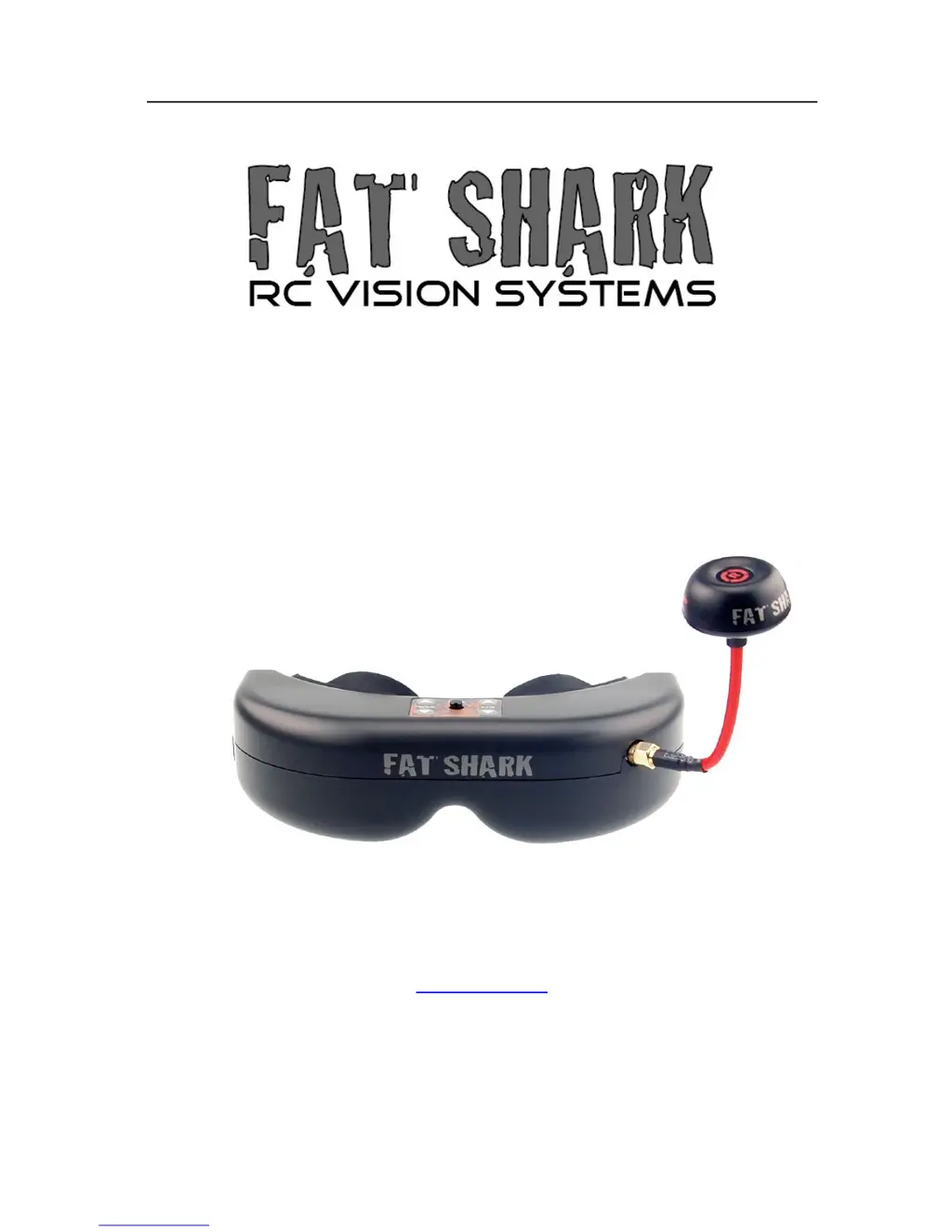
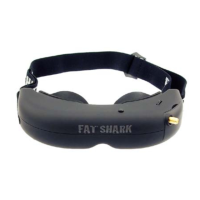
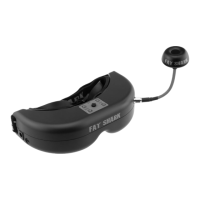
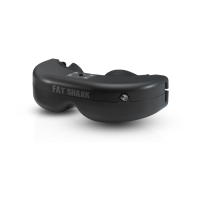
Fat Shark TELEPORTER V5 - User Manual

Fat Shark TELEPORTER V5
11 pages
Print Icon
To Next Page IconTo Next Page
Loading...
Fat Shark 1 RC Vision Systems
TELEPORTER V5
FPV HEADSET
USER MANUAL
Revision A 03/17/2016
For more product information, please visit:
www.fatshark.com
All Rights Reserved

Questions and Answers

  • V
    Victoria BellAug 14, 2025
    How to fix Fat Shark Accessories when there is no image and the display is completely dark?
    • J
      James WilliamsAug 15, 2025
      If your Fat Shark accessories display is completely dark, it's likely due to a lack of power. Check all power connections to ensure they are secure and the device is receiving power.
  • L
    Loretta OlsonAug 18, 2025
    Why is there static on all channels on my Fat Shark Accessories?
    • C
      Christine SmithAug 18, 2025
      If you're experiencing static on all channels with your Fat Shark accessories, the issue might be a transmitter (TX) without power. Verify that the TX LED is illuminated, indicating it's receiving power.
  • R
    Robert ValenciaAug 21, 2025
    How to improve short range on Fat Shark Accessories?
    • M
      Mr. Douglas PearsonAug 21, 2025
      If you're getting a short range with your Fat Shark accessories, ensure that a 5.8GHz antenna is correctly installed. Also, check for any potential sources of interference in the area. Make sure the transmitter has a clear line of sight to the headset, testing in an open area free from obstructions is recommended.
  • L
    Lisa RochaAug 25, 2025
    What to do if Fat Shark Accessories display is glowing dark grey but there is no image?
    • C
      Caroline HarrisAug 25, 2025
      If your Fat Shark accessories display is glowing dark grey but showing no image, and you're using a wireless module, make sure to turn on the RX power on the bottom of the headset. If you're using an AV in cable, check the video source. Also, ensure the TX is on and the camera connections are solid.
  • J
    Jason WillisAug 28, 2025
    Why are there horizontal interference lines when using 5.8Ghz receiver on Fat Shark Accessories?
    • J
      jasminemcleanAug 28, 2025
      If you're seeing lots of interference lines (horizontal lines) when using a 5.8GHz receiver with your Fat Shark accessories, it could be harmonic interference from a 2.4GHz RC controller. Try turning the radio on and off to see if that resolves the issue. You can also use CH1 on the TX/headset, as it's not affected by 2.4GHz. Finally, verify that the correct frequency antenna is being used.
  • L
    leah37Aug 31, 2025
    What causes short range on Fat Shark Accessories?
    • K
      karenhurstAug 31, 2025
      If you're experiencing a short range with your Fat Shark accessories, ensure that a compatible antenna is installed. Avoid using antennas from other manufacturers, as they may be dual band or have a reverse SMA (without a center pin to connect to the receiver).
  • M
    mturnerSep 3, 2025
    What to do if there is no image on one channel and static on the rest on Fat Shark Accessories?
    • J
      Janet GuzmanSep 4, 2025
      If you're only getting an image on one channel and static on all the others with your Fat Shark accessories, the camera might not be connected properly or the lens cap may have been left on. Check these to make sure that your TX is working normally.
  • M
    Michael BryantSep 7, 2025
    How to fix interference lines on Fat Shark Accessories?
    • M
      Monica MoralesSep 7, 2025
      If you're seeing lots of interference lines (horizontal lines) on your Fat Shark accessories, try choosing a cleaner channel to reduce the interference.
  • K
    Kimberly SchmidtSep 12, 2025
    What causes white dots on the LCD display of Fat Shark Accessories?
    • T
      Tanner LewisSep 12, 2025
      If you see white dots on the LCD display of your Fat Shark accessories, it's likely due to sun exposure. The sun has burnt off the LCD color filter because the goggles were carelessly left exposed to the sun.

Summary

Introduction

Product Compatibility

Product Contents

Carry Case

Includes a protective case for storing the Fat Shark headset and accessories.

Teleporter Headset

The primary FPV headset unit.

5 G8 Antenna

Includes both transmitter and receiver antennas for the 5.8GHz band.

Battery and Discharge Lead

7.4V Li-Po battery pack with a discharge lead for charging.

Lens Cloth

A cloth for cleaning the headset optics.

User Manual

The complete operating guide for the Teleporter V5 headset.

Controls Diagram

Antenna SMA Port

Connection point for the external antenna.

Power Input Port

Port for connecting the battery or external power.

AV In;Out Port

Port for composite video and audio input/output.

Volume Control

Adjusts the audio volume for the headset.

Channel Control

Buttons for selecting video/audio channels.

Display & Head Tracker Control

Controls for display settings and head tracking activation.

Head Tracker Data Port

Port for analog head tracking data output.

Receiver Power Switch

Switch to control power to the receiver module.

Earphone Jack

Standard audio jack for connecting headphones.

Controls Description

Display Contrast and Brightness

Adjusts display contrast with side buttons and brightness with front/back buttons.

Head Tracker Control

Digital Head Tracking Activation

Long pressing the display control button toggles digital head tracking mode.

Head Tracker Center Reset

Short pressing resets the head tracker's center reference position.

Analog Head Tracking Status

Analog head tracking output is continuously active.

Receiver Module Power

Switch controls power to the receiver module for video reception.

Channel Selection

Use channel buttons to cycle through available video/audio channels.

Transmitter Compatibility

Guaranteed compatibility with Fat Shark and ImmersionRC transmitters.

Channel Frequency List

Lists the frequencies for channels 1 through 7.

Low Battery Warning

Audio alert when battery voltage drops below 6.8V.

Volume Control

Adjusts audio volume by pressing the control buttons.

Head Tracking Menu Navigation

Entering Head Tracking Menu

Procedure to enter the head tracking menu by holding button during battery insertion.

Beep Code Menu Options

Describes menu options based on short/long beeps for mode, direction, and defaults.

Adjusting Camera Center Point

Manual control to set the desired center position for the camera.

Operation Notes

Analog vs. Digital Head Tracking

Recommendation against simultaneous analog and digital head tracking use.

AV in;out Port

RCA Connector Pinout

Details the RCA connector pin assignments for video and audio.

Recording Video

Connecting Recording Device

Instructions to connect the headset's AV out to a recording device.

Using an External Receiver

Connecting External AV Sources

Connect headset to external devices via AV cable; shut off internal receiver.

Battery Charging

Charging Procedure

Use standard RC battery chargers with 3-pole balance lead; do not exceed 1A.

Charge Completion and Reset

Notes on determining charge completion and resetting the safety circuit.

General Lithium Polymer Safety

Safety and Handling Instructions

Crucial safety guidelines for charging, discharging, and handling LiPo batteries.

Accessories

Downlink System Overview

Description of the preassembled downlink system for aircraft use.

Transmitter Channel Chart

Chart detailing channel selection and status for the transmitter.

Transmitter Warning

Antenna Connection Warning

Warning not to power the transmitter without an antenna to prevent amplifier damage.

700 TVL CMOS on Pan;Tilt

Camera Specifications

Details camera lens, FOV, NTSC/PAL selection, and connection.

Diopter Lens

Diopter Lens Inserts

Information on available diopter lens inserts for users with vision correction.

Headset Specifications

Optics

Field of view and interpupillary distance details.

Audio

Specifies stereo audio output.

User Controls

Lists available user adjustable controls.

Electrical Specifications

Details power supply requirements and consumption.

Battery Specifications

Details the 7.4V lithium polymer battery.

System Specifications

Information on NTSC/PAL auto select and interlaced video.

Mechanical Specifications

Details ergonomic design, eye cups, and weight.

Display Specifications

Details display resolution and pixel count.

Head Tracker Features

Details head tracker type, control, and output.

Receiver Specifications

Details receiver frequency and channels.

Interface Ports

Lists the available connection ports on the headset.

Operational Advice

Channel Selection for Performance

Advice on selecting channels with minimal interference for best performance.

Antenna Upgrade for Quads

Recommendation to upgrade to SpiroNET antenna for better range on aerial vehicles.

Range Test Procedure

Importance of performing range tests for AV and RC controls before flying.

Component Spacing

Advice on spacing components to avoid interference with RC control range.

Transmitter Antenna Placement

Ensuring clear line of sight for the transmitter antenna from the aircraft.

Flying Area Familiarity

Practicing in a familiar area to avoid disorientation.

Antenna Null and Overhead Flying

Explains potential video breakup when flying directly overhead due to antenna null.

5.8 Ghz Signal Strength

Notes on rapid signal strength drop-off and maintaining line of sight.

Multipathing Interference

Describes how reflections cause signal cancellation and how to mitigate.

5.8 Ghz AV with 2.4 Ghz RC

Addresses harmonic interference between 5.8GHz AV and 2.4GHz RC systems.

Legal Responsibility

User's legal responsibility for responsible operation.

Troubleshooting

No Image;Dark Display

Possible causes and solutions for a dark or blank display.

Static on Channels

Troubleshooting steps for static on all or specific channels.

Interference Lines

Diagnosing and resolving interference lines on the display.

Battery Issues

Solutions for battery DOA or failure to charge.

Short Range

Troubleshooting steps for reduced operating range.

White Dots on LCD

Cause and solution for white dots appearing on the LCD display.

Warranty Information

Warranty Coverage

Details on exchange period, repair warranty, and shipping responsibilities.

Support and Contact

Information on contacting retailers and accessing the support forum.

Fat Shark TELEPORTER V5 Specifications

General IconGeneral
Resolution320 x 240
ScreenLCD
Video FormatNTSC/PAL
Battery Life2 hours
Power Supply7.4V
Battery TypeLiPo
Included ComponentsHeadset, battery
Field of View25 degrees
FOV (Diagonal)25 degrees

Related product manuals