EasyManua.ls Logo

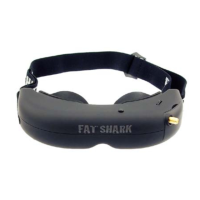
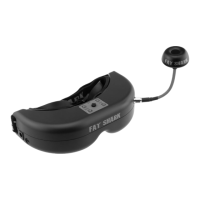
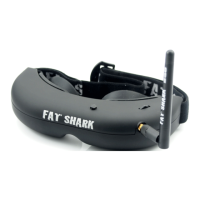
Fat Shark PC Vision systems - User Manual

Fat Shark PC Vision systems
12 pages
Print Icon
To Next Page IconTo Next Page
Loading...
Fat Shark 1 RC Vision Systems
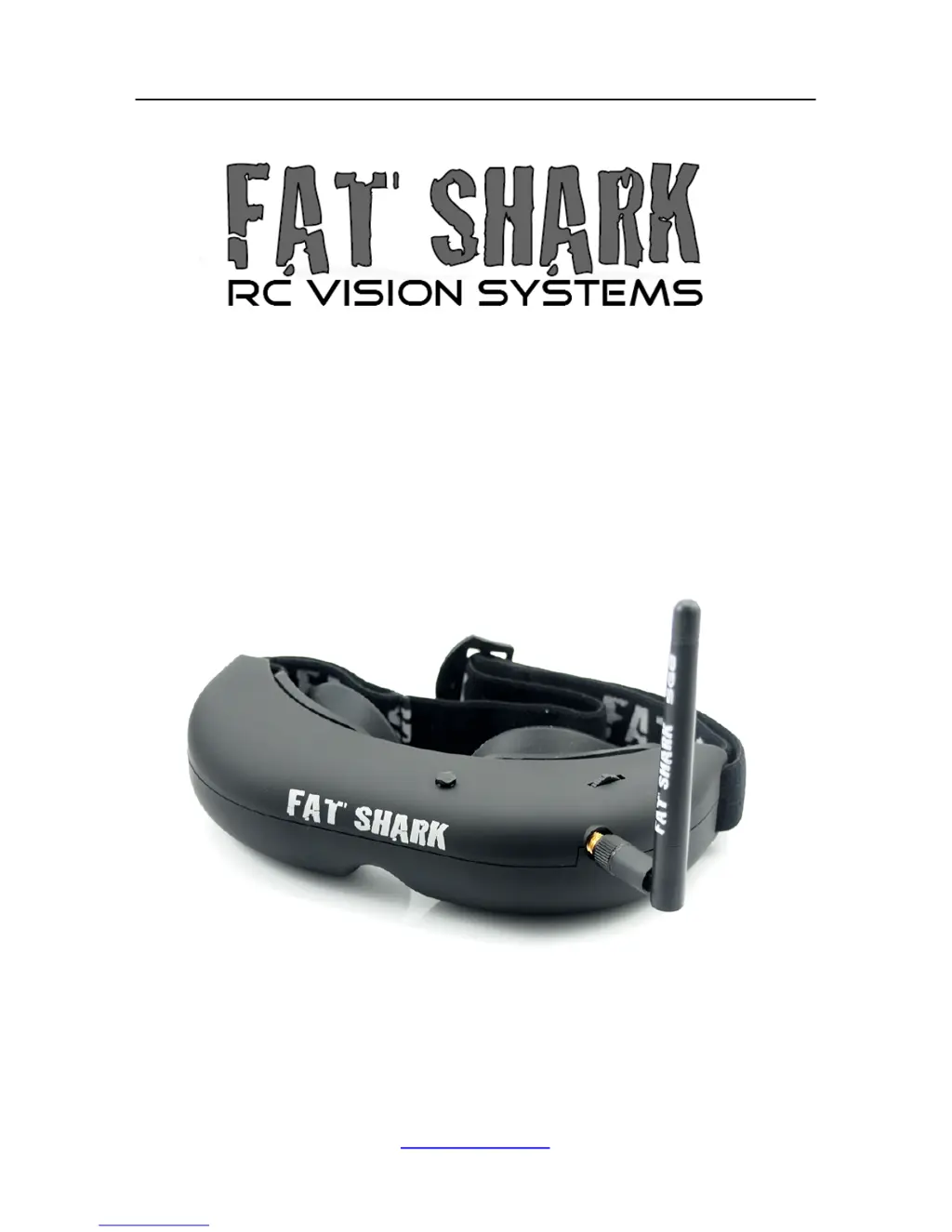
ATTITUDE SD FPV GOGGLE
WITH MIG V5 HEAD TRACKING
USER MANUAL
Revision C 03/23/2013
For more product information, please visit:
www.fatshark.com
All Rights Reserved

Questions and Answers

  • M
    Mr. Justin Campbell DVMAug 16, 2025
    How to fix a Fat Shark Accessories display that is completely dark?
    • K
      Karla CarlsonAug 16, 2025
      If your Fat Shark Accessories display is completely dark, it's likely due to a lack of power. Check all power connections to ensure they are properly connected.
  • H
    Helen StarkAug 22, 2025
    Why is the range so short on my Fat Shark Accessories?
    • M
      Mark FrazierAug 22, 2025
      A short range on your Fat Shark Accessories could be due to several factors: * Ensure the 5.8GHz antenna is installed. * Turn off the transmitter and check for other sources of interference. * Make sure the transmitter has a clear line of sight to the headset, testing in an open area away from obstructions.
  • M
    Marvin WadeAug 25, 2025
    How to reduce interference lines when using 5.8Ghz receiver on Fat Shark Accessories?
    • A
      Amy RobertsAug 26, 2025
      If you're experiencing interference lines when using a 5.8GHz receiver on your Fat Shark Accessories, try these solutions: * Check if the interference is from a 2.4GHz RC controller by turning the radio on and off. * Use CH1 on both the TX and headset, as it's less affected by 2.4GHz interference. * Verify that the correct frequency antenna is being used.
  • J
    jessica38Aug 28, 2025
    What could cause continued short range issues with my Fat Shark Accessories?
    • R
      Robert ConnerAug 28, 2025
      If you continue to experience short range issues with your Fat Shark Accessories, verify these points: * Ensure that a compatible antenna is installed. * Avoid using antennas from other manufacturers, as they may be dual band or have a reverse SMA (no center pin to connect to the receiver).
  • N
    Nicole NortonAug 31, 2025
    How do I get rid of horizontal interference lines on my Fat Shark Accessories?
    • J
      jamie50Aug 31, 2025
      To reduce horizontal interference lines on your Fat Shark Accessories, choose a cleaner channel.
  • D
    Dave SmithSep 3, 2025
    What to do if the Fat Shark Accessories head tracker isn't working but I can hear beeps?
    • S
      Shannon JacksonSep 3, 2025
      If the head tracker on your Fat Shark Accessories isn't working but you can hear beeps, try the following: * Ensure the headset is turned on before the RC radio. * Review the controller manual for the correct settings. * Check that the servos are plugged into the correspondingly selected channels.
  • R
    Rita MoonSep 6, 2025
    Why does my Fat Shark Accessories head tracker stop working after a short time?
    • M
      Mark FuentesSep 6, 2025
      If the head tracker on your Fat Shark Accessories stops working after a short time, it might be due to exceeding the normal operating limits. Press and hold the channel select switch down for 2 seconds to reactivate it.
  • E
    Eric JohnsonSep 9, 2025
    What causes a Fat Shark Accessories head tracker to not work with no beeps?
    • L
      Lisa PollardSep 9, 2025
      A non-functional head tracker on your Fat Shark Accessories, accompanied by the absence of beeps, may indicate that the cable was modified, resulting in voltage being applied to the signal line, potentially damaging the HT (Head Tracker).
  • J
    Joseph GutierrezSep 10, 2025
    What to do if my Fat Shark Accessories display is glowing dark grey?
    • M
      Molly HallSep 12, 2025
      If your Fat Shark Accessories display is glowing dark grey, consider the following possibilities: * If you're using a wireless module, ensure the RX power on the bottom of the headset is turned on. * If you're using an AV in cable, check the video source. * Make sure the TX is on and camera connections are secure. * Verify the lens cap is removed from the camera. * If powering a 12V camera, connect it directly to the RC pack instead of using the 5V TX supply.
  • M
    Michelle DaySep 12, 2025
    What causes white dots on the LCD display of Fat Shark Accessories?
    • E
      Eddie SanchezSep 12, 2025
      White dots on the LCD display of your Fat Shark Accessories are likely due to sun damage. The sun has burnt off the LCD color filter.

Summary

Introduction and Compatibility

Product Compatibility

Compatibility with video standards and manufacturer recommendations for best results.

Important Product Warning

Warning against direct sunlight exposure causing LCD damage, not covered by warranty.

Product Contents

Controls Overview

Controls Diagram

Diagram illustrating the location and function of various headset controls and ports.

Brightness and Contrast Adjustment

Adjusting display brightness and contrast using the forward/back and left/right controls.

Receiver Power and Channel Selection

Using the RX power switch and channel select rocker for operation.

Head Tracker Menu and Volume

Accessing head tracker menu/reset and notes on volume control.

Head Tracker (MIG V5) Setup

Head Tracker Setup Menu

Guide to entering and navigating the head tracker setup menu via beep codes.

Turnigy 9 X Radio Configuration

Procedure for setting up the head tracker with a Turnigy 9X radio using a data cable.

Servo Center Point Calibration

Method for calibrating the head tracker's servo center point for accurate pan/tilt.

Head Tracker Operation and Features

Futaba Radio Configuration

Instructions for connecting and configuring the head tracker with Futaba radios.

Center Hold and Auto Disengage

How to pause head tracker and utilize its auto disengage safety feature.

AV Ports and Video Recording

Description of AV input/output ports and how to record video.

Using External Video Sources

Connecting the headset to external devices via the AV cable for video display.

Downlink System Information

Downlink Overview

Description of the preassembled downlink system and its power connection.

Transmitter Channel Selection

Chart detailing channel frequencies and switch settings for the transmitter.

Powering the Downlink

Instructions on powering the downlink equipment from an RC pack using a filter supply.

Accessories

Data Cables and Battery Pack

Details on data cables for radio connection and the 1000mAh headset battery.

Diopter Lens Inserts

Optional lens inserts for users with near-sightedness and their installation.

Audio and Antenna Accessories

Information on adjustable earphones and SpiroNET circular polarized antennas.

Tiny Telemetry from ImmersionRC

Description of the minimal GPS locator for telemetry data and EzAntenna Tracker.

Specifications

Headset Specifications

Detailed technical specifications for the Fat Shark headset optics, audio, controls, and electrical components.

Transmitter Specifications

Technical details for the transmitter, including RF frequencies, power, and mechanical data.

Operational Advice and Warranty

Operational Advice

Recommendations for optimal performance, channel selection, and interference avoidance.

Warranty Information

Details on the system's warranty period, exchange policy, and repair services.

Troubleshooting Guide

Troubleshooting Observations

Common observations like no image, white screen, interference, and their possible causes.

Head Tracker Issues

Diagnosing head tracker problems such as not working, beeps, or stopping after short use.

Range and Display Issues

Addressing short range performance and white dots on the LCD display.

Fat Shark PC Vision systems Specifications

General IconGeneral
ConnectorUSB
Display TypeLCD
Input Voltage5V
CompatibilityPC
Frame Rate60Hz

Related product manuals