12
Advanced Wi-Fi troubleshooting
Advanced users can change wireless and network settings via the modem interface
to see if this improves Wi-Fi performance. If you’re unsure how to do this, contact
your modem manufacturer or broadband provider before changing these settings.
You can also try a reset of your Fetch box.
4
Change wireless and network settings on modem
Switch to another frequency
If your modem is using 2.4 GHz, switch to 5 GHz (or vice versa) in your modem’s interface.
Change wireless channel
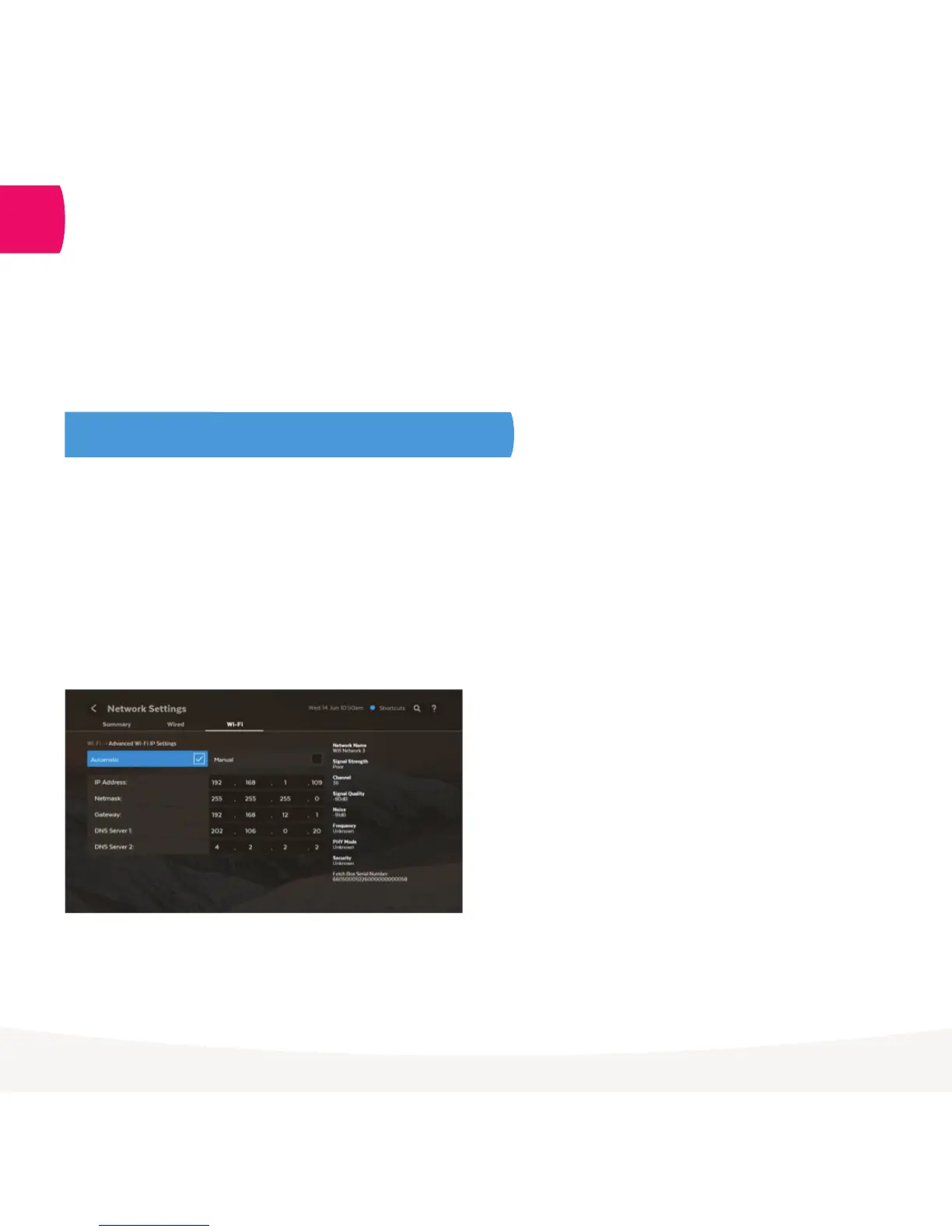
There may be a channel conflict with another Wi-Fi access point. Find the channel your modem is using at
Manage > Settings > Network > Wi-Fi > Advanced Wi-Fi. In your modem settings, choose another channel,
making sure there’s at least a 4 channel gap.
Some routers default to having the same SSID for the 5.0 GHz
and the 2.4 GHz connections, but they can be tested separately.
• 2.4 GHz frequency. If modem is using 6, try 1 or 13, or if
modem is using 1, try 13.
• 5 GHz frequency (channels 36 up to 161). Try a channel from
each of the following groups to see which works best:
36 40 44 48
52 56 60 64
100 104 108 112
132 136 149 140
144 153 157 161


 To Next Page