8
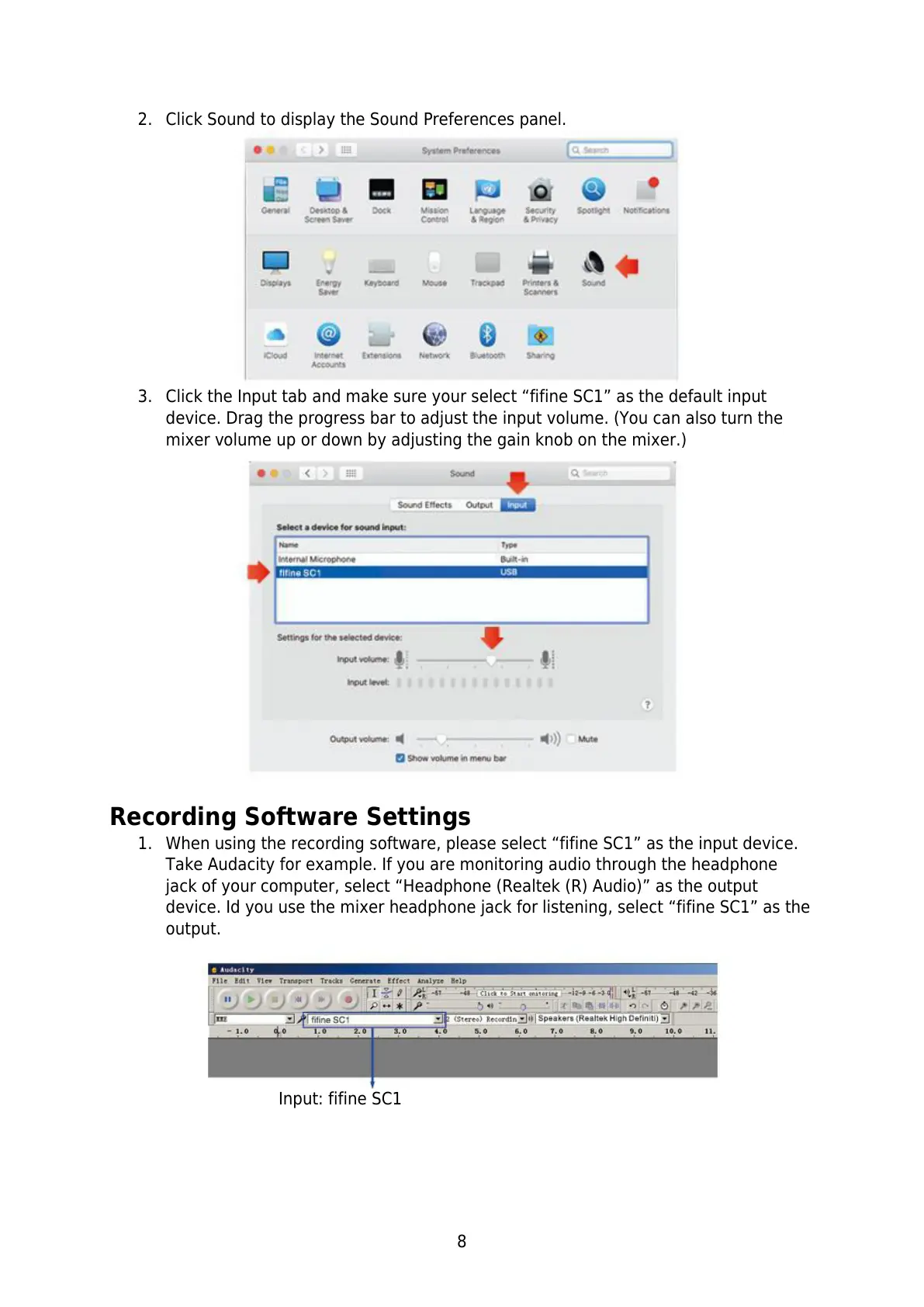
2. Click Sound to display the Sound Preferences panel.
3. Click the Input tab and make sure your select “fifine SC1” as the default input
device. Drag the progress bar to adjust the input volume. (You can also turn the
mixer volume up or down by adjusting the gain knob on the mixer.)
Recording Software Settings
1. When using the recording software, please select “fifine SC1” as the input device.
Take Audacity for example. If you are monitoring audio through the headphone
jack of your computer, select “Headphone (Realtek (R) Audio)” as the output
device. Id you use the mixer headphone jack for listening, select “fifine SC1” as the
output.



 To Next Page