Need help?
Do you have a question about the Fiil T1 and is the answer not in the manual?
Identifies parts like earwing, LED indicator, eartip, touch controls, and microphone.
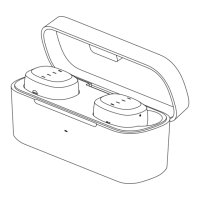
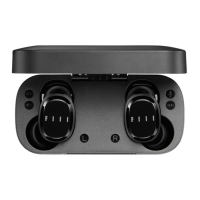
Details the charging case cover, earphone slots, indicators, and USB connector.
Instructions for placing earphones in the case and noting the need to charge the case.
How earphones automatically sync and enter pairing mode when the case is opened.
Steps to initiate pairing by holding the master earphone until the LED blinks blue.
Guide to searching and selecting "FIIL T1" in the Bluetooth menu of the audio source.
Notes that earphones sync automatically after the initial setup.
A three-step guide for manually syncing the earphones if auto-sync fails.
Details touch operations for play/pause, volume adjustment, and track skipping on the left earphone.
Details touch operations for play/pause, track skipping, call management, and voice assistant on the right earphone.
Instructions to place earphones in the charging case for charging, noting earphone power-off during charging.
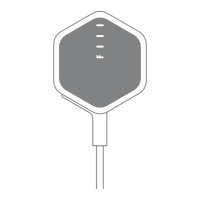
Steps to recharge the case using the Micro USB port and an adapter.
Explains LED indicators for both earphones and the charging case.
Standard FCC statement regarding device operation and interference compliance.
The FIIL T1 True Wireless Earphones are a sophisticated audio device designed for seamless integration into your daily life, offering both convenience and high-quality sound. This user manual provides a comprehensive guide to understanding, operating, and maintaining your earphones and their accompanying charging case.
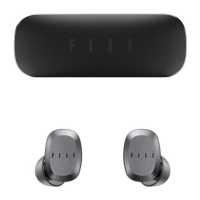
The FIIL T1 system comprises two main components: the earphones themselves (one left/slave and one right/master) and a portable charging case. The earphones are designed for wireless audio playback and communication, connecting to your audio source devices via Bluetooth. Each earphone features an earwing and eartip for a secure and comfortable fit, along with an LED indicator that provides visual feedback on their status. The right earphone acts as the master, playing a crucial role in the initial Bluetooth pairing process. Both earphones are equipped with touch controls, allowing for intuitive management of playback, volume, track navigation, and call handling. A built-in microphone in each earphone facilitates clear voice communication during calls and interaction with voice assistants.
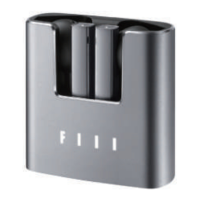
The charging case serves multiple functions: it protects the earphones when not in use, provides a convenient storage solution, and, most importantly, recharges the earphones on the go. The case itself has a cover, and inside, there are designated slots for the left and right earphones. It also features charge indicators for both the slave and master earphones, as well as a Micro USB connector for recharging the case's internal battery.
Getting started with your FIIL T1 earphones is a straightforward process. For the first use, you'll need to initiate Bluetooth pairing. This involves placing the earphones into the charging case and closing the cover, then opening the case. The earphones will automatically sync with each other and enter pairing mode, indicated by a blinking blue LED on the earphone status indicator. To pair with a new device, you'll press and hold the master (right) earphone until its LED indicator blinks blue. Once in pairing mode, you can search for "FIIL T1" in your audio device's Bluetooth settings and connect.
The earphones offer both auto-sync and manual sync options. After the initial setup, the left and right earphones will automatically sync when taken out of the case. If manual syncing is required, you can place both earphones into the charging case, press and hold them until their LEDs turn red and then off (powering them off), then press and hold them again until their LEDs light up purple. Finally, close and reopen the charging case, and the earphones will automatically sync with a flashing purple LED.
Controlling your audio and calls is intuitive with the touch controls. A single tap on either earphone typically controls play/pause. Double taps on the left earphone decrease volume, while double taps on the right earphone increase it. Triple taps on the left earphone navigate to the previous track, and triple taps on the right earphone advance to the next track. Holding the touch control for two seconds on either earphone activates the voice assistant. During calls, a single tap on either earphone answers or ends a call, while holding the touch control for two seconds rejects an incoming call.
Proper charging is essential for maintaining the performance and longevity of your FIIL T1 earphones and charging case. The earphones will remind you to "recharge headset" or blink red when their battery is low. To charge the earphones, simply place them into the charging case and close the cover. The earphones will power off during charging, meaning the left (slave) earphone cannot be used independently if the right (master) earphone is being charged. The red LED indicator for the corresponding earphone inside the case will light up while charging and turn off when fully charged.
The charging case itself also needs to be recharged when its battery is low, indicated by a blinking red LED or its inability to charge the earphones. To recharge the case, open the USB door at the rear, connect a Micro USB cable, and plug it into a USB adapter. The charge indicators inside the case for both the slave and master earphones will light up red while the case is charging and turn off when it's fully charged. When both red LED indicators are lit, it signifies that the charging case is currently being charged. When both are off, it means the charging case and the earphones inside are fully charged.
Regular charging of both the earphones and the charging case ensures that your FIIL T1 is always ready for use, providing a consistent and reliable audio experience.
 General
| Water resistance | IPX5 |
|---|---|
| Bluetooth version | Bluetooth 5.0 |
| Impedance | 16Ω |
| Battery Life | 6 hours (earbuds), 24 hours (with charging case) |
| Charging Time | 1.5 hours |
| Weight | 4.8g (per earbud) |
| Connectivity | Wireless |

 To Next Page