6
C. Visual Guide to Menu Operation
1. Main Menu
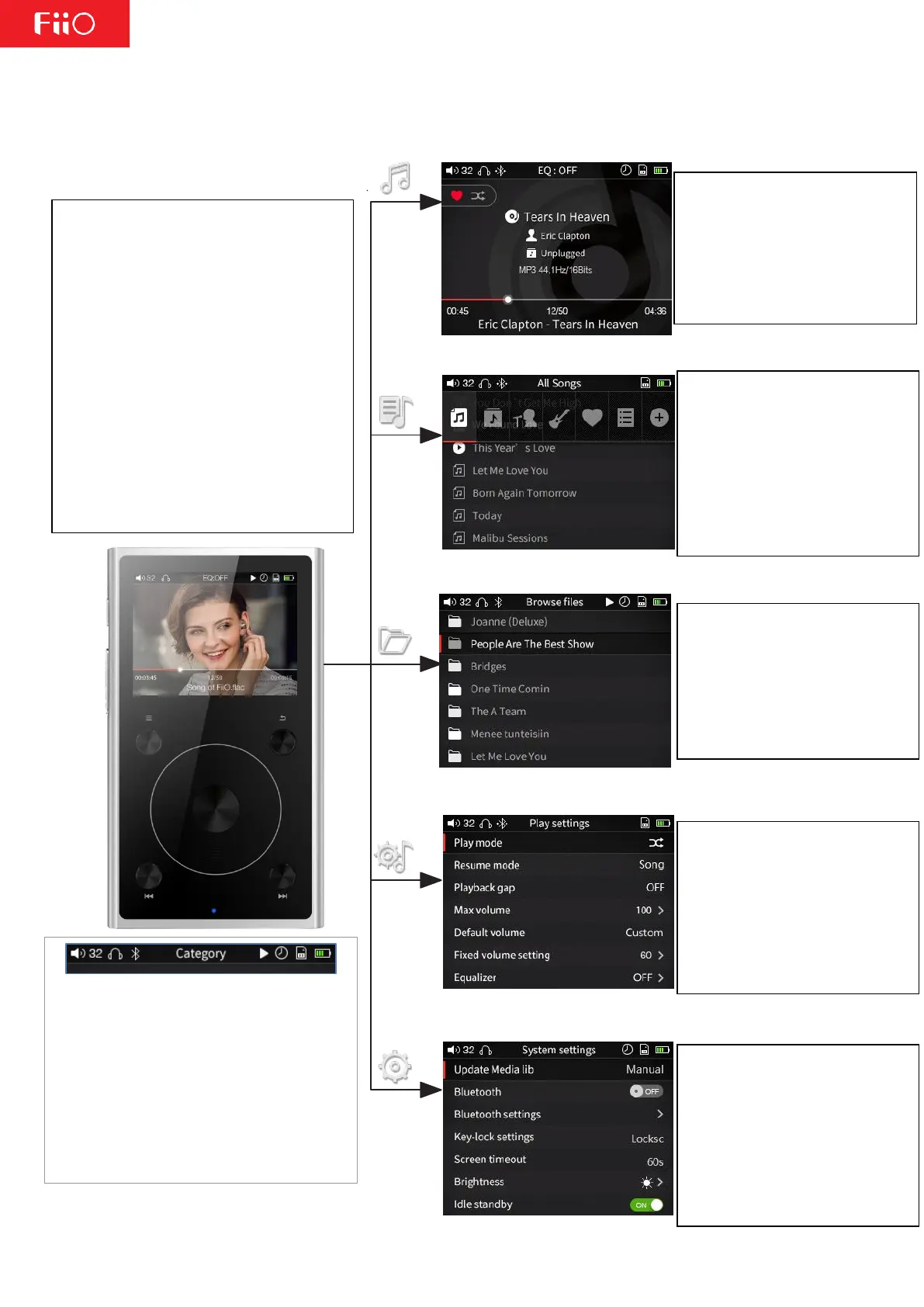
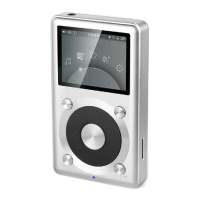
Buttons and Dials:
Scroll Wheel: Scrolls through menu
items, changes values of selected items
Enter / OK: Enters next menu level,
selects items, stores changes
Shortcuts: Shows/hides shortcuts
Context menu
Back:Goes up one menu level
Up / Prev | Down / Next : Moves
through menu items, changes values
of selected items
1 2 3 4 5 6 7
Status Bar:
1.Current Volume
2.Current Output Mode
3.Current Menu/Display
4.Playing Indicator
5.Sleep timer Indicator
6.Micro SD Card Inserted
7.Battery Level Indicator
Category:
After updating the media library,
music files will be sorted into
categories based on their tags.
Scroll to choose between
playing by song, album, artist,
or genre. Favorites and playlists
are added/deleted manually.
Browse Files:
Displays all of the folder and
sub-folders within your micro
SD card, allowing you to browse
through your music files.
Navigate using the scroll wheel,
Enter, and Back buttons.
Play Settings:
If an option does not have a
submenu, adjust directly using
the Enter or Previous/Next
buttons. If an option does have
a submenu, press Enter then
adjust using the scroll wheel or
Previous/Next buttons.
System Settings:
If an option does not have a
submenu, adjust directly using
the Enter or Previous/Next
buttons. If an option does have
a submenu, press Enter and
adjust using the scroll wheel or
Previous/Next buttons.
Now Playing:
The shortcuts key
shows/hides the shortcuts
menu. Use the scroll wheel
to navigate and the Enter
key to select items in the
shortcuts menu.


 To Next Page