Shortcuts key while in the Now Playing Screen. Select the + icon in the context menu, which will
then allow you to create new playlists or add tracks to an existing playlist. To delete a playlist, while
in the playlist sub-menu press the Shortcuts button then the Enter button. To delete individual
songs from playlists, while highlighting a song in a playlist press the Shortcuts button to bring up
the confirm dialog then press the Previous button to select Yes, after that press the Enter button.
4. Browse Files
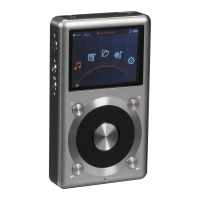
From the main menu, use the scroll wheel to highlight Browse Files and press Enter to go into the
menu. If a micro SD card is not inserted, the message "SD Card Not found…" will appear. If a micro
SD card is inserted, you can browse through the folders and files on your micro SD card. Use the
scroll wheel, Enter, and Back buttons to navigate through and select the music files to be played.
5. Play Settings
When in the Play Settings menu, use the scroll wheel to choose between the different settings
items in the menu. Use the Enter and Previous/Next buttons to choose from the different options
for each setting.
a) Play Mode
Choose from the following playback modes: Shuffle, Sequential, Loop through all songs, Loop single
song, and Single play.
b) Resume Mode
Choose from 3 different options: Off, Song, or Position. In Song mode, when turned on again the X3
will resume playing at the beginning of the song being last played before being turned off. In
Position mode, when turned on again the X3 will resume playing from the exact position of the last
song being played before being turned off.
c) Playback Gap
Choose from either None, Fade in/Fade out and Gapless playback options(Gapless playback
function will implement by future update). With the Fade in/Fade out option, there is a fade effect
when switching tracks. That is, when starting to play a new track the volume will start very low and
gradually get louder, while at the end of a track the volume will gradually decrease until silence.
d) Max Volume
After pressing Enter to get into this submenu, use the scroll wheel to set the maximum volume limit
anywhere from 30 to 100. You cannot set the maximum volume to 0 to prevent there being no
sound output after turning the X3 on.


 To Next Page