6 7
Operation of Touch Control PanelPerforming Device Pairing
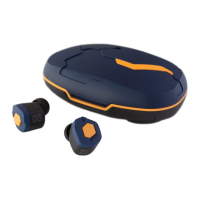
ZE8000
Performing initial device pairing:
1. When the case is opened by sliding up the lid, the power of the earphone units will
automatically switch ON with the LED Indicator of the earphones lights up Blue for 1 second.
Then, they will automatically switch to the pairing mode with the LED Indicator on one of the
earphones flashes between Blue and Red.
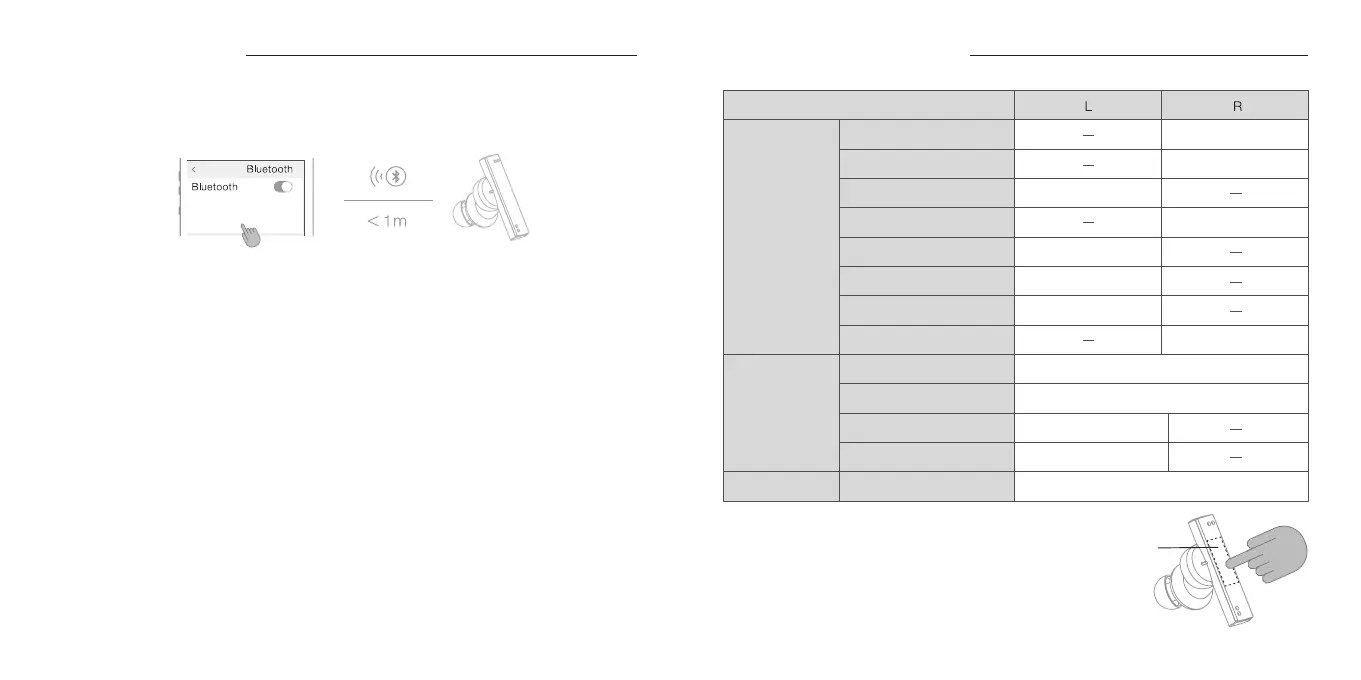
2. Switch ON the Bluetooth connection of the smartphone or other devices and select [ZE8000]
which is shown under the pairable device list. When [ZE8000 Connected
*1
] appears on the
display, device pairing is completed.
Unpairing current device and performing new device pairing with anotherdevice:
1. Open the charging case by sliding up the lid. With the earphone units properly returned to the
adequately charged charging case, press the Pairing Button of the charging case twice and
the earphone will switch to the pairing mode with the LED Indicator on one of the earphones
flashes between Blue and Red.
2. Switch ON the Bluetooth connection of the smartphone or other devices and select [ZE8000]
which is shown under the pairable device list. When [ZE8000 Connected
*1
] appears on the
display, the new device pairing is completed.
*1: The message display might differ depending on the connected device.
To connect the earphones to your smartphone or other devices initially, it is necessary to perform
device pairing. For devices which have been performed with the device pairing, the Bluetooth
connection will automatically be established the next time the power is switched ON if they are in
close distance.
Setting
Device
Touch
Control
Panel
*1: If you perform the touch control right after the start of a track, you
will return to the previous track. If you perform the touch control
in the middle of a track, you will return to the beginning of the
current track. In order to return to the previous track while you
are currently in the middle of a track, please perform the touch
control twice in succession.
*2: Depending on the device to which connected, this function may
not be available.
Music
IncomingCalls
Siri /
Google Assistant
Play / Pause
Raise Volume
Lower Volume
Next Track
Beginning of the current
track / previous track
*1
Switching Noise Canceling /
Ambient Sound
Double Tap
Touch and Hold for 2s, then Release on Beep
Tap 5 Times
Triple Tap
Triple Tap
Single Tap
Single Tap
Single Tap
Double Tap
Double Tap
Touch and Hold for 2s
Touch and Hold for 2s
Touch and Hold for 2s
Wind-Cut Mode
Voice Through Mode
Receive / End Call
Refuse Call
Switching Noise Canceling /
Ambient Sound
Wind-Cut Mode
Initiate
※
2


 To Next Page
 Loading...