Camera Settings - Environment
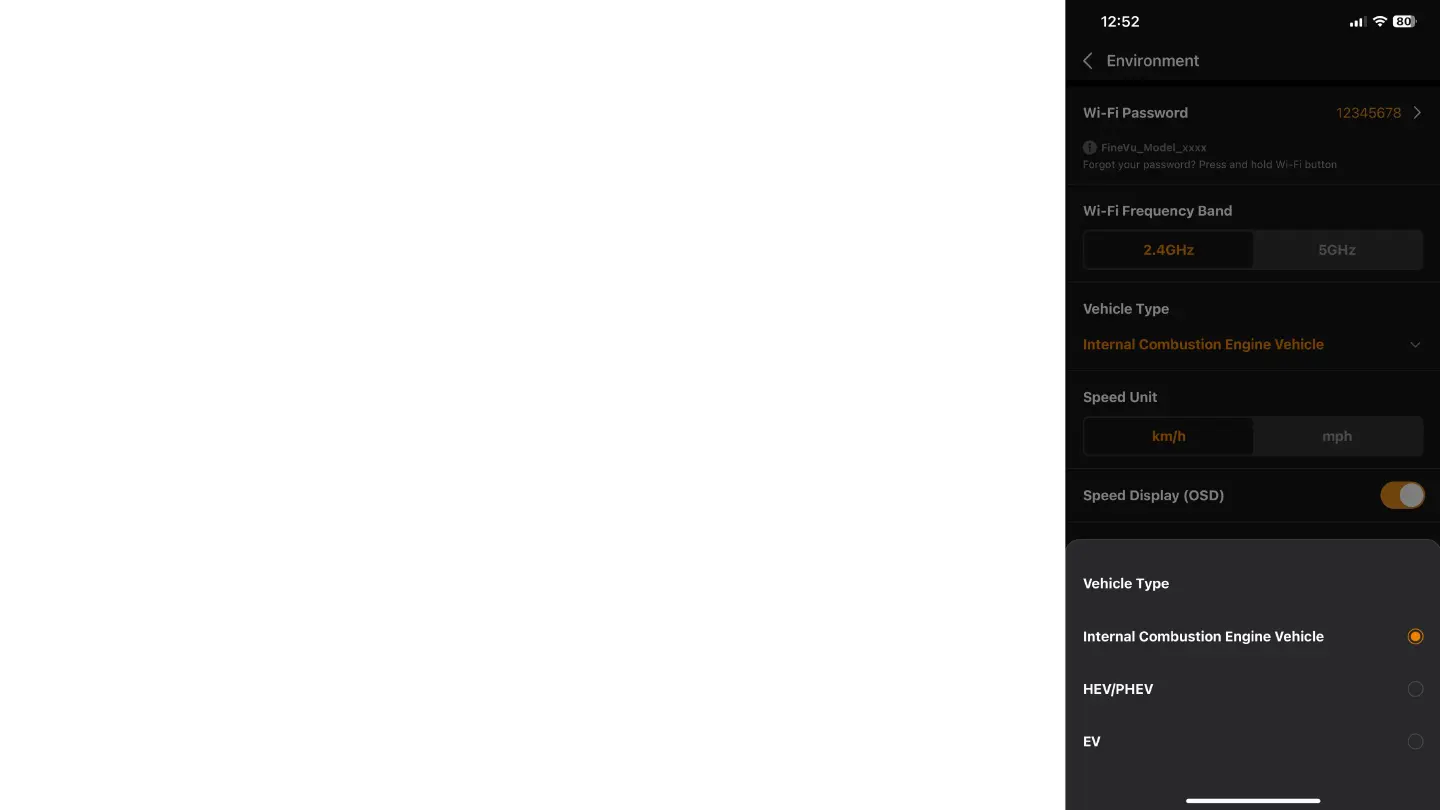
In the "Environment" tab, you can configure the following options:
Wi-Fi Password: Displays the Wi-Fi password used to connect the camera to the app. You can also change the
password.
Wi-Fi Frequency Band: Choose the Wi-Fi frequency band you want the camera to use, 2.4GHz or 5GHz. The
2.4GHz band offers better range, while the 5GHz band provides faster connection speeds. Ensure compatibility
with your mobile router if you want to change this setting.
Vehicle Type: Specify the type of vehicle you have. You can choose between:
Internal Combustion Engine Vehicle (ICEV)
HEV/PHEV (Hybrid Electric Vehicle/Plug-in Hybrid Electric Vehicle)
EV (Electric Vehicle)
Speed Unit: Select the speed measurement unit you prefer, km/h or mph.
Speed Display (OSD): Enable or disable the display of speed on the screen (On-Screen Display).
User Text Overlay: Add a custom text overlay that will appear at the bottom of the videos recorded. You can
input up to 20 characters (letters, numbers, and symbols). For example, you can add the car's name or the car's
license plate.
Rear Cam Display: Choose how the rear camera image will be displayed, either standard or flipped
horizontally.
Security LED: Enable or disable the security LED indicator of the camera.
Status LED Brightness: Adjust the brightness of the status LED indicator. You can choose from various
brightness levels or set it to automatic (Auto).


 To Next Page
 Loading...