English - 6 -
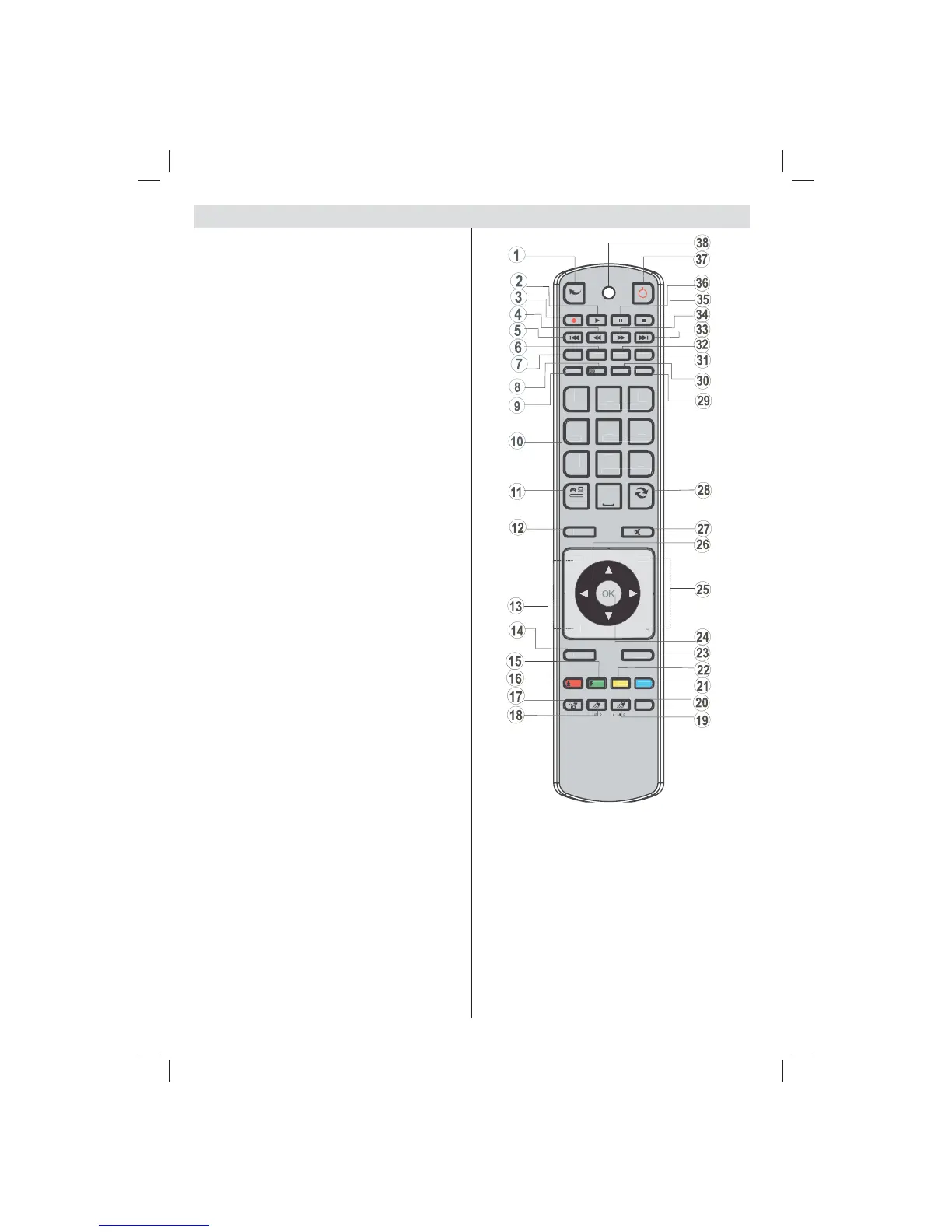
Remote Control Buttons
Activates Internet Portal Feature (*)1.
Play (in Media Browser mode) 2.
No function3.
Fast rewind (in Media Browser mode)4.
No function5.
Mono/Stereo - Dual I-II / Current Language (*) / 6.
Play preview (in Media Browser mode)
Image size 7.
Teletext / Mix8.
Electronic Programme Guide9.
Numeric buttons10.
AV / Source11.
Menu on/off 12.
Programme Down - Page up / Programme Up - 13.
Page down
Back to previous menu 14.
Green button15.
Red button16.
Media Browser17.
My Button 1(**)18.
My Button 2: Switches between digital cable 19.
broadcasts (***)
Info / Reveal (in TXT mode)20.
Blue button21.
Yellow button22.
Exit (in DTV mode) / Return / Index page (in 23.
TXT mode)
OK / Select / Hold (in TXT mode) / Channel List24.
Volume up / down25.
Navigation buttons26.
Mute27.
Previous programme / Now (in EPG mode)28.
Sleep timer29.
Favourite mode selection30.
Picture mode selecion / Changes picture mode 31.
(in Media Browser video mode)
Subtitle on-off / TXT subtitle (analogue TV 32.
mode) / Subtitle (in Media Browser mode).
No function33.
Fast forward (in Media Browser mode)34.
Stop (in Media Browser mode)35.
Pause36.
Standby37.
Operation LED light38.
(*) Please refer to Portal TV section to learn how to use
remote control while in portal TV function(optional).
(**) MY BUTTON 1: Press for fi ve seconds, until
the “MY BUTTON IS SET” message is displayed
on the screen. This con rms that the selected MY
BUTTON is now associated with the selected function.
(***) MY BUTTON 2: This button’s main function is
to switch between DVB-T and DVB-C broadcasts.
However, if you press MY BUTTON 2 for fi ve seconds,
you can set a function to it as described in My Button
1.
Note that if you perform fi rst time installation, MY
BUTTON 2 will return to its default function, switching
between DVB-T and DVB-C broadcasts.
01_MB70_[GB]_DVBTC_GOLD_GOLD11_5112UK_32905W_10075979_50201662.indd 601_MB70_[GB]_DVBTC_GOLD_GOLD11_5112UK_32905W_10075979_50201662.indd 6 02.12.2011 09:33:3502.12.2011 09:33:35


 To Next Page