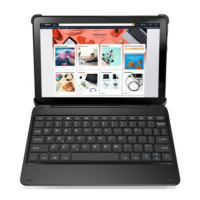
This document outlines the features, usage, and maintenance of a wireless keyboard.
Function Description
The wireless keyboard is designed for seamless connectivity with various devices via Bluetooth. It serves as an input device, allowing users to type and interact with their connected systems. The keyboard supports a range of functions, including standard typing, multimedia control, and specific shortcuts for enhanced productivity. Its wireless nature provides flexibility and reduces cable clutter, making it suitable for both stationary and portable use. The keyboard incorporates a power management system that includes a sleep mode to conserve battery life when idle, and a charging indicator to keep users informed about its power status.
Usage Features
Pairing:
To begin using the keyboard, it must first be paired with a compatible device. The pairing process is straightforward:
- Power On: Switch the keyboard's On/Off toggle to the "On" position.
- Enter Pairing Mode: Simultaneously press the "Fn" and "C" keys. This action initiates the keyboard's pairing mode, making it discoverable by other Bluetooth devices.
- Enable Bluetooth on Device: Ensure that Bluetooth is enabled on your device. This can typically be done by navigating to "Settings" and then "Bluetooth."
- Search for Devices: On your device, select the option to "Pair new device" or similar, to scan for available Bluetooth devices.
- Select Keyboard: From the list of discovered devices, choose "Fintie Keyboard" to complete the pairing process.
- Confirmation: Once successfully paired, the Bluetooth pairing indicator on the keyboard will turn off, signifying a stable connection.
Sleep Mode:
To optimize battery life, the keyboard features an automatic sleep mode. If the keyboard remains idle for 30 minutes, it will enter sleep mode. To reactivate the keyboard, simply press any key. After waking, allow up to 2 seconds for the keyboard to re-establish its connection with the wireless device before resuming typing.
Keys and Functions:
The keyboard includes a variety of keys with specific functions to enhance user experience:
- Power Indicator: A blue light that illuminates for 3 seconds upon power-on.
- Bluetooth Indicator: Flashes blue when the "Fn + C" keys are pressed, indicating pairing mode.
- Caps Lock Indicator: A steady blue light when Caps Lock is active.
- Charging Indicator: Displays red while charging and turns green when fully charged.
- Low Battery Indicator: Flashes red when the battery level is low and requires charging.
- Charging Port: Exclusively used for charging the keyboard.
Beyond these indicators, the keyboard offers several functional keys:
- Home (Press and Hold for Alexa): Navigates to the home screen or activates Alexa with a long press.
- Open File Folder: Provides quick access to file directories.
- Search for: Initiates a search function.
- Back: Navigates back in applications or web pages.
- Brightness - / Brightness +: Adjusts screen brightness.
- Previous Track / Play/Pause / Next Track: Multimedia control keys for audio and video playback.
- Volume - / Volume +: Adjusts audio volume.
- Lock Screen: Locks the device screen.
- Open Silk: Opens the Silk browser.
- E-mail: Launches the email application.
- Fn + Split Screen: Activates the split-screen feature.
Troubleshooting:
If the keyboard does not respond as expected, several troubleshooting steps can be taken:
- Remove Old Devices: On your wireless device, go to "Settings > Connected Devices > Previously connected devices" and delete any unused Bluetooth devices, including "Fintie Keyboard."
- Restart Device: Perform a restart of your connected device.
- Keyboard Power Cycle: Turn the keyboard off and then back on.
- Forget and Re-pair: Remove the keyboard from your device's Bluetooth list and then re-pair it following the pairing steps.
- Reset Bluetooth Module: If the Bluetooth connection is unstable, try charging the keyboard to reset its Bluetooth module.
- Contact Support: If issues persist after charging, contact your authorized retailer for further assistance.
Maintenance Features
Charging:
The keyboard is equipped with a rechargeable battery. To charge the keyboard:
- Connect Cable: Plug the Type-C end of the charging cable into the keyboard's charging port.
- Connect to Power: Connect the other USB end of the cable to a suitable USB charger (not included).
- Charging Indicator: The power indicator will turn red during charging.
- Charging Time: A full charge typically takes approximately 4 hours. The recommended output for the charger is DC 5 V/500 mA.
Safety Tips:
To ensure the longevity and proper functioning of your keyboard, adhere to the following safety guidelines:
- Avoid Heavy Objects: Do not place heavy items on the keyboard.
- Do Not Disassemble: Refrain from disassembling the product, as this can void warranties and cause damage.
- Keep Away from Liquids: Protect the keyboard from oils, chemicals, and organic liquids.
- Cleaning: Use only a damp, soft cloth, such as microfiber, to clean the keyboard surface.
- Battery Disposal: Dispose of the battery in accordance with local laws and regulations.
- Avoid Sharp Objects: Keep the keyboard away from sharp objects to prevent scratches or damage.
The keyboard, as an electrical and electronic device, is subject to WEEE (Waste Electrical or Electronic Equipment) regulations.
- Recycling Old Electricals: You can recycle your old electrical and electronic devices for free at local recycling centers. Visit www.recycle-more.co.uk and enter your postcode to find the nearest facility.
- Why Recycle: Recycling prevents hazardous substances from leaking into landfills, which can harm wildlife and human health. It also conserves natural resources.
- WEEE Symbol: The crossed-out wheeled bin symbol on the product indicates that it should not be disposed of with general household waste but should be recycled separately.
- Distributor Take-back Scheme (DTS): Retailers in the UK support the DTS, providing customers with opportunities to recycle old electrical equipment when purchasing new items. For more information on WEEE recycling and to locate recycling centers, visit www.recycle-more.co.uk.


 To Next Page
 General