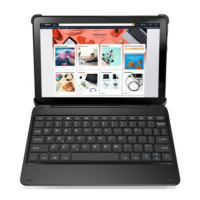
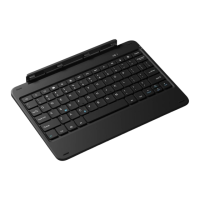
This document describes a Kids wireless keyboard with touchpad.
Function Description
This is a wireless keyboard with an integrated touchpad, designed for use with devices that support Bluetooth connectivity. It allows users to type and navigate with a touchpad, offering a portable and convenient input solution. The keyboard features various function keys for media control, brightness adjustment, file management, and email access. It also includes a dedicated key for activating Alexa (by pressing and holding the Home key). The touchpad supports multi-finger gestures for enhanced navigation, such as 1-finger tap for left-click, 1-finger slide for cursor movement, 1-finger double-click and hold for drag and drop, 2-fingers tap for right-click, 2-fingers vertical/horizontal movement for scroll/pan, 3-fingers slide up to see all open windows, 3-fingers slide down to show the desktop, 3-fingers slide to the left to switch between open windows, and 3-fingers slide to the right to switch between open windows.
Important Technical Specifications
- Bluetooth Version: BLE 5.0
- Operating Range: Up to 10 metres
- Working Voltage: 3.0-4.2 V
- Working Current: 1 mA
- Charging Current: 200 mA
- Sleeping Current: 0.01 mA
- Re-connect Time: Approximately 2 seconds
- Stand-by Time: 365 days
- Charge Time: ≤ 2 hours
- Uninterrupted Work Time: Up to 500 hours
- Lithium Battery Capacity: 300 mAh
- Frequency Band: 2400 to 2483.5 MHz
- Maximum Radio-frequency power: 0 dBm
- Charging Port: USB-C
Usage Features
Pairing Steps:
- Switch the Power switch to "On" to turn on the keyboard.
- Press the "Fn + C" keys simultaneously to enter pairing mode. The Bluetooth indicator will flash blue.
- Ensure your device's Bluetooth settings are on (Settings > Bluetooth > On).
- Select "Pair new device" on your device.
- Choose "Fintie Keyboard" from the list of available devices to complete pairing.
- The Bluetooth pairing indicator will turn off once successfully paired.
Sleep Mode:
The keyboard enters sleep mode after 30 minutes of inactivity. Press any key to wake it up. Allow up to 2 seconds for the keyboard to reconnect with the tablet before typing.
Charging:
- Connect the USB-C end of the charging cable to the keyboard and the other USB end to a USB charger (not included).
- The power indicator will turn red during charging. It typically takes about 2 hours for a full charge. The power indicator turns green when fully charged. A flashing red light indicates a low battery.
Keys and Function:
- Power indicator (1): Turns green for 3 seconds when powered on.
- Caps Lock indicator: Green light is on when Caps Lock is active.
- Bluetooth indicator (2): Flashes blue when pressing "Fn + C" for pairing.
- Charging indicator (3): Red while charging, green when fully charged. Flashes red for low battery.
- Power Switch (4): Slide "on" to power on, "OFF" to power off.
- Charging port (5): USB-C port for charging only.
- Home (Press and Hold for Alexa): Activates Alexa.
- Open file folder: Opens file explorer.
- Previous track: Skips to the previous track.
- Volume -: Decreases volume.
- Open Silk: Opens the Silk browser.
- Search for: Initiates a search.
- Brightness -: Decreases screen brightness.
- Play/Pause: Plays or pauses media.
- Volume +: Increases volume.
- E-mail: Opens email application.
- Back: Navigates back.
- Brightness +: Increases screen brightness.
- Next track: Skips to the next track.
- Lock screen: Locks the device screen.
- Fn+Touchpad on/off: Toggles the touchpad functionality.
Maintenance Features
Troubleshooting:
If the keyboard is unresponsive:
- On your Fire HD tablet, go to "Settings > Connected Devices > Previously connected devices" and delete any unused Bluetooth devices, including "Fintie Keyboard."
- Restart your device.
- Turn the keyboard off and then back on.
- Forget and re-pair the keyboard.
- If Bluetooth connection issues persist, reset the Bluetooth module by charging the keyboard.
- If the keyboard still doesn't work correctly after charging, contact your authorized retailer.
Safety Tips:
- Avoid placing heavy objects on the keyboard.
- Do not disassemble the product.
- Keep the product away from oils, chemicals, and organic liquids.
- Use only a damp, soft cloth (e.g., microfibre) to wipe the keyboard.
- Dispose of the battery according to local laws.
- Keep the product away from sharp objects.
Recycling Information (For UK customers):
- Electrical and electronic devices can be recycled for free at local recycling centres. Visit www.recycle-more.co.uk to find your nearest centre.
- The product is marked with a crossed-out wheeled bin symbol, indicating it should not be disposed of with general household waste. This complies with the Waste Electrical or Electronic Equipment (WEEE) Directive, which requires separate collection and environmentally friendly processing of these items.
- Distributors in the UK provide systems for customers to recycle old electrical equipment free of charge when purchasing new items, often through membership in the national Distributor Take-back Scheme (DTS).

 Need help?

 To Next Page
 General